EasyManua.ls Logo

GridConnect DC60HA - User Manual

GridConnect DC60HA
11 pages
Print Icon
To Next Page IconTo Next Page
Loading...
24 pages 105mm x 148mm (A6) 160gsm Gloss Art Stock 4 colour process double sided
SMART HOME
QUICK
START GUIDE
IMPORTANT!
PLEASE READ THESE
INSTRUCTIONS CAREFULLY
DC60HA
SMART
WIRELESS VIDEO
DOORBELL
Wi-Fi CONNECTED
AUTOMATICALLY
DETECTS MOTION
FEATURES EVENT
RECORDING AND
STREAMING FOR
VIEWING ON YOUR
SMARTPHONE
SMART HOME
Question and Answer IconNeed help?

Do you have a question about the GridConnect DC60HA and is the answer not in the manual?

Summary

Introduction to Smart Wireless Video Doorbell

Smart Doorbell Identification

Camera, Speaker, and Light Sensors

Identifies the 1080p camera, 140° view, speaker, and light/IR sensors.

Buttons, Indicators, and Slots

Details push button, reset button, status light, SD card slot, and melody controls.

Power and Battery Compartments

Covers the battery compartments for the doorbell and chime, and the USB power port.

Indoor Chime Unit Details

Explains the indoor chime unit's pairing status and function.

Download the Grid Connect Mobile App

Install and Set Up the Grid Connect App

Prepare the Video Doorbell

Pairing the Video Doorbell

Initiate Pairing Mode

Explains how to ensure the doorbell status light is flashing red for pairing.

Add Device in App

Guides the user to tap '+' and select 'Security' to add the device.

Complete Wi-Fi Pairing Process

Enter Wi-Fi Credentials

Instructs to enter the 2.4GHz Wi-Fi password and confirm.

Scan QR Code for Connection

Details holding the phone 15-20cm from the doorbell camera to scan the QR code.

Confirm Device Connection

Explains pressing 'heard the beep' after connection and status light change.

Confirm Device Added Successfully

Device Successfully Added

Describes the confirmation screen and options to name/assign the device.

Troubleshooting Pairing Issues

Provides steps for when pairing is not successful, like checking Wi-Fi and mode.

Operating Your Smart Doorbell

Live Screen Overview

Explains the live view screen, video quality settings, and PIR mode access.

Playback Screen Overview

Details the playback screen, pausing video, and accessing recorded footage.

Live View Feature Controls

Describes controls for capturing photos/videos, talk function, and motion detection settings.

Playback Feature Controls

Covers accessing live screen, playback screen, and selecting playback dates.

Pairing the Indoor Chime Unit

Chime Unit Reset and Pairing Steps

Outlines steps to reset, pair, and confirm the indoor chime unit with the doorbell.

Charging and Installation Guide

Location and Wi-Fi Considerations

Advises on choosing a location with good Wi-Fi and avoiding metal.

Doorbell and Chime Charging

Explains how to power the doorbell and chime using batteries or USB cable.

Doorbell Mounting Procedure

Details marking, fixing the wall mount, and securing the doorbell with a grub screw.

Troubleshooting Common Issues

Pairing and Network Problems

Addresses issues failing to pair, checking 2.4GHz network, and password correctness.

QR Code Scanning Issues

Provides guidance on ensuring the status light, distance, and lighting for QR code scanning.

General Connectivity and Router Questions

Covers AC router support, forgetting passwords, and device/phone proximity to routers.

Overview

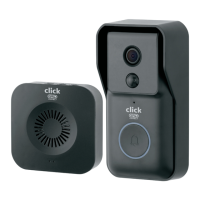
This document is a quick start guide for the Click Grid Connect Smart Wireless Video Doorbell, model DC60HA. It provides instructions for setup, pairing, operation, and troubleshooting.

Function Description:

The Click Grid Connect Smart Wireless Video Doorbell is a Wi-Fi connected device designed for use in homes, apartments, offices, garages, and sheds. It offers security and peace of mind by allowing users to monitor their entrance remotely via a smartphone app. The doorbell automatically detects motion, features event recording, and streams live video for viewing on a smartphone. It includes an indoor chime unit that is pre-paired with the video doorbell.

Important Technical Specifications:

  • Camera Lens: 1080p HD, with a 140° angle of view.
  • Motion Detection Range: Up to 3 meters.
  • Wi-Fi Connectivity: Supports 2.4GHz Wi-Fi networks only.
  • Power Source (Video Doorbell): 4 x 1.5V AA Alkaline Batteries or 4 x 1.5V AA Lithium Batteries.
    • Alkaline batteries last up to 3 months.
    • Lithium batteries last up to 12 months.
    • Battery life may vary depending on usage, especially with motion detection and event recording.
  • Power Source (Indoor Chime Unit): 3 x 1.5V AA Batteries or powered via a standard USB-A port.
  • Micro SD Card Slot: Supports rolling storage with a micro SD card (not included) up to 128GB.
  • Speaker: Two-way audio.
  • Light Sensor/Infrared LEDs: Detects low light and activates infrared lights for day and night vision.
  • Melody Button: Offers 4 melodies for the indoor chime.
  • Volume Control: Available on the indoor chime unit.
  • Reset Function: Available on both the video doorbell and indoor chime unit.

Usage Features:

  • Remote Monitoring: View your doorbell remotely via the Grid Connect mobile app (available for iPhone and Android).
  • Motion Detection: Automatically detects motion and can trigger event recording.
  • Event Recording and Streaming: Records events and streams live video to your smartphone.
  • Two-Way Audio: Communicate with visitors through the doorbell's speaker and microphone.
  • Push Button: Activates the doorbell, accesses device settings, or plays back from the SD card.
  • Status Light Indicators:
    • RED Solid Light: Device is resetting.
    • RED Blinking (Once per second): Waiting for pairing.
    • RED Blinking (Twice per second): Lost Wi-Fi connection.
    • BLUE Solid Light: Device is paired and running correctly, or Wi-Fi is available without internet access.
    • OFF: Standby; press push button to activate camera.
  • App Features (Live Screen):
    • Save photo/video during live view to smartphone's internal memory.
    • Switch video quality between Standard Definition (smoother movement, smaller file size) and High Definition (clearer images, larger file size).
    • Access PIR mode (motion detector sensor) to turn on/off.
    • Doorbell starts recording automatically on SD card when motion is detected.
    • Mute or hear sound.
    • Enable talk function (two-way audio).
    • Enable motion detection alerts and adjust sensitivity.
    • Access SD card settings.
    • Switch to full screen display for live view.
  • App Features (Playback Screen):
    • Pause playback video.
    • Access settings (share device, PIR motion detection setting, firmware information, remove device, etc.).
    • Switch to full screen display for playback.
    • Scroll up/down playback video on time slider.
    • Access live screen.
    • Access playback screen.
    • Select desired date of playback from SD card.
  • Indoor Chime Unit: Pre-paired with the video doorbell, offers 4 melodies, and has volume control.

Maintenance Features:

  • Battery Replacement: Easily replace AA batteries in both the video doorbell and indoor chime unit.
  • USB Power Option: The indoor chime unit can be powered via a USB cable.
  • Reset Button: Allows for resetting the device for pairing or troubleshooting.
  • Troubleshooting Guide: Provides solutions for common issues such as pairing failures, Wi-Fi network checks, and QR code scanning problems.
  • Customer Support: Online assistance and a toll-free customer service number are provided for further support.

Installation Notes:

  • Avoid mounting the doorbell unit on metal or near metal door frames, security doors, or any metal door furniture as it may affect functionality.
  • Do not place the doorbell in direct sunlight or extreme weather.
  • Ensure adequate Wi-Fi coverage at the chosen installation location.
  • The ideal mounting height is 1.2m.
  • The doorbell requires a network device (e.g., wireless/non-wireless router, network switch) connected to the internet for setup and use.
  • Network performance (3G/4G mobile network, server overflow, internet upstream speed, download speed, video resolution) can affect live transmission delay; reducing video quality or contacting your service provider may help.

GridConnect DC60HA Specifications

General IconGeneral
BrandGridConnect
ModelDC60HA
CategoryAccessories
LanguageEnglish

Related product manuals