EasyManua.ls Logo

Growatt THOR 40DS-P - User Manual

Growatt THOR 40DS-P
35 pages
Print Icon
To Next Page IconTo Next Page
Loading...
Shenzhen Growatt Dynocharge Energy Thchnology Co.,Ltd.
GROWATT-ATESS Industrial Park,No.23 Zhulongtian Road ,Shuitian Community,
Shiyan Street, Baoan District, Shenzhen
T +86 755 2747 1900
E info@ginverter.com
W www,ginverter.com
Revised date:2023-12-25
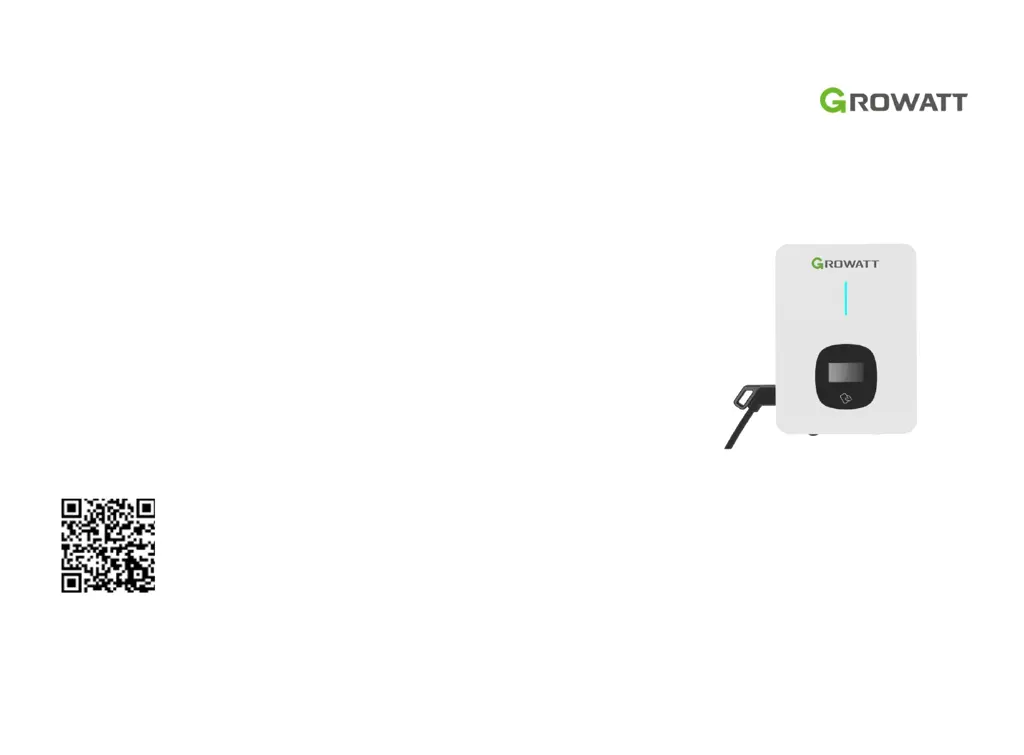
THOR 40DS-P
DC charger QUICK installation guide

Questions and Answers

  • M
    Michelle FieldsAug 7, 2025
    Why is my Growatt Automobile Battery Charger WiFi not connecting?
    • J
      jodi88Aug 7, 2025
      If your Growatt Automobile Battery Charger isn't connecting to WiFi, ensure the WiFi SSID and password are correct. Also, check your router for access control features like MAC filtering or port blocking. If you have a dual-band router, make sure you're using the 2.4GHz WiFi network for the charger connection. A weak WiFi signal (lower than -75dbm) can also prevent connection. Verify that the charger isn't still connected to your computer and that the server address in the “Server URL” field is correct.
  • S
    Steven YoungAug 13, 2025
    What to do if my Growatt Automobile Battery Charger is not charging?
    • G
      george10Aug 13, 2025
      If your Growatt Automobile Battery Charger isn't charging, first check if the red emergency stop button is pressed. Then, check the selected charge mode. Finally, verify if off-peak charging is enabled and that the charger's time is set correctly.
  • C
    Christina TrevinoAug 19, 2025
    How to access the parameter setting page of my Growatt Automobile Battery Charger?
    • G
      George DavilaSep 12, 2025
      To access the parameter setting page of your Growatt Automobile Battery Charger, first ensure the charger is connected to your computer. Check that your computer’s IP address is set to 192.168.1.x (where x is any value between 1 and 255 except 5). Use Firefox or IE web browser. Make sure you enter the complete address: http://192.168.1.5:8080. Restarting the charger might also help. If you've forgotten a changed IP address, restore the charger to factory settings by long-pressing the reset button.
  • M
    Matthew LesterAug 26, 2025
    How to fix Growatt Automobile Battery Charger firmware update failure with SD card?
    • J
      Joseph AtkinsonAug 26, 2025
      To resolve a firmware update failure on your Growatt Automobile Battery Charger when using an SD card: * Ensure the SD card capacity is less than 4GB. * Verify the SD card is formatted with FAT32. * Confirm the firmware file is named App.bin. * Check that “state=1” is entered in the UploadConfig.txt file.
  • J
    Joseph MartinezAug 31, 2025
    What to do if Growatt Automobile Battery Charger firmware update fails with laptop?
    • R
      Robert TylerAug 31, 2025
      If the firmware update fails when using a laptop, try using the IE browser. Alternatively, reboot your laptop and try again.

Summary

Safety Precautions

Product Components Overview

Identifies the charger's logo, status indicator, LCD, cable holder, RFID, antenna, emergency button, and nameplate.

Internal View and Terminal Definition

Shows the internal components and terminal definitions of the EV charger.

Packing List

Installation and Wiring

Drill Holes on the Wall

Instructions for drilling holes on the wall for mounting bracket and cable holder.

Mount the Bracket and Cable Holder

Steps for mounting the bracket and cable holder onto the wall.

APP Download, Register, and Login

Register

Guide for creating a user account and adding a plant in the ShinePhone APP.

Sign In and Log Out

Steps for logging into and out of the ShinePhone APP using existing credentials.

EV Charger Internet Configuration

WIFI Configuration

Instructions for connecting the EV charger to a WiFi network.

Network Cable Connection Configuration

Steps for configuring the EV charger using a network cable connection.

4 G Configuration

Instructions for configuring the EV charger using a 4G connection.

AP Mode Configuration

Guide for using AP mode to reset network or perform basic settings.

Operation Instruction and LCD Description

Charging Mode and Operation

Details on how to operate the charger and its various charging modes.

LCD Interface Introduction

Overview of the EV charger's 7-inch touch panel display and its interface.

EV Charger Work Modes

Fast Mode

Details on using the charger in Fast Mode for quick charging.

Time Reservation

Instructions for scheduling charging sessions based on time.

Charging Budget Reservation

Guide for reserving charging sessions based on budget.

PV Linkage Mode

Enables charging using solar power to maximize self-consumption.

Wiring for PV Linkage

Details on wiring requirements for monitoring real-time power import/export.

Off-Peak Modes

Instructions for setting up off-peak charging to reduce electricity bills.

Load Balancing Function

Dynamically adjusts charging power based on domestic load to prevent overloading.

Other Settings

Basic Information

View and manage basic charger information like ID, name, country, and version.

Network Setting

Configure network connection method, mode, gateway, subnet mask, and DNS.

Charger Setting

Set charging activation, rates, currency, time limits, and other operational parameters.

Authorization Management

Manage permissions and authorize other accounts to use the EV Charger.

Version Upgrade

Check and upgrade the charger's firmware to the latest version.

Record

Charging Record

View charging history including serial number, gun, time, cost, and capacity.

Appointment Record

Display the list of scheduled charging sessions.

Data

Configuration Through Internal Web (Service Tool)

Set Computers IP

Instructions for setting the computer's IP address to access the charger's web interface.

Configure Parameters

Steps to connect and configure charger parameters via web browser.

Troubleshooting

Troubleshoot by LCD Display

List of common faults and their descriptions as shown on the LCD display.

Firmware Update Fails

Troubleshooting steps for firmware update failures using SD card or laptop.

WiFi Connection & APP Issues

Solutions for common WiFi connection and APP related problems.

Cannot Access Parameter Setting Page

Steps to resolve issues accessing the charger's web-based parameter setting page.

Charging Issues

Troubleshooting common charging problems like failure to start.

Update by SD Card

Detailed steps for updating the EV charger firmware using an SD card.

Specification

Annex

Electrical Diagram

Provides the main circuit diagram for the EV charger.

Contact Information

Company contact details including address, website, phone, and email.

Warranty

Declaration of Conformity

Growatt THOR 40DS-P Specifications

General IconGeneral
BrandGrowatt
ModelTHOR 40DS-P
CategoryAutomobile Battery Charger
LanguageEnglish

Related product manuals