EasyManua.ls Logo

Grundig GDR 5500 - User Manual

Grundig GDR 5500
76 pages
Print Icon
To Next Page IconTo Next Page
Loading...
ǵ
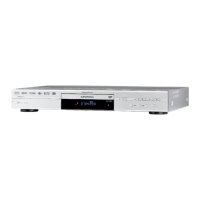
DVD-RECORDER
GDR 5500
ENGLISH

Table of Contents

Questions and Answers

  • S
    smithstephanieAug 16, 2025
    Why Grundig DVD Recorder remote control not working?
    • J
      Julia SimsAug 16, 2025
      If your Grundig DVD recorder isn't responding to the remote, try these steps: first, point the remote directly at the DVD recorder. Then, make sure there are no obstacles blocking the remote's signal. After that, check or replace the batteries in the remote. Finally, verify that the recorder is set to operate with the correct remote control.
  • M
    Mr. Brandon CamachoAug 19, 2025
    What to do if there is no sound from Grundig DVD Recorder?
    • T
      torrescollinAug 19, 2025
      If you're not getting any sound from your Grundig DVD Recorder, start by checking the volume setting. Next, check the audio connections to ensure they are properly connected. Try playing from another source to see if the issue persists. If you are using DTS audio formats, you may need to use an external decoder.
  • T
    Timothy WilliamsAug 22, 2025
    What to do if the Grundig DVD/CD cannot be played?
    • C
      Christopher MooreAug 22, 2025
      If your Grundig DVD/CD isn't playing, first ensure that the label on the DVD/CD is facing upwards in the tray. If it still doesn't work, clean the DVD/CD. If the issue continues, test with another DVD/CD to check for damage to the original disc.
  • J
    James KennedyAug 25, 2025
    How to fix distorted picture on Grundig DVD Recorder?
    • K
      Krystal WilsonAug 26, 2025
      If you're experiencing a distorted or absent picture on your Grundig DVD Recorder, begin by checking the video connection. Also, inspect the DVD/CD for fingerprints and clean it according to the cleaning instructions.
  • R
    rossmichaelAug 27, 2025
    What to do if the Grundig DVD Recorder disc tray will not open?
    • P
      Pamela GonzalezAug 28, 2025
      If the disc tray on your Grundig DVD recorder won't open, try switching the DVD recorder off and on again using the mains switch.
  • D
    Destiny JacobsonAug 31, 2025
    Why is recording from TV stations not possible on Grundig DVD recorder?
    • C
      Carol ChristianAug 31, 2025
      If you're unable to record from TV stations on your Grundig DVD recorder, make sure the antenna cable is properly connected. Also, ensure that the TV station is correctly tuned on the DVD recorder. The selected TV channel may have copy protection, preventing recording. It's also possible that the station is not currently transmitting, or the antenna is defective.
  • C
    Carlos NunezSep 3, 2025
    Why is there distorted sound from Grundig DVD Recorder hi-fi system?
    • H
      haleyhumphreySep 3, 2025
      If you are experiencing distorted sound from the hi-fi system when using your Grundig DVD Recorder, ensure that the audio connections are not connected to the phono input on the amplifier.
  • M
    Miguel JonesSep 5, 2025
    How to fix no sound at the digital output on Grundig DVD Recorder?
    • D
      Daniel ThomasSep 6, 2025
      To resolve the issue of no sound at the digital output on your Grundig DVD Recorder, select the “RAW” operating mode.
  • L
    Logan WalshSep 8, 2025
    Why Grundig DVD Recorder timer recording was not executed?
    • D
      Denise HernandezSep 9, 2025
      If a timer recording on your Grundig DVD recorder wasn't executed, it could be because the DVD recorder was not switched off after the timer was programmed. Another possible reason is that the VPS/PDC time was incorrectly entered for VPS/PDC-programmed recordings.
  • J
    Jeremy LeblancSep 12, 2025
    What is the child lock password for Grundig DVD Recorder?
    • E
      ehowardSep 12, 2025
      If you've forgotten your personal password for the child lock on your Grundig DVD Recorder, enter the master code »3308«.

Summary

GDR 5500 DVD RECORDER

Special features of your DVD recorder

Details the various digital video recording and audio playback capabilities of the DVD recorder.

SET-UP AND SAFETY

OVERVIEW

The remote control

Illustrates the remote control and describes the function of each button for operating the DVD recorder.

CONNECTION AND PREPARATION

Connecting a rooftop antenna or cable feed

Instructions for connecting the DVD recorder to a TV antenna or cable service.

Connecting a television or flat screen

Describes four options for connecting the DVD recorder to a television or flat screen TV.

Connect the television or flat screen - using a cinch cable (Progressive Scan)

Details on establishing a connection using cinch cables for progressive scan video.

Connecting a television or flat screen using a EURO-AV (Scart) cable

Instructions for connecting the DVD recorder to a TV using a EURO-AV (Scart) cable.

Connecting a television or flat screen using a Y;C (S-VIDEO) cable and cinch cables

Guidance on connecting the DVD recorder to a TV using S-VIDEO and cinch audio cables.

Connecting a television or flat screen using cinch cables

Steps for connecting the DVD recorder to a TV using standard cinch video and audio cables.

Connecting an audio system with analogue two-channel stereo sound

Instructions for connecting the DVD recorder to an audio system for enhanced sound quality.

Connecting a digital multi-channel amplifier or digital two-channel audio system

Guidance on connecting to digital audio systems for surround sound playback.

INITIAL SETUP

Tuning television stations

Instructions for automatically scanning and tuning TV channels available via the receiver.

Setting the TV system (video output format)

Configuring the video output format (PAL/NTSC) to match the television's standard.

Selecting the screen format of your television set

Adjusting the aspect ratio (e.g., 4:3, 16:9) for optimal picture display on your TV.

BEFORE PLAYBACK

Inserting a disc

Instructions on how to open the disc tray and insert a disc for playback.

PLAYBACK

DVD playback

Basic playback controls and features for standard DVDs.

DVD+RW;+R;-RW;-R playback

How to play back recorded content from DVD+RW, DVD+R, DVD-RW, and DVD-R discs.

S-VCD;VCD playback

Instructions for playing back Super Video CDs (S-VCD) and Video CDs (VCD).

PLAYBACK AUDIO;VIDEO FILES

Playback audio;video files

Overview of playing DivX, MP3, WMA, and JPEG files from discs.

RECORDING

Recording options

Overview of available recording methods: one-touch and delayed recording.

Suitable discs for recording

Information on which types of discs (DVD+R, DVD+RW, etc.) are suitable for recording.

Recording quality and time

Table showing the relationship between recording quality settings and available recording time.

Remaining recording time

How to check the available recording time remaining on a disc.

ONE TOUCH RECORDING

Manually recording television programmes from the antenna or the cable feed

Step-by-step guide to recording TV programs directly from antenna or cable.

Manually recording television programmes from the satellite receiver

Instructions for recording TV programs received via a satellite receiver.

Finalising a disc (DVD+R;-R and DVD-RW)

Information on finalising discs for playback on other DVD players.

Error messages

List of common error messages and their solutions during recording.

DELAYED RECORDING

Programming recording by entering the data for the television programme

Detailed guide on setting up timer recordings by inputting program details.

Messages during or after programming a recording

Explanation of messages displayed during or after setting up a timer recording.

Checking, modifying or deleting recording information

Procedures for managing programmed timer recordings, including checking, editing, and deleting.

MANAGING RECORDING DATA

USING A DECODER

Setting the channel position for a decoder

How to assign a channel position and activate decoder functionality.

Recording PAY TV programmes

Instructions for recording subscription television programs via a decoder.

CHILD LOCK

Authorising the contents of a DVD

Setting access levels to restrict playback of unsuitable content on DVDs.

Changing the access code (password)

Procedure for changing the existing password for the child lock feature.

PERSONAL SETTINGS

Recording settings

Customizing default recording settings like chapter markers and source.

SPECIAL SETTINGS

Tuning television channels automatically

Procedure for automatically scanning and sorting available TV channels.

Assigning channel positions manually

Manually tuning and assigning channel numbers for new TV stations.

Setting the time and date

Manually setting the internal clock and date if broadcast time is not used.

Resetting the DVD recorder to its original condition

Restoring all user-configured settings to the factory default state.

INFORMATION

Troubleshooting

A guide to identifying and resolving common problems with the DVD recorder.

Grundig GDR 5500 Specifications

General IconGeneral
TypeDVD Recorder
Disc TypesDVD, CD
Audio Playback FormatsMP3, WMA
Image Playback FormatsJPEG
HDMI OutputYes
USB PortYes
DVD Recording FormatsDVD-R, DVD-RW, DVD+R, DVD+RW
TV TunerAnalog
Video Recording FormatMPEG2
Video Playback FormatsDivX, MPEG4
Audio OutputStereo
ConnectionsSCART
Power Supply220-240 V, 50 Hz

Related product manuals