Copyright © Fire4 Systems Inc., 2014. All rights reserved.
Support@guest-internet.com
Hotspot Gateway Product Setup - Quick Start Guide 1
Download the product manual at: http://www.guest-internet.com/gateway
First Time Product Configuration
Select the wireless network option of your laptop computer and scan for
networks. The computer will display a list of wireless networks.
Look for wireless network name (SSID): Hot Spot
Click on
connect
, wait until the computer shows connected. Open your
computer browser. Instead of your login page you will see the page shown
below. This page is the SETUP WIZARD.
The setup process has four steps. Follow the instructions to type in the
information requested on each page. Then click on the button to go to the
next page. When the setup process is completed your personalized
wireless Internet service will be ready for your guests to start using. The
setup process is shown overleaf: flip this page over to start the setup
process.
You can return to the setup process at any time to change information.
Connect you laptop computer to the wireless name (SSID) that you have
chosen. Then open your browser and type in the URL:
http://aplogin.com/admin
The username is
admin
, and the password is
admin
or a password that
you selected. When the page opens select the option you need in the
menu. See the manual for more information about configuration.
Reset to Factory Defaults
: With the GIS-K1
powered up, use a paperclip to press the reset button
through the hole shown. Hold the reset button down for
10 seconds then release. All parameters will be reset.
GIS-K1
DO NOT DISCONNECT POWER DURING RESET
Connect the Guest Internet wireless unit as shown in the diagrams. Use ONLY the
power supply shipped with the unit. Any other power supply will cause damage.
Use a laptop computer
to configure the GIS-
K1. Look at the
laptop’s list of wireless
networks for Hot
Spot and connect to
this. Open the browser
and follow the
instructions on the
setup wizard pages.
When the setup
wizard is complete the
GIS-K1 is reset.
After the reset it will
be necessary to return
to the laptop’s wireless
network settings and
look for the name of
the wireless network
that was set on the
GIS-K1 during the
wizard SETUP. Click on
this name to connect
to the GIS-K1
Guests can use any type of computer with
WiFi, such as a laptop, to connect to the
Internet, however some products may
require configuration.
Guests obtain the best connection results
when their laptop computers have a direct
line of sight to the wireless unit. When the
signal has to go through walls then the
communications range will be reduced.
USE ONLY THE POWER SUPPLY SHIPPED
WITH THE UNIT TO PREVENT DAMAGE
DSL
Or
Cable
Internet
Configuration
computer
Setup wizard
WAN
Internet port
wireless
Router
powerresetLAN1 to LAN4WAN
12volt power
supply for
110/220volts

 Need help?
 General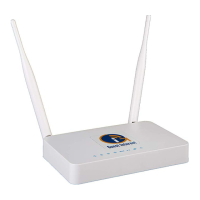

 To Next Page

