EasyManua.ls Logo

H2O Audio SONAR - User Manual

H2O Audio SONAR
12 pages
Print Icon
To Next Page IconTo Next Page
Loading...
UNDERWATERHEADPHONES
Question and Answer IconNeed help?

Do you have a question about the H2O Audio SONAR and is the answer not in the manual?

Summary

Product Information and Warranty

1 Year Warranty

Details the warranty coverage for H2O Audio Sonar headphones against defects in materials under normal use.

Device Operation and Features

Buttons

Explains the function of Power/Play/Pause, Mode, and Volume (+/-) buttons for device control.

How to Charge Battery

Instructions for connecting the special USB charger cable to the Sonar R speaker and a power source.

Add Music to Sonar Memory

Steps to connect the Sonar to a computer and transfer MP3/M4A music files to its internal storage.

How to Use Bluetooth Mode

Guides on placing the Sonar into Bluetooth mode and pairing with phones or smartwatches for audio.

Sonar Placement and Wear

Instructions on how to attach the Sonar speakers to swim goggle straps and orient them for optimal sound.

LED Lights

Explanation of the LED indicator lights and their meanings for battery status and connectivity.

Support and Compliance

Customer Support

Provides contact information via email and website for user assistance and further tips.

FCC Caution

States compliance with FCC rules and outlines conditions and measures to avoid harmful interference.

Overview

The H2O Audio Sonar Underwater Headphones are designed for use in and out of water, offering both MP3 playback and Bluetooth connectivity. These bone conduction headphones provide an immersive audio experience for swimmers and other water sports enthusiasts.

Function Description:

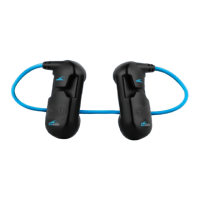
The Sonar headphones allow users to listen to music while swimming or engaging in other water activities. They feature bone conduction technology, which transmits sound vibrations directly to the inner ear through the cheekbones, bypassing the eardrums. This method is particularly effective in water, where traditional in-ear headphones might struggle with sound transmission or comfort. The device supports both internal MP3 playback (with 8GB of memory) and Bluetooth streaming from a compatible device like a smartphone or smartwatch.
Important Technical Specifications:

  • Memory: 8GB for MP3 and M4A (Apple iTunes) music files.
  • Connectivity: Bluetooth for wireless audio streaming.
  • Waterproof Rating: Designed for underwater use.
  • Battery: Rechargeable via a special 4-pin magnetic USB charger cable.
  • Sound Technology: Bone conduction.
  • Bluetooth Range: Approximately 10m (30ft) in air and 10cm (2 inches) underwater. (Note: Bluetooth does not penetrate water effectively due to the laws of physics, requiring the source device to be kept very close to the headphones when submerged).
  • Warranty: 1-year warranty against defects in materials under normal use.

Usage Features:

  • Power On/Off & Play/Pause: A dedicated button (▷II) allows for powering the device on/off (press for 3 seconds) and playing/pausing music with a single click.
  • Mode Switching: The 'M' button is used to switch between MP3 Mode and Bluetooth Mode.
  • Folder Navigation (MP3 Mode): Double-clicking the 'M' button allows users to advance to the next music folder if multiple folders have been added to the Sonar's memory.
  • Volume Control: '+' and '-' buttons are used to adjust the volume up or down with a single click.
  • Track Skipping: Double-clicking the '+' or '-' buttons skips to the next or previous song, respectively.
  • Fast Forward/Rewind: Pressing and holding the '+' or '-' buttons during music playback enables fast forward or rewind functionality.
  • Bluetooth Pairing: To enter Bluetooth mode, press the 'M' button. A blinking blue LED indicates the device is seeking a connection. Users then connect via their phone or smartwatch's Bluetooth settings, selecting 'H2O SONAR'. A solid blue light confirms a successful connection.
  • Underwater Bluetooth Use: Due to water's effect on Bluetooth signals, the paired smartwatch or phone must be kept within a few inches of the Sonar headphones (e.g., clipped to goggles or placed under a swim cap) for continuous connection underwater.
  • Wearing Instructions: The speakers are marked 'L' and 'R' for correct placement. They are designed to attach to swim goggle straps through integrated slots. For optimal sound, the speakers should be oriented in front of the ear, allowing the bone conduction technology to effectively transmit sound to the inner ear.
  • LED Indicators:
    • Red Light: Solid red indicates battery charging; blinking red indicates low battery.
    • Green Light: Solid green indicates music playing from memory; slow blinking green indicates music is paused.
    • Blue Light: Solid blue indicates Bluetooth mode connected; slow blinking blue indicates the device is looking for a Bluetooth connection.

Maintenance Features:

  • Battery Charging: The Sonar headphones are charged using a special magnetic USB charger cable. The 4-pin connector on the cable attaches to the corresponding pins on the 'R' (right) speaker. A magnetic force helps secure the connection.
    • Charging Indicator: A red LED light will illuminate during charging and turn off once the battery is full.
    • Pre-charging Check: Ensure connector pins are clean and dry before connecting the charger.
  • Music Upload: To add music (MP3 and M4A files) to the 8GB internal memory:
    1. Turn off the Sonar headphones.
    2. Connect the USB cable to the 'R' speaker and then to a computer's USB port.
    3. Wait for the computer to recognize the device, which will appear as a memory drive (H2O SONAR) in File Explorer (Windows) or Finder App (MAC).
    4. Drag and drop or copy/paste music files from the computer to the H2O SONAR drive. Do not disconnect until all files are copied.
    5. To remove files, select them in the H2O SONAR memory and delete or drag to Trash.
    6. To safely disconnect, eject the H2O SONAR drive from the computer before physically unplugging it.
  • USB Connection Tip: Avoid moving the Sonar speaker while it's connected to the computer, as the connection can be sensitive and may briefly disconnect, potentially confusing the computer. A restart of both the Sonar and computer might be required if this occurs. If experiencing USB connection issues, disconnect the Sonar, power it off, restart the computer, and then try connecting again, potentially using a different USB port.
  • Cleaning: While not explicitly detailed, given its underwater use, it's advisable to rinse the headphones with fresh water after use in chlorinated or saltwater environments and ensure they are dry before charging or storing.

H2O Audio SONAR Specifications

General IconGeneral
BrandH2O Audio
ModelSONAR
CategoryHeadphone
LanguageEnglish

Related product manuals