6
Even if “Auto Bypass” is enabled, the system will not arm another area if any zones in that area
are left open. The touchscreen will display: “System Not Armed – Zone(s) Not Ready”. Secure
the open zone(s) in the selected area(s), and then press the [Retry] button; the system will
immediately begin arming if all zones are secure.
More Options
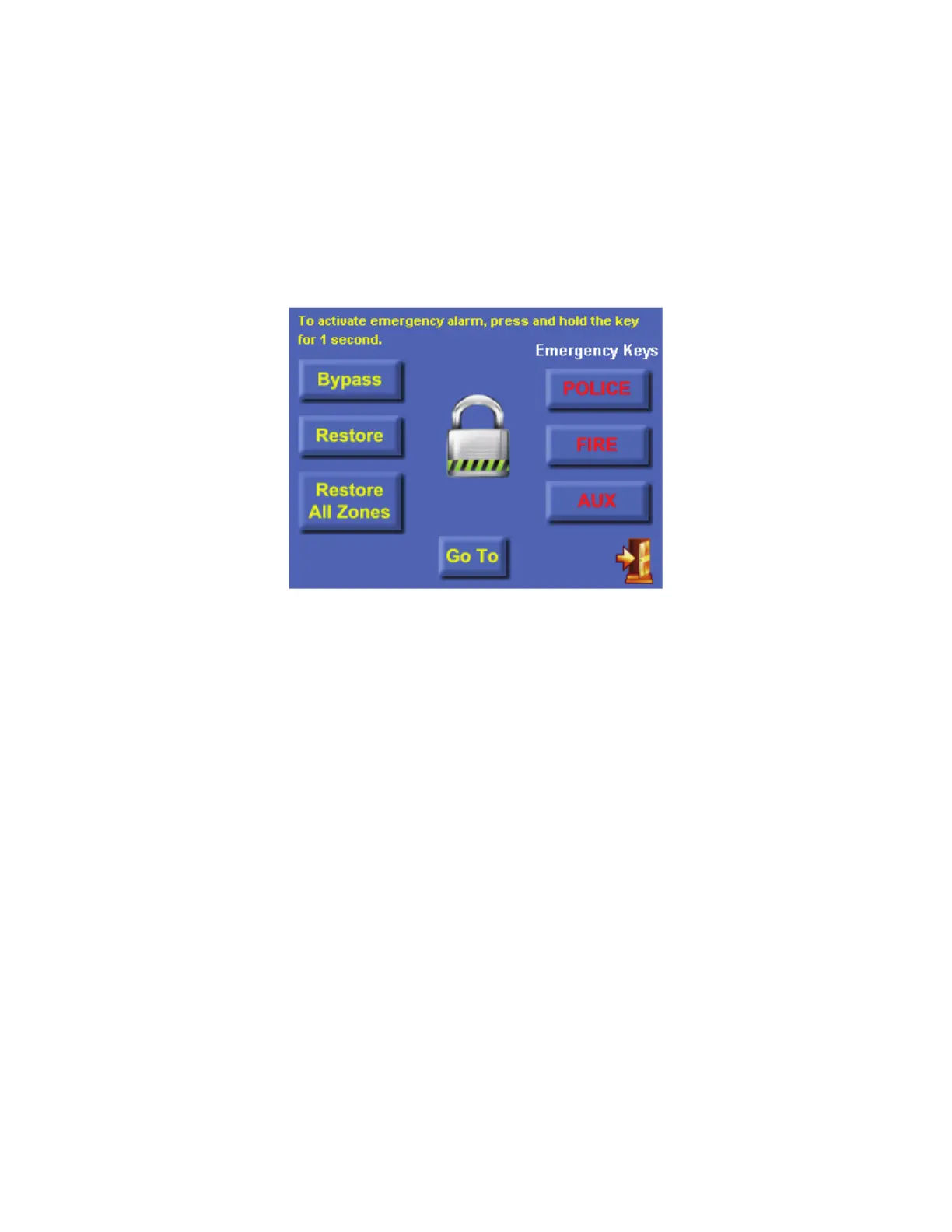
To bypass and restore zones, activate emergency alarms, and go to a different area, from the
“Security” page, press the [More Options] button:
Emergency Keys
If enabled, emergency alarm conditions can be activated through the touchscreen. These
conditions (Fire, Police, and Auxiliary) are initiated when the [Police], [Fire], or [Aux] button is
pressed and held approximately 1-second. If enabled, the Emergency Keys are always armed.
GOTO
If your system is configured with multiple areas, it is possible to temporarily assign the
touchscreen to a different area. All security and control commands will now operate on the
selected area, just as if you were physically at a touchscreen or console assigned to that area.
All status displays will show the status of the selected area.
To go to a different area, press the [GOTO] button. An “Area” list box is displayed. Select the
area from the list box, and then enter a valid code for that area. After the last digit of a valid
code is entered, the touchscreen will display the Home page for the selected area.
Use the [GOTO] button again to return to the area normally assigned to that touchscreen.



 To Next Page