EasyManua.ls Logo

Haier IPDS-1 - Radio Function Settings

Haier IPDS-1
14 pages
Print Icon
To Next Page IconTo Next Page
To Previous Page IconTo Previous Page
Loading...
Haier
Rise
App
SETTINGS
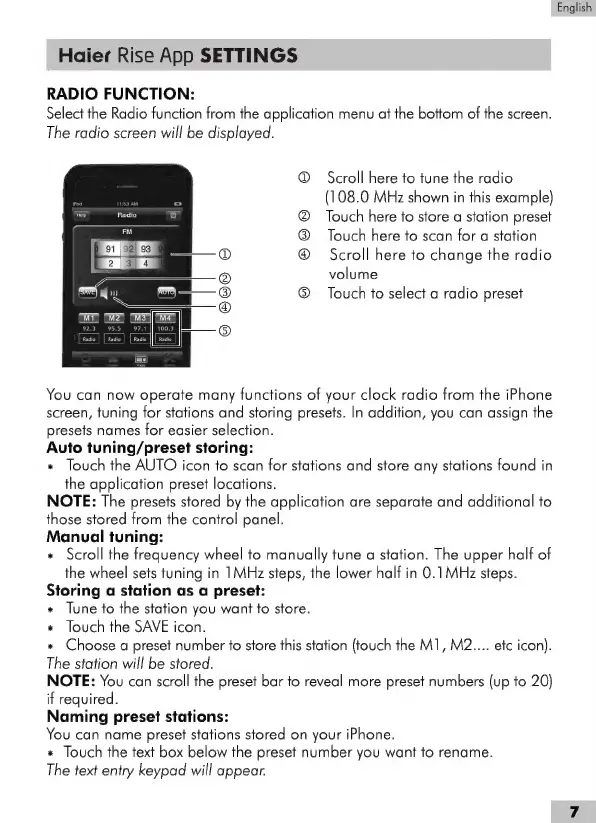
RADIO
FUNCTION:
Select
the
Radio
function
from
the
application
menu
at
the
bottom
of
the
screen.
The
radio
screen
will
be
displayed.
O
Scroll
here
to
tune
the
radio
(108.0
MHz
shown
in
this
example)
@
Touch
here
to
store
a
station
preset
®
Touch
here
to
scan
for
a
station
©
©
z
i s
©
Scroll
here
to
change
the
radio
I
;
volume
'
==
©
Touch
to
select
a
radio
preset
You
can
now
operate
many
functions
of
your
clock
radio
from
the
iPhone
screen,
tuning
for
stations
and
storing
presets.
In
addition,
you
can
assign
the
presets
names
for
easier
selection.
Auto
tuning/preset
storing:
x
Touch
the
AUTO
icon
to
scan
for
stations
and
store
any
stations
found
in
the
application
preset
locations.
NOTE:
The
presets
stored
by
the
application
are
separate
and
additional
to
those
stored
from
the
control
panel.
Manual
tuning:
*
Scroll
the
frequency
wheel
to
manually
tune
a
station.
The
upper
half
of
the
wheel
sets
tuning
in
1MHz
steps,
the
lower
half
in
0.1
MHz
steps.
Storing
a
station
as
a
preset:
*
Tune
to
the
station
you
want
to
store.
*
Touch
the
SAVE
icon.
*
Choose
a
preset
number
to
store
this
station
(touch
the
M1,
M2....
etc
icon).
The
station
will
be
stored.
NOTE:
You
can
scroll
the
preset
bar
to
reveal
more
preset
numbers
(up
to
20)
if
required.
Naming
preset
stations:
You
can
name
preset
stations
stored
on
your
iPhone.
*
Touch
the
text
box
below
the
preset
number
you
want
to
rename.
The
text
entry
keypad
will
appear.
English