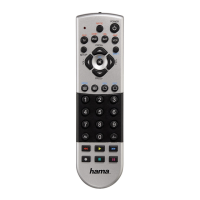
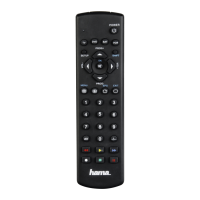
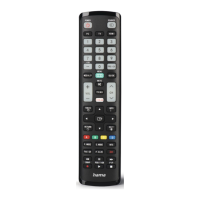
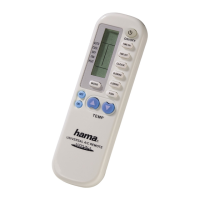
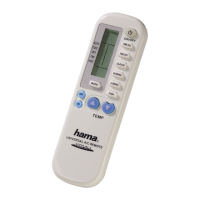
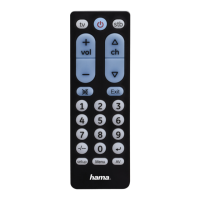
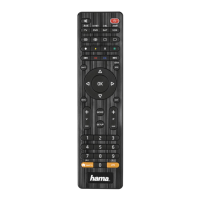
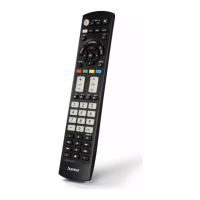
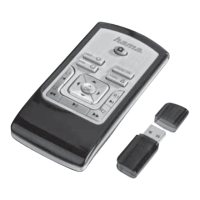
All the codes will be erased if a button is pressed while there are no batteries in the remote control.
Note: Battery saving function
► The remote control switches off automatically when a button is pressed down for more than 15
seconds. This conserves battery power if the remote control gets stuck in a position where the buttons
are continually pressed down, such as between sofa cushions.
1. Setup
Note
► To obtain a proper infrared (IR) transmission, allways point your Remote control in the
approximate direction of the device you want to control.
► Press the “MODE” key to select the secondary device group: AUX, AMP, DVB-T, CBL (only 8 in1
Model).
► Press the Shift key to operate the blue function keys. The Shift function deactivates by pressing
the Shift key again, or automatically after approx. 30 sec. without use.
► No entry for approx. 30 seconds will time out the Setup mode. The LED indicator shows six
flashes and turns off.
► Each device type can be programmed under any device key, i.e a TV can be programmed under
DVD, AUX, etc.
► If you want to control a device , it´s not possible while the Universal Remote Control is in the
Setup Mode. Exit the Setup mode and select the device you want to control using the device
selection keys.
5.1 Direct Code Entry
Your Universal Remote Control Package contains a code list. The code list shows 4-digit codes for most
A/V device manufacturers in alphabetical order and grouped by device type (e.g. TV, DVD, etc.). If the
device you want to control is covered by the code list, the Direct Code Entry is the most convenient
entry method.
5.1.1 Turn on the device you want to control
5.1.2 Press the SETUP key until the LED indicator is permanently lit.
5.1.3 Select the device you want to control using the device key (e.g. TV). A successful selection is
indicated by the LED with one flash followed by permanent light.
5.1.4 Check code list for brand and type of the device you want to control.
5.1.5 Enter the corresponding 4-digit code using the 0 – 9 keys. The LED indicator confirms each
entered digit via a short flash and turns off after the fourth digit.
Note
► If the code is valid, it is saved automatically.
► If code is invalid, the LED indicator flashes six times and then turns off. Repeat steps 5.1.1 to 5.1.5
or use a different code entry method.
5.2 Manual code search
Your Universal Remote Control is equipped with an internal memory, which is preloaded with up to
350 codes per device type for the most common A/V devices. You can zap through these codes until
the device you want to control shows a reaction. This might be that the device you want to control
switches off (POWER key) or changes the channel (PROG+/PROG- keys).
5.2.1 Turn on the device you want to control
5.2.2 Press the SETUP key until the LED indicator is permanently lit.
5.2.3 Select the device you want to control using the device key (e.g. TV). A successful selection is
indicated by the LED with one flash followed by permanent light.
5.2.4 Press the “POWER” or the PROG+/PROG- key to zap through the preloaded codes until the
device you want to control reacts.
5.2.5 Press MUTE(OK) to save the code and exit the code search. The LED indicator turns off.
Note
► Internal memory limitations allow only up to 350 most common device codes to be preloaded. Due
to the extensive number of different available A/V devices on the market, it may be possible that only
the most common main functions are available. If so, repeat steps 5.2.1 to 5.2.5 to find a more
compatible code. No code may be available for some special device models.



 To Next Page
 Loading...