This document is a user's manual for the HANNspree HG270PCH (HSG1438) LCD Monitor. It provides comprehensive instructions and information to help users operate, maintain, and troubleshoot their monitor effectively. The manual emphasizes safety, proper installation, and optimal usage to ensure a satisfactory user experience.
Function Description
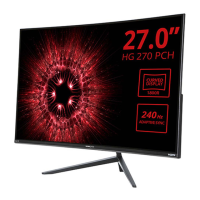
The HANNspree HG270PCH is a 68.6cm / 27-inch wide-screen TFT color LCD monitor designed to provide a crisp and clear display, particularly for Windows operating systems. It functions as a visual output device for computers, allowing users to view graphical interfaces, documents, multimedia content, and more. The monitor supports various input sources, including VGA, HDMI, and DP, making it versatile for different computer setups. It also incorporates High-Definition Multimedia Interface (HDMI™) technology, ensuring high-quality digital audio and video transmission. The monitor is equipped with internal universal power supply, allowing operation in both 100/120V AC and 220/240V AC voltage areas without requiring user adjustment. An external 12V DC adapter is used to power the monitor.
Usage Features
The monitor offers several features designed to enhance user experience and flexibility:
- Ergonomic Design: The monitor is designed with ergonomics in mind, allowing users to adjust the viewing angle for optimal comfort. The screen can be tilted from -4° to 11°, helping to reduce strain during prolonged use.
- Space-Saving, Compact Case Design: Its compact design makes it suitable for various environments, from home offices to professional workstations, without occupying excessive desk space.
- Multiple Input Sources: The monitor supports HDMI and DP inputs, providing flexibility for connecting to different types of computers and devices. An audio input (Earphone port) is also available for connecting external audio devices.
- On-Screen Display (OSD) Menu: The OSD menu provides a user-friendly interface for adjusting various display settings. Users can navigate through the menu using the control buttons located on the front panel.
- Brightness/Contrast Adjustment: Users can fine-tune the brightness and contrast levels to suit their personal preferences and ambient lighting conditions. The "ACTIVE CONTRAST" feature automatically detects dark and light areas of an image to enhance contrast for clearer, sharper visuals.
- Preset Modes: The monitor includes preset modes (PC, MOVIE, GAME, ECO) that optimize display settings for different types of content, providing a tailored viewing experience.
- Color Setting Options: Users can adjust the color temperature (WARM, NATURE (6500K), COOL) or customize RGB levels (Red, Green, Blue) to achieve desired color accuracy and vibrancy.
- Image Adjustment: Features like H-POSITION, V-POSITION, CLOCK, PHASE, and SHARPNESS allow for precise adjustments to the screen image, ensuring it is centered, properly sized, and free from flicker. The "AUTO ADJUST" function simplifies these adjustments for VGA input.
- Aspect Ratio Control: The "ASPECT RATIO" function allows users to choose between "FULL MODE" (full screen display) and "FIT MODE" (scaling by original image proportion) to prevent image distortion.
- Response Time Settings: The monitor offers adjustable response time settings (MINIMUM, INTERMEDIATE, MAXIMUM) to reduce motion blur, which is particularly beneficial for fast-paced content like games or action movies.
- OSD Customization: The OSD menu itself can be customized, allowing users to change its language, horizontal and vertical position, transparency, and time-out duration. Different color combinations for the OSD window are also available.
- Audio Input Selection (for HDMI): When using HDMI, users can select "AUDIO INPUT" as HDMI or PC. If no sound is outputted, it is recommended to select PC and ensure the PC audio output cable is connected to the monitor's LINE IN (or AUDIO IN) port.
- Volume and Mute Control: The monitor features volume adjustment and a mute function, allowing users to control audio output directly from the monitor.
- DDC/CI Support: The monitor is equipped with VESA DDC2B capabilities, enabling it to communicate its display capabilities to the host system. This ensures proper display configuration and functionality.
- Factory Reset: A "FACTORY RESET" option is available to restore all settings to their default values, which can be useful for troubleshooting or starting fresh with configurations.
- Information Display: The monitor can display information such as horizontal frequency, vertical frequency, and resolution, providing useful diagnostic details.
- Hotkeys: Convenient hotkeys are provided for quick access to frequently used functions, such as restoring brightness and contrast defaults, changing aspect ratio, adjusting resolution, and selecting preset modes.
Maintenance Features
The manual provides clear guidelines for maintaining the monitor to ensure its longevity and optimal performance:
- Cleaning Instructions: To keep the monitor looking new, users are advised to periodically clean it with a soft cloth. Stubborn stains can be removed with a cloth lightly dampened with a mild detergent solution. Strong solvents, benzene, or abrasive cleaners should be avoided as they can damage the cabinet. It is crucial to unplug the monitor before cleaning for safety.
- Ventilation: The monitor has slots and openings on the back and bottom of the cabinet for ventilation. Users are instructed to ensure these openings are not blocked or covered to prevent overheating and ensure reliable operation. The monitor should not be placed on soft surfaces like beds or sofas, or near heat sources like radiators.
- Power Surge Protection: To protect the monitor from damage due to power surges, users are advised to unplug the unit during lightning storms or when it will not be used for long periods.
- Proper Power Source: The monitor should only be operated from the type of power source indicated on its label. Users are advised to consult their dealer or local power company if unsure about their home's power supply.
- Avoid Overloading Power Strips: Overloading power strips and extension cords can lead to fire or electric shock, so users are cautioned against this practice.
- Prevent Liquid Spills and Object Insertion: Users are warned not to spill liquids on the monitor or push any objects into its slots, as this could cause short circuits, fire, or electric shock.
- Professional Servicing: Users are explicitly advised not to attempt to service the monitor themselves, as opening the cabinet can expose them to dangerous voltages and other hazards. All servicing should be referred to qualified service personnel.
- Safe Installation: When installing or removing the monitor base, users are instructed to use EPS (Expanded Polystyrene) to protect the curved monitor. For wall mounting, users must use a VESA compatible wall bracket and follow the manufacturer's instructions. Special skill is required for wall mounting, and it should only be performed by qualified service personnel.
- Packaging Retention: Users are encouraged to save the original shipping box and packing materials, as they will be useful if the monitor ever needs to be shipped. For maximum protection, the monitor should be repacked as it was originally received from the factory.
- Environmental Responsibility: HANNspree emphasizes its commitment to environmental protection and encourages users to recycle the product appropriately at the end of its life. Information on recycling is provided via their website.
- Troubleshooting Guide: The manual includes a comprehensive "TECHNICAL SUPPORT (FAQ)" section with common problems and their possible solutions, empowering users to resolve minor issues independently before seeking professional help. This includes solutions for power issues, display problems, color defects, resolution adjustments, and audio output problems.
- Windows Compatibility Advice: Specific addendum related to Windows 7, 8, and 10 display problems provides guidance on driver installation and recommended display resolutions to ensure compatibility and optimal performance with these operating systems.

 Need help?
 General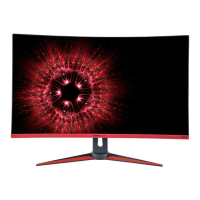




 To Next Page