DG3 Controller – Installation and Operation
Manual
540846-3 page 36 of 64 25/09/2015
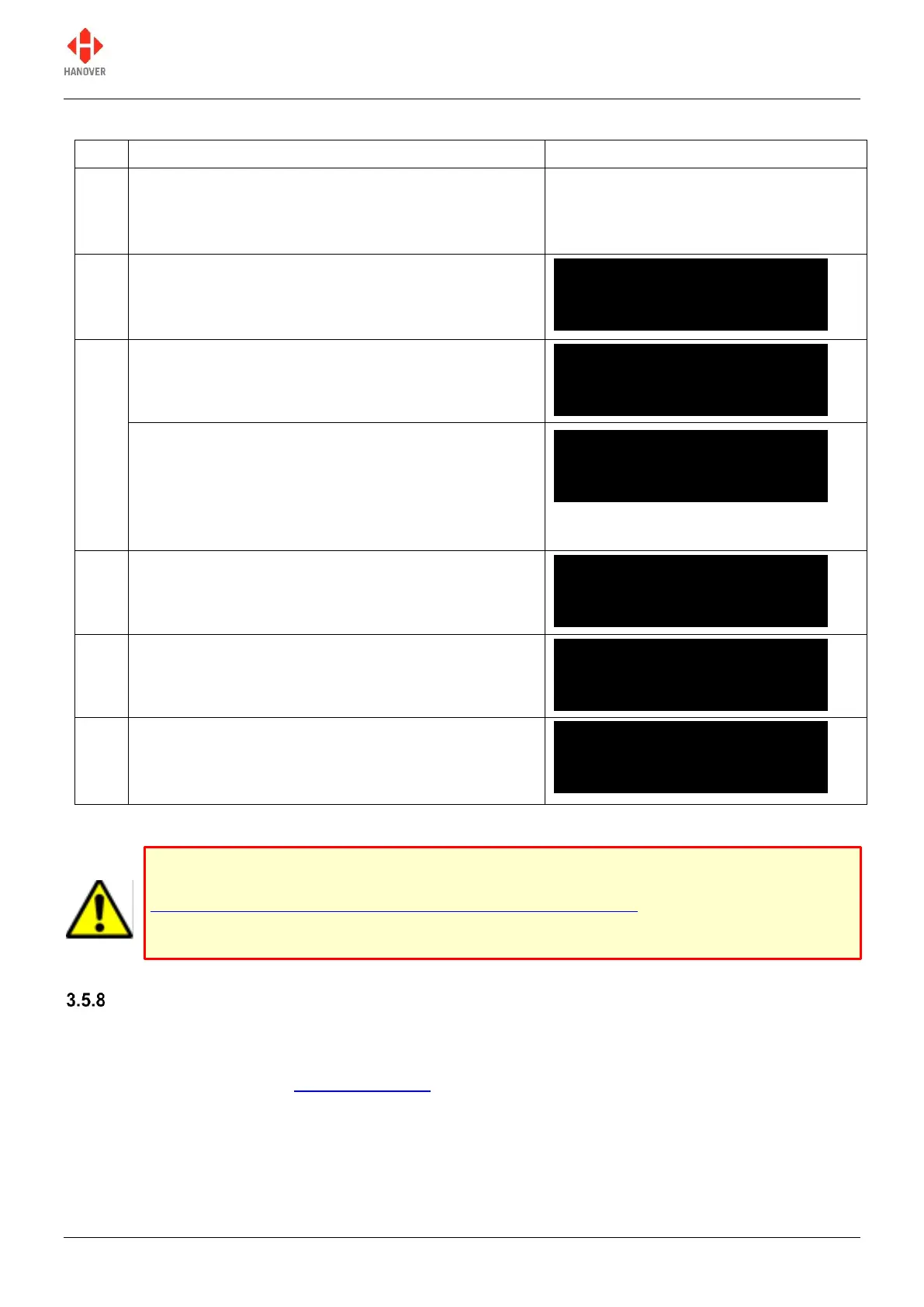
The table below shows the procedure for dumping data:
Enter the lock code, find 'Dump data?' from within the
list and then select it using the F/E key.
'Insert USB Drive:' is displayed on the controller
screen.
If an USB drive is not inserted for about 10 seconds,
data dump will be aborted as shown and will go back
to the initial screen
On the other hand, if a USB drive is inserted, dump
then starts automatically as shown followed by steps
4 to 6
Data dump progress shown by |||||||||||||
'Remove USB Drive' flashes. The USB drive can now
be removed safely.
This screen is shown for two seconds - then reverts
to operational status
Note: The list copied from the controller using “Dump data” cannot be used in Helen.
HANCIS
This menu item will only become enabled if your DG3 has a Hancis or HTC unit connected to the physical
sign system in your vehicle and if HANCIS/HTC is selected as a sign. Setting the sign no. to the
‘HANCIS/HTC’ value (refer to 3.5.6 Sign options) will enable the DG3 to remotely control certain features
(for example, the audio, IP address, etc.) of the Hancis/HTC unit.
3.5.8.1 Simulation mode
ERIC.BIN
Dumping
||||||||||||||
|||||||||
ERIC.BIN
Dump completed
Remove USB Drive
On controllers with firmware up to and including v1.12, the message 'Insert USB Drive:' is also
shown. This should be ignored as doing so will in fact initiate a fresh dataload (see section
3.2.4 Transferring the database from the USB stick to the DG3): no action should be taken
until the controller reverts to its previous state, whereupon the process should be restarted
from the status option to selection of 'Dump data?'.


 To Next Page
 Loading...