Video Wall Controller Series Manual
Connect C13 power cable to AC input connector on appliance and mains socket.Power on the unit by pressing the
power button, LED will illuminate to show the appliance is powered.
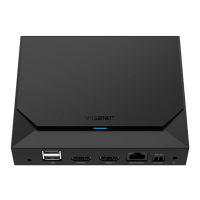
Nano4K:
Connect external power supply to mains socket and DC input connector on appliance. Power on the unit by
pressing the power button, LED will illuminate to show the appliance is powered.
Step 4: Main Screen
Your appliance will boot directly to the Windows Desktop using the following Administrator credentials:
Username: video
Password: p@ssw0rd
You will NOT be prompted for a login username and password, automatic login is configured. To change this, use the
Windows ‘Run’ command and type “netplwiz”. Uncheck the box labelled ‘users must enter a username and password to use
this computer’.
Note: It is advised that the default Windows password is changed, this must be done on the appliance itself, use CTRL-ALT-
DELETE and select ‘Change a Password’. We advise that the username remains as ‘video’.
IMPORTANT: When you change the user account Password, ensure that you update the details found in “netplwiz” for the
automatic login feature to continue.
The operating platform Language and Keyboard layout is set to English(US) by default. To change this, use the Windows ‘Run’
command and type “Region”. Follow the instructions presented.
The device uses DHCP by default, if your network supports DHCP, the appliance will now be discoverable on the network.
The appliance Hostname will be “Videowall-’XXXXX’”
You can now login to the Appliance Web Portal (AWP) to configure the appliance remotely.
Step 5: AWP Configuration
The appliance has a built in web portal which allows the unit to be monitored and configured remotely without the need for
a keyboard and mouse being attached locally.
The AWP allows the following functions:
● Monitor Device Metrics
● Manage Display Settings - Arrangement Display Layout, Set Number of Displays and Set Display Resolutions
● Manage Appliance Network Settings
● Add Video Network Sources i.e. NVR/VMS server credential settings
● Update appliance Firmware
● Restart and Shutdown Appliance
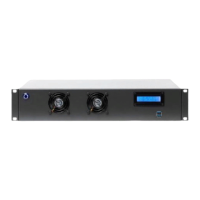
The appliance will show the AWP IP Address on the units front panel display.
Format example: http://192.168.0.99:9001
Using a client PC on the same network, enter the IP address into a web browser.
The browser will load the AWP login page when login is enabled. If disabled, user login can be enabled on the
‘Settings->Global Settings’ page.
Default AWP logon credentials.
Username: video
Password: p@ssw0rd
The ‘Users’ link in the top right hand side of the AWP allows changes to the default username and password.


 To Next Page
 Loading...