The HACZEE Wi-Fi Temperature & Humidity Sensor with Screen (Model: TH06) is a smart device designed for real-time monitoring of temperature and humidity. It features a clear display for direct readings and integrates with a smartphone app for remote monitoring and control.
Function Description:
The primary function of the TH06 sensor is to measure and display ambient temperature and humidity. It can be connected to a Wi-Fi network, allowing users to monitor environmental conditions remotely via the "Smart Life" smartphone application. The device provides real-time updates on its screen, showing the current temperature in Celsius, humidity percentage, day of the week, time (AM/PM), and date (Year/Month/Day). A reset button allows switching between Celsius and Fahrenheit temperature units. The device is intended for indoor use, providing valuable data for maintaining comfortable and healthy living environments.
Important Technical Specifications:
- Size: 65mm x 65mm x 17mm
- Micro Input: DC 5V/1A
- LED Indicator: Blue
- Wi-Fi Protocol: 2.4GHz
- Wi-Fi Standard: IEEE 802.11 b/g/n
- Temperature Measure Range: 0-60°C (32-140°F)
- Temperature Accuracy: ±1°C (±1.8°F)
- Humidity Measure Range: 0% RH ~ 99% RH
- Humidity Accuracy: ±5% RH
- Smartphone OS Compatibility: Android 4.4+ or iOS 8.0+
Usage Features:
- Direct Screen Display: The device features a large, easy-to-read screen that displays temperature, humidity, time, and date directly, eliminating the need to constantly check a smartphone.
- Wi-Fi Connectivity: It connects to a 2.4GHz Wi-Fi network, enabling remote monitoring and control through the "Smart Life" app.
- Smartphone App Integration: The "Smart Life" app (available on Google Play Store and Apple App Store) allows users to set up the device, view real-time data, and potentially access historical data or set alerts (though specific alert features are not detailed in the provided manual).
- Easy Setup Process:
- Prerequisites: Ensure the smartphone is connected to a 2.4GHz Wi-Fi network, the correct Wi-Fi password is known, the smartphone OS meets requirements (Android 4.4+ or iOS 8.0+), and the Wi-Fi router is MAC-open. If the router's device limit is reached, disabling a device or using another router may be necessary.
- App Download: Scan the provided QR code or search for "Smart Life" in app stores to download and install the application.
- Account Creation: Create an account using a mobile number and authentication code.
- Device Connection (Bluetooth-assisted):
- Connect the sensor to power using the supplied Microcharging cable.
- Open the "Smart Life" app and click "+" or "Add Device" on the homepage.
- The app will prompt to enable Bluetooth on the mobile device.
- Select the device to add (T & H Sensor) and enter the Wi-Fi name and password. The device will automatically connect to the Wi-Fi network.
- Device Connection (Manual Wi-Fi without Bluetooth):
- If not using Bluetooth, select "Temperature and Humidity Sensor (Wi-Fi)" from the "Sensors" list in the app.
- Enter the Wi-Fi password.
- Ensure the LED indicator is blinking rapidly. If not, open the stand at the back, hold the reset button for about 5 seconds until the LED indicator blinks rapidly. The device will then connect.
- Device Connection (AP Mode for dual-band routers):
- If the Wi-Fi router operates on both 2.4GHz and 5GHz with the same name, enter the Wi-Fi password.
- Select "AP Mode" in the app.
- Hold the reset button for about 5 seconds until the LED indicator blinks slowly.
- Connect the mobile phone to the device's hotspot (e.g., "SmartLife-XXXX").
- Return to the app interface, and the device should connect to Wi-Fi automatically.
- Temperature Unit Switching: The reset button can be used to switch the temperature display between Celsius (°C) and Fahrenheit (°F).
- Stand: The device includes a stand, suggesting it can be placed upright on a surface for optimal viewing and stability.
Maintenance Features:
- Reset Button: The reset button is crucial for initiating the pairing process and for switching temperature units. Holding it for approximately 5 seconds is required for different pairing modes (rapid blink for Bluetooth/EZ mode, slow blink for AP mode).
- Power Input: The device uses a standard DC 5V/1A Micro USB input, making it compatible with common power adapters and cables.
- LED Indicator: A blue LED indicator provides visual feedback on the device's status, particularly during the Wi-Fi pairing process, indicating whether it's blinking rapidly or slowly as required for different setup modes.

 Need help?
 General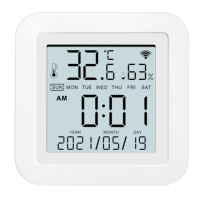

 To Next Page