Page 2
5) Assuming that pressing the button results in a transmit icon displaying, which kind of signal is being sent?
Remember, a ‘wave’ means IR is being sent. ‘Radio Tower’ means that the 900 is sending an RF signal to
the Blaster, which in turn is sending IR to the target device. If you see the ‘wave’, then the remote must
be in line-of-sight with the device that is being controlled! If the device you are trying to control is be-
hind cabinet doors or in a closet, the 900’s native IR cannot be used and the device must be re-allocated
to be controlled by the Blaster. Adding and removing devices for Blaster control is done on the 900, not in
the Logitech software and this will be discussed in a moment. Now, if the device that is being controlled
by IR is right in front of you (like the TV) and it is not responding to any command, then the button is not
the problem. Either the wrong model TV has been chosen in the setup or the IR Emitters on the 900 have
burned out. You can test to see if the emitters are defective by simply allocating the TV to be controlled by
the Blaster and then seeing if the TV responds. Remember, the Blaster sends out IR and will need to be in
line-of-sight of the TV for this testing. If nothing controls the TV, it is likely that the wrong model has been
chosen in the setup.
6) If your 900 is sending out IR signals to devices that are not in-line-of-sight, then, of course, these de-
vices will not respond. If you want to control a device that is hidden, it must be assigned to the RF
Blaster. The function for Adding/Deleting Blasters can be found on the 900 under OptionsRF System
SettingsAdvanced RF Settings. A Blaster must be ‘Added’ before it can be used. Once added, de-
vices can be assigned to be controlled by the Blaster. Assignment is found under OptionsRF System
SettingsDevice Assignment.
7) Finally, if the mapped button you are pressing is displaying the ‘radio tower’, then that means that the RF
Blaster has been Added and the device has been assigned. So, what’s going on? Well, there are a number
of things that can go wrong in the communication between the 900 and the Blaster, all of which will have
the effect of the device not responding to a button press. Generally, if you press a button and you get a red
‘X’ covering the radio tower, it means that the 900 could not successfully communicate with the Blaster.
Sometimes, you will also get a message to that effect on the 900. These are the troubleshooting steps
you can take to get the 900 and Blaster talking to each other again. They are similar to the rst step in this
series but go a little deeper.
• Take the battery out of the 900
• Unplug the power from the RF Blaster
• Wait 30 seconds for residual power to dissipate
• Put the battery back into the remote and allow it to fully reboot
• Plug in the RF Blaster
• On the 900, press OptionsRF System SettingsAdvanced RF SettingsRemove Blaster
• If you have more than one Blaster, select the one for removal that is giving you problems.
If you are not sure which one, you can use the ‘Identify Blaster’ option rst.
• On the 900 press OptionsRF System SettingsAdvanced RF SettingsAdd Blaster
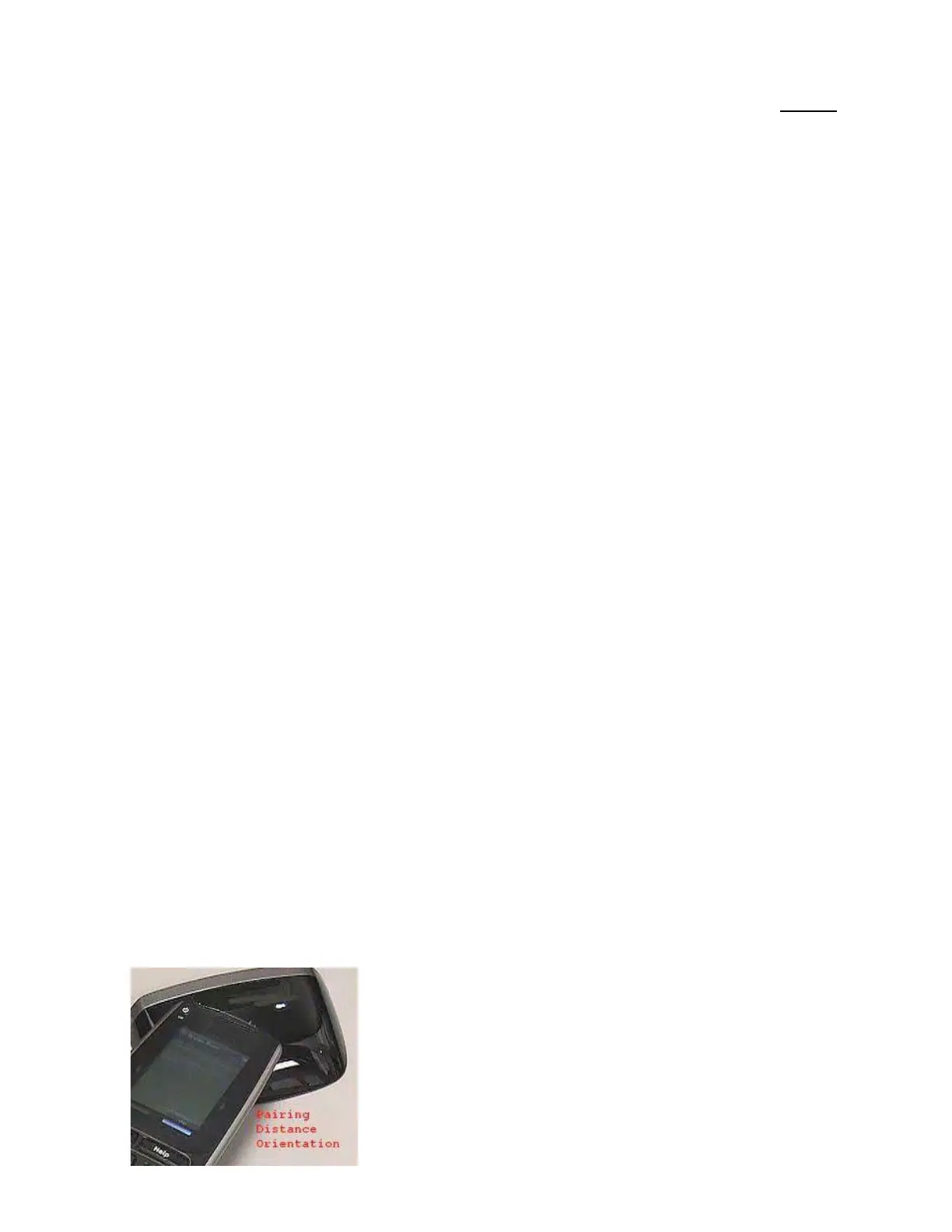
• Very important! When doing the Add Blaster function, you must place the 900 so that the front
tip is touching/resting on the blaster (see picture below)
H1100 Rev. 6/14


 To Next Page
 Loading...