13
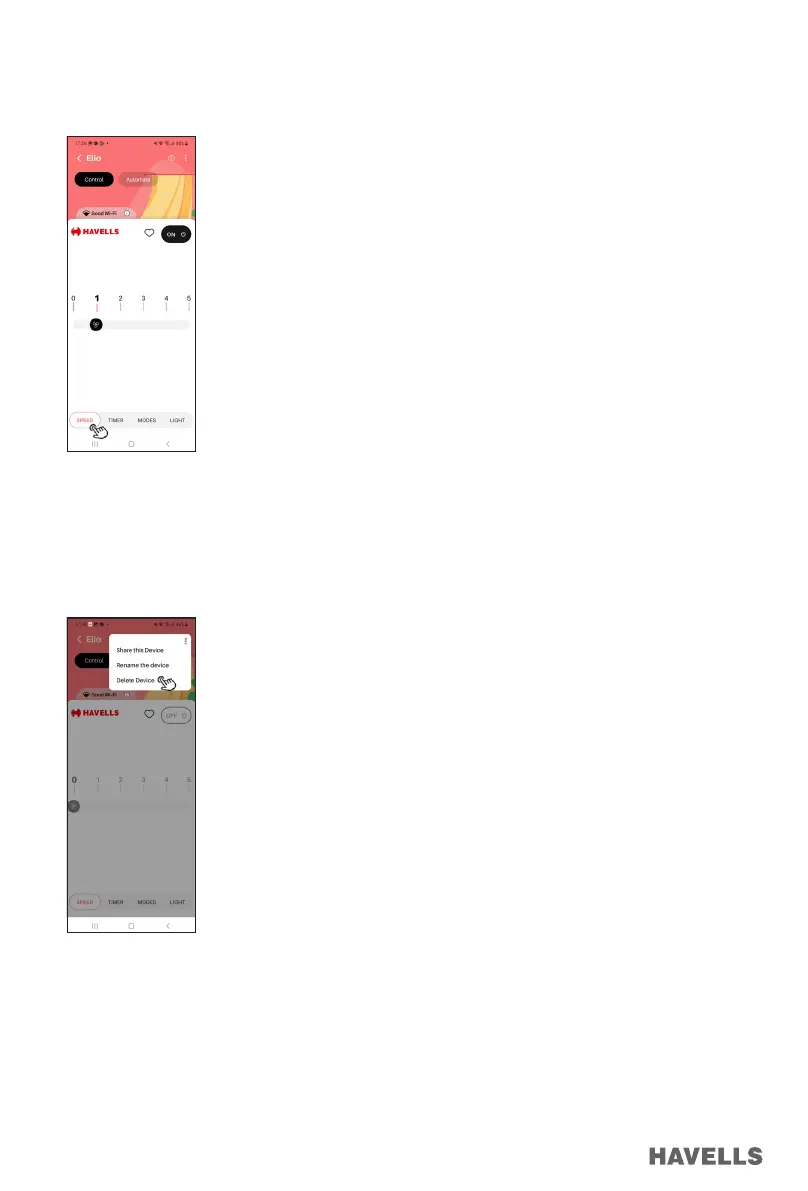
Figure 55
Figure 56
Overview of “Havells Sync” Application and Dashboard – Fan
At home page, tap on “My Products” (Figure 54) and tap on “Operate Smart Products”, then select ELIO
(Added Fan/Device).
Fan/Device Control page will appear as below (Figure 55).
Delete Saved Device
1. Tap to Device menu on above right corner (Figure 55)
2. Press on “delete the device” to remove the device in an APP (Figure 56)
3. Now the device has been successfully deleted and can no longer be found in your saved devices.
Operation of “Havells Sync” Application
1. Speed can be selected (1-5) by tapping or sliding on speed bar at desired speed. (Figure 55)
2. To set Timer, tap on Timer icon, Timer menu will appear, Select timer value (1-8) by tapping (dragging/
sliding) on timer bar. (Figure 57)


 To Next Page