14
Figure 57
Figure 60
Figure 58
Figure 61
Figure 59
Figure 62
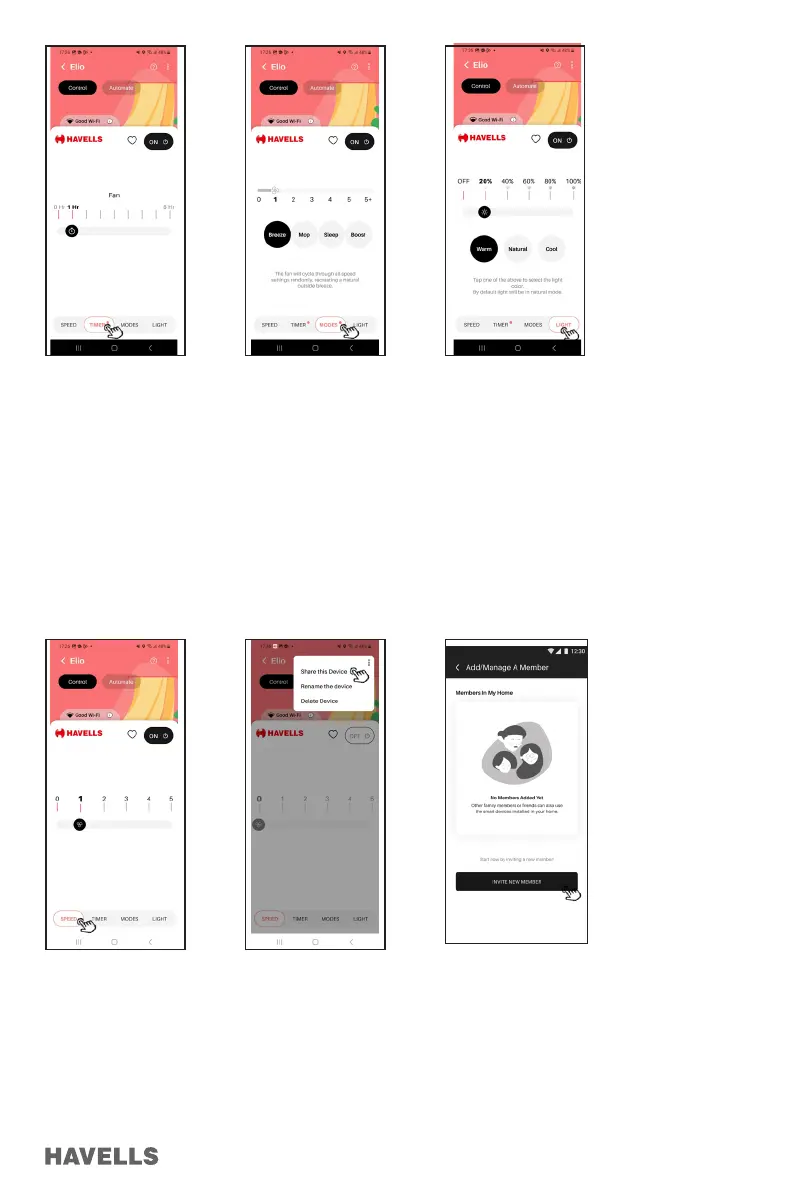
3. Fan Modes can be set by tapping MODES icon Page, Mode Menu Screen/Window will appear. (Figure 58)
4. Fan Modes (Breeze, Mop, Sleep OR Night & Boost) can be selected by tapping / selecting particular mode icon
on screen.
5. Light Modes (Warm, Neutral & Cool) can be selected by tapping/selecting particular mode icon on screen &
similarly intensity of light can be change by tapping (dragging/slide) the bar. (Figure 59)
How to Share Device/Fan
1. The user with whom, you want to share device, must be registered to “Havells Sync “App.
2. At device control page, select menu – Tap “Share this device” – Then “Invite new members” – select member
from contact list – Select devices/Fans to share and click “DONE” (Figure 60-62)
3. Invite to use device will be sent to invitee, they check bell icon in their Havells SYNC App account.
Automation /scheduling
1. Go to device control page, click “Automate” – Tap on “Create new automation” ll the required details then click
Create. (Figure 63-66)
2. Automation will be done as per your requirement. (Figure 67)


 To Next Page
 Loading...