6
Basic Operation
This chapter describes some of HeadRush Prime’s basic functions. You can visit headrushfx.com to download
the complete User Guide for even more information.
Main Screen
Important: The sequence of blocks in your signal chain is not necessarily reflected in the footswitches. You can
freely assign blocks to available footswitches without changing your signal chain at all—and vice versa. See the
User Guide to learn about this.
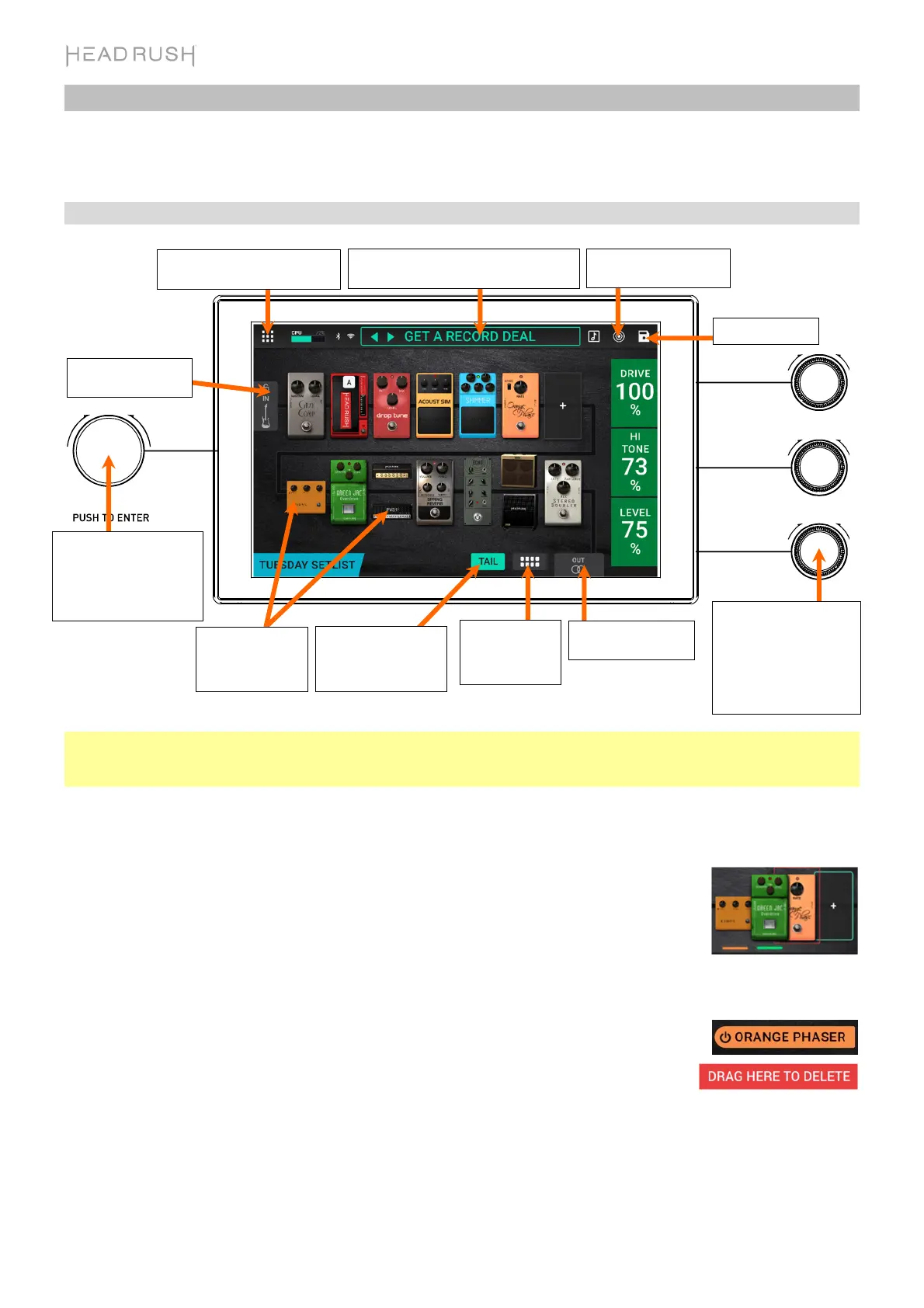
To assign a block (amp, cab, impulse response, or effect) to an empty slot, tap it () and then use the list that
appears.
To show a block’s Detailed Settings screen, double-tap it.
To show a block’s parameters on the right edge of the screen, tap the block so it is
outlined in green. You can then turn the parameter knobs to adjust the parameters to
their left. If a block has more than three parameters that you would like to adjust, drag your
finger up or down the column to bring the additional parameters into focus. When no block
is selected, the parameters will be ones that you assign in the Hardware Assign page.
To rearrange the blocks in your signal chain, tap and drag a block to another slot or
between two other blocks (the ones after that position will shift one slot further down the
signal chain).
To activate or deactivate a block, press the footswitch assigned to it, or tap the block
and then tap the On/Off button that appears at the bottom of the screen.
To remove a block, tap and hold the block, and then drag it to the bottom bar.
To load another rig (preset):
• Press the upper-left (Rig ) or lower-left (Rig ) footswitch to load the previous
or next rig immediately.
• Tap the or next to the name of the current rig on the screen.
• Tap the name of the rig on the screen and then turn the encoder.
To view other options, tap the menu icon in the upper-left corner, and then tap an option.
Turn the encoder to move
through selectable items
onscreen or to adjust
parameters. Press the
encoder as an Enter
command.
Turn the parameter knobs
to adjust the corresponding
parameters. If a block has
more than three parameters,
drag your finger up or down
this column to bring the
additional parameters into
focus.
This button enables or
disables reverb and
delay tails when
switching to another rig.
Tap to change the
signal chain type.
(guitar, vocal,
guitar/vocal, etc.)
Double-tap to view the
Output Settings page.
Tap to save the rig.
Tap and drag this bar downward to view the
Rig List page. Double-tap to rename the rig.
Tap to view the Hardware
Assign page.
Tap to view the Menu page and
access more features and settings.
Double-tap to view the
Input Settings page.
Double-tap an
effect, amp, or cab
to view its Detailed
Settings page.


 To Next Page