EasyManua.ls Logo

HeaterMate HY02TP-WiFi - User Manual

HeaterMate HY02TP-WiFi
2 pages
Print Icon
To Next Page IconTo Next Page
Loading...
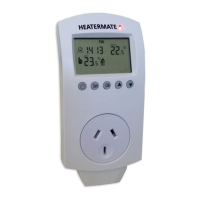
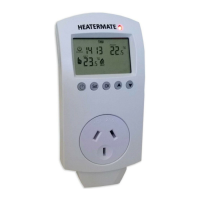
HEATERMATE WITH TIMER WiFi
Model HY02TP-WiFi
Thank you for choosing HEATERMATE WiFi. This programmable electronic temperature
controller, which can be operated via your smart phone from anywhere in your home, will
provide you with comfortable temperature environment and will help to save energy.
Start-up Guide downloading App and connecting to WiFi
1. Search for “Smart lifeApp in your Google Play or Apple App Store then download
and install it on your phone.
2. Open the App and register an account with your email or mobile phone, then sign in.
3. Tap Add Device or tap in the top right corner, then select Small Home Appliances and
select Thermostat (WiFi). You will then be prompted to put in your WiFi router Name and
Password do that and press Next. A screen will come up with Reset the device first. In the
top right corner of that screen tap on EZ Mode and select AP Mode.
4. Plug your Heatermate into power the screen will come up. Press and hold SET and OK
buttons simultaneously until blue back light comes on then release. After a couple of seconds
press and hold SET and OK buttons simultaneously again until icon in the bottom right
corner of the screen starts to blink.
5. On your Smart Life App tap on Confirm indicator rapidly blink. On the next page press Go to
Connect and select Smartlife-XXXX. After connecting to Smartlife-XXXX (with no Internet),
tap/press Back button on your phone or tap on the Smart life App icon and the
connection process will begin. Your will be notified when the device is connected.
Using this guide you can connect more than one plug to be operated by the same smart phone. You
can give them different names to tell one from the other.
Once your Heatermate is connected to your phone, you can do all its programming from your Smart life
App without the need to touch any buttons on Heatermate.
NB: Programming via Smart life App and programming by pressing buttons on your Heatermate can be
done at the same time both phone App and touch button inputs will be saved as they are received.
Start-up Guide (cont-d) connecting your heater and setting it up
Plug your heater into Heatermate. Set your heater’s own thermostat to maximum (full scale) in order
for it not to interfere with Heatermate control. Set your heater power selector according to the size of
the room where it will operate: the basic rule is to use approx. 100W of power per 1 square meter of
the room. For example, if your room is 10 square meters, then set heater power to 1000W or the
closest available. On your Smart life App tap on the Smart Plug image a control screen, showing SET
temperature in the middle of a circle and the Current room temperature below it, will come up. Select
your desired SET temperature Heatermate will maintain it for you.
How Heatermate maintains your SET temperature
Heatermate will turn your heater ON when ROOM temperature drops 1 degree below SET
temperature and will turn your heater OFF when ROOM temperature rises 1 degree above SET
temperature. This 1 degree temperature differential (which comes as standard) can be increased or
reduced based on your preference please go to Setting (bottom right corner of your App), select
Indoor temp. difference and reduce it to 0.5 degree (smaller room temperature variations, heater
comes ON/OFF more frequently) or increase it to 1.5, 2.0 etc degrees (larger room temperature
variations, heater comes ON/OFF less frequently). NB: In Cooling mode this operation is reversed
fan/air-con comes on when ROOM temperature becomes 1 degree higher than SET temperature etc.
Adjusting Heatermate temperature sensor
Heatermate temperature sensor reading can be adjusted (if required), to match that of your other
thermometer or baby monitor. Please go to Setting (bottom right corner of your App), select Temp.
compensation, and change from -1 degree C (standard) to whatever you need it to be. For example, to
increase temperature reading by 2 degrees, change -1 degree to 1 degree, or to reduce temperature
reading by 1 degree change -1 degree to -2 degrees.
Daily and Weekly programming
To set up a schedule for your Heatermate to come on automatically and maintain different
temperatures for different time periods please go to Setting (bottom right corner of your App), tap on
Week program type and select whether you want to have different schedules for week days and
weekends. If not, select 7 days the programmed periods will apply to both week days and weekends.
Or select 5+2 (standard) or 6+1, if weekday and weekend schedules are to be different. Then go back
to Setting and tap on Weekly program setting. Tap on Workday setting to set program for week days,
then tap on Rest Day Setting to set program for weekends (if you previously selected 7 days as Week
program type, you don’t need to set program for weekends). A schedule with 6 periods (Parts 1-6) will
come up (see Table on next page). Adjust this schedule as required. If you need smaller number of
periods simply put the same temperature into adjacent periods to merge them together. Once the
programming has been done, go to your App main screen and at the bottom tap on Mode and select
Program this will activate and will start running the weekly program that you have set up.
Example: program Heatermate to turn heater on at 10pm, maintain 21 degrees and turn heater off at 7 am, every
day of the week. Programming: Under Setting, select Week program type then select 7 days. Go back to Setting and
Question and Answer IconNeed help?

Do you have a question about the HeaterMate HY02TP-WiFi and is the answer not in the manual?

Summary

Start-up Guide: Downloading App and Connecting to WiFi

Download and Install Smart Life App

Guide for downloading and installing the Smart Life App from Google Play or Apple App Store.

Account Registration and Sign-in

Steps for registering an account with email or phone and signing into the Smart Life App.

Add Device and Connect to WiFi

Process for adding the Heatermate device and connecting it to your WiFi network via EZ or AP mode.

Confirm Connection and Start Setup

Steps to confirm the device connection and initiate the setup process by tapping 'Confirm indicator rapidly blink'.

Connecting Heater and Setting Up Heatermate

Connect Heater and Set Heater Thermostat

Instructions for connecting the heater to Heatermate and setting the heater's own thermostat to maximum.

Set Heater Power and Room Temperature

Guidance on setting heater power based on room size and selecting the desired temperature via the Smart Life App.

Heatermate Temperature Maintenance

How Heatermate Maintains SET Temperature

Explanation of how Heatermate turns the heater ON/OFF based on a temperature differential from the set point.

Adjusting Temperature Sensor

How to adjust the Heatermate's temperature sensor reading using the 'Temp. compensation' setting in the app.

Daily and Weekly Programming

Setting Program Type and Schedule

Options for setting different program types (7-day, 5+2, 6+1) and programming weekly schedules with multiple periods.

Activating Program Mode

How to activate the programmed schedule from the app's main screen by selecting 'Program' mode.

Advanced Settings and Product Information

Interface Elements and Modes

Descriptions of icons, buttons, and different operating modes like Auto, Manual, and Temporary Manual.

Weekly Programming Mode Defaults

Overview of factory default programmed settings for daily wake-up, out door, back home, and sleep periods.

Product Specifications

Technical details including power, load capacity, working environment, temperature adjustment range, and sensor accuracy.

Advanced Configuration Options (A1-AB)

Detailed advanced settings for temperature calibration, differential, child lock, antifreeze, limits, and window function.

Overview

The HEATERMATE WiFi (Model HY02TP-WiFi) is a programmable electronic temperature controller designed to provide a comfortable temperature environment and save energy. It can be operated remotely via a smartphone app.

Function Description:

The HEATERMATE WiFi allows users to control their heater's temperature settings from anywhere using the "Smart Life" app. Once connected to a home's WiFi network, the device can be programmed to maintain desired temperatures at specific times.

Temperature Control:

The device turns the heater ON when the room temperature drops 1 degree Celsius below the SET temperature and turns it OFF when the room temperature rises 1 degree Celsius above the SET temperature. This 1-degree temperature differential is the standard setting but can be adjusted between 0.5 and 2.5 degrees Celsius via the app's "Indoor temp. difference" setting. A smaller differential results in more frequent ON/OFF cycles and smaller temperature variations, while a larger differential leads to less frequent cycles and larger variations. In cooling mode, this operation is reversed, with the fan/air-con activating when the room temperature is 1 degree Celsius higher than the SET temperature.

Temperature Sensor Adjustment:

The HEATERMATE's temperature sensor reading can be adjusted to match other thermometers or baby monitors. This is done through the "Temp. compensation" setting in the app, allowing users to shift the temperature reading by a desired amount (e.g., from -1 degree Celsius to 1 degree Celsius to increase the reading by 2 degrees).

Daily and Weekly Programming:

Users can set up schedules for the HEATERMATE to automatically turn on and maintain different temperatures for various time periods. The app offers options for "Week program type," allowing users to choose between:

  • 7 days: The programmed periods apply to both weekdays and weekends.
  • 5+2 (standard) or 6+1: Different schedules for weekdays and weekends. Once the program type is selected, users can set specific schedules for "Workday setting" and "Rest Day Setting" (if applicable). A schedule consists of 6 periods, each with a start time and desired temperature. Adjacent periods can be merged by setting them to the same temperature. To activate the programmed schedule, users must select "Program" mode in the app's main screen.

Example Programming:

To program the HEATERMATE to turn the heater on at 10 PM, maintain 21 degrees Celsius, and turn it off at 7 AM every day of the week:

  1. In "Setting," select "Week program type" and choose "7 days."
  2. Go back to "Setting" and tap on "Weekly program setting."
  3. Set Parts 1-6 as follows (assuming 10°C is low enough to keep the heater off when not needed):
    • (1) 7:00/10°C
    • (2) 8:00/10°C
    • (3) 11:30/10°C
    • (4) 13:30/10°C
    • (5) 17:00/10°C
    • (6) 22:00/21°C
  4. On the app's main screen, tap "Mode" and select "Program."

Advanced Options (Accessed in Thermostat OFF State):

Long pressing the SET button for 3-5 seconds accesses advanced settings (A1 to AB). Short presses of SET navigate through options, and data is adjusted using the UP/DOWN arrows, then SET to confirm.

  • A1: Temperature Sensor Calibration: -9 to +9°C (Factory Default: 0.5°C Accuracy Calibration).
  • A2: Temp. difference to activate heater: 0.5 to 2.5°C (Factory Default: 1°C).
  • A3: Children lock setting: 0: half lock (only Power button enabled), 1: full lock (all buttons disabled) (Factory Default: 0).
  • A4: Antifreeze protection: Sets the temperature below which the heater comes on (1-10°C). Option 2 disables antifreeze protection (Factory Default: 5°C).
  • A5: SET temperature minimum limit: 1-10°C (Factory Default: 5°C).
  • A6: SET temperature maximum limit: 20-70°C (Factory Default: 35°C).
  • A7: Power on/off memory: 0: Keep the same state, 1: Stay off after power reconnection, 2: Turn on after power reconnection (Factory Default: 0).
  • A8: Run programming selection: 0: (5+2), 1: (6+1), 2: (7days) (Factory Default: 0).
  • A9: Window Function: Heater is OFF for a specified time when a window is open (temperature drops below specified temp.). Options include disabled or 10-20°C activation (Factory Default: Window Function).
  • AA: Window Function running time: 5-40 minutes (Factory Default: 20).
  • AB: Reset to factory settings: Press and hold OK button until all icons show up on display.

Usage Features:

  • App-based Control: All programming and settings can be managed through the "Smart Life" app.
  • Multiple Device Control: Users can connect and operate multiple HEATERMATE devices from the same smartphone, assigning different names to each.
  • Simultaneous Programming: Programming can be done via both the app and the physical buttons on the HEATERMATE; inputs from both sources are saved.
  • Heater Thermostat Setting: Users should set their heater's own thermostat to maximum (full scale) to prevent it from interfering with HEATERMATE control.
  • Heater Power Selection: Heater power should be selected based on room size, with a general rule of approximately 100W per 1 square meter of the room.

Important Technical Specifications:

  • Power: 240Vac 50-60HZ
  • Max Load: 10A, 2400W
  • Working environmental temperature: 0~70°C
  • Range of temperature adjustment: 5~35°C
  • Temperature sensor accuracy: ±1°C
  • Compatibility: Suitable for use with heaters that can automatically restart after power reconnection.

Maintenance Features:

  • Warranty: The product comes with a 2-year manufacturer warranty.
  • Technical Support: Contact info@heatermate.com.au or call 1800 229 325 for assistance.

HeaterMate HY02TP-WiFi Specifications

General IconGeneral
BrandHeaterMate
ModelHY02TP-WiFi
CategoryTemperature Controller
LanguageEnglish

Related product manuals