EasyManua.ls Logo

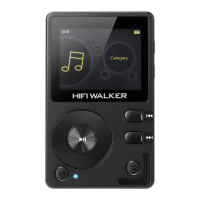
HIFI WALKER H2 - User Manual

HIFI WALKER H2
18 pages
Print Icon
To Next Page IconTo Next Page
Loading...
TF Cards
Access all your music files from here.
OTG
Connect an external USB drive via USB-OTG cable
3. Seng
Press Play/Pause to enter.
You will see:
Music Scan
Scan the enre Micro SD card and build your music library.
-Automac: Scan will be automacally acvated every me
you insert your Micro SD card.
-Manually: Scan will be acvated only when you manually
ask H2 to scan your Micro SD card.
Press and hold the Menu buon in the Music Scan secon.
Once you release the Menu buon, the player will acvate
music scan.
Equalizer:
Press Play/Press to select your favorite EQ style.
The H2 includes:
- Rock - Classic - Jazz - Pop - Dance - Vocal
- Blues - Heavy Metal - Custome - Off
Play mode
Press Play/Pause to select your favorite play mode:
-Play in order: Play the enre music library once.
-Single Repeat: Looping the single song.
-Random: Randomly play a song from your enre library
-Repeat allLooping the enre music library repeatedly
Memory play
Choose your memory play posion from
-Last song.
The next me you power on H2, it will start playing from the
beginning of the song you were listening before powered o.
-Last poion
H2 will start playing from the locaon of the song when you
previously powered off.
-Off.
Volume set
Enter to set the volume.
-Memory: keep using your previous volume.
-Default: the default volume is 30
4. System Seng
Press Play/Pause to enter System Sengs.
You will see:
Language
The H2 supports Mullanguage:
-English -German -French -Italian
-Japanese-Spanish -Chinese -Korean
Theme
Enter to select Theme A, B or C.
Display
- Backlight me:
a. Press Next/Previous buon to adjust the backlight me.
b. The default me is 30 seconds.
- Brightness
- Idle Shutdown Time;
a. Press Next/Previous to adjust the me to let H2
automacally turn off when no operaon.
b. The default seng is 5 minutesScheduled Power off me
Bluetooth
The H2 supports bi-direconal (2-way) Bluetooth feature.
You can either use H2 as a portable amplifier to receive
Bluetooth music from your other device or as a sender to
send the music to your Bluetooth speaker.
- Bluetooth scaning: Press Next/Previous to select your target
device. Then, press Play/Pause to connect the device. When
successfully connected, H2 will display “Connected” next to
your Bluetooth device.
- Paired device: Press Next/Previous to see your connected
devices. You can also reconnect your device from here.
- Available devices: you can see all available Bluetooth
devices in here.
Press Play/Pause to turn on the Bluetooth. The H2 will now
scan for Bluetooth devices. It is normal to take few seconds
before successfully connected to your devices. When
scanning, your other Bluetooth devices (e.g., Bluetooth
headphones or speakers) should also be in scanning/pairing
mode.
Congratulaons on purchasing your HIFI WALKER H2
To use HIFI WALKER H2, you put songs and other audio files
on your H2's MicroSD card.
Use H2 to:
-Sync songs and playlists (*.m3u/*.m3u8 format only) for
listening on the go
-Store or back up files and other data, using H2 as an
external disk
What's in the box?
1*HIFI WALKER H2 HIFI Digital Audio Player
1*Micro USB cable
1*HIFI WALKER Hi-Res Earphone A2
1*User Manual
About HIFI WALKER H2
1
Can’t power ON the H2
Press and hold the Power buon for 3 sec. If the status
light does not light up, please charge the player for at least
10 mins and power on again.
If the status light does not light up aer 10 mins of
charging or if the status light does light up but the screen is
dead, please contact our customer support.
Player freezes
Press and hold the Power buon for 8 secs to reset the
device. The status light will be off, and all seng will return
to factory.
Can’t hear music when playing
Check if the volume is too low
Check if your earphone is will plugged and not damaged
Check if your music file is well supported and not damaged
Can’t load music to H2
Check if H2 is correctly connected to your computer
Check if H2 is in [USB Mode] [USB]
Check if the MicroSD card is correctly inserted and not
damaged
Check if you have music file in the MicroSD card
Can I load and play audible books?
If the books are on your pc / laptop in a compable file
format, then yes
Frequently Asked Quesons
6
Do you get a forced gap between tracks on playback? e.g.
if you are playing a live album do you get interrupve gaps?
There is a gapless opon in the [Music Sengs] menu.
Should the music files be loaded using a folder structure
e.g. Arst or put all the files flat at the root folder?
Either way works. We just suggest folders as it's easier
to navigate.
Is there a song limit?
Yes. the limit is 15000 songs
Can you adjust the volume on the device when using
Bluetooth?
If your headphones are Bluetooth and have volume,
then yes.
My HIFIWalker won't work with my present iTunes...is it
compable?
No, unfortunately it is NOT compable with iTunes. This
funcons more like an external hard drive. You simply plug
it in, an opon to open it as a folder pops up, and you simply
drag and drop your music.
Go to this link as we believe it will answer your queson:
hps://www.lifewire.com/do-i-need-an-ipod-to-play-itunes-
songs-2438427
Does this player have noise cancelling and does it show
HIFIWALKER is the HiFi division of music player maker
Shenzhenshi Letushi Co. Ltd.
Company: Shenzhen Letushi Technology CO., LTD
Official Site: WWW.HIFIWALKER.COM
Facebook@HIFIWALKER.Official
YouTubeHIFI WALKER
Customer Service: Support@HIFIWALKER.com
About - Beer Sound, Beer Life
7
album art easily? Thanks.
The player itself doesn't have noise cancelling feature but
the earphone included supports passive noise cancelling.
The player does not support any album art.
Has anyone been able to nd out if this player will play an
enre SD cards worth of music in the random seng other
than just in track or album?
Yes, it will play the enre collecon of songs in random.
Set the player in random mode then select "songs" rather
than albums or arsts or genres, etc.
When upgrading the SD card, do you have to do anything
extra? Can you simply just add a new card and go?
I would plug the new card into a computer to make sure
it was formaed, if not, format the new SD card. Then plug
it into the HIFI Walker, and down load your music. You could
also plug the SD card into your computer, load the music
onto the SD card, then put the card into the HIFI Walker.
I upgraded to a 256 gb card and just dragged my music
onto it and it kept all the same folder structures and worked
aer popping it in.
What do I need to download my CDs in wav on to this
player?
hp://www.wikihow.com/Copy-CD-to-MP3
Make sure to choose WAV (lossless format) instead of
MP3 format.
Does the HiWalker support WPL or other playlist les?
Can you create playlists on a PC and load them into the
SD card?
Our HIFI WALKER H2 does support *.m3u and *.m3u8
playlist files. A player soware foobar(hp://www.foobar
2000.org/) will help you to make those playlist files.
Only *.m3u/*.m3u8 file needs to be at the root folder of
the SD card. The folder contains your target music doesn't
have to be at the root folder.
How can the baery be replaced?
The unit is sealed making baery replacement not
possible.
Does the player have a bookmark?
Yes! The player does have a bookmark. Navigate the menu
to [Music Seng] [Memory Play] [Point] to acvate
bookmark. Sorry for the previous info.
Can I just drag my music folder over on the SD card 1600
songs in 1 folder?
You can just drag your music into H2's folder. And yes, the
player recognizes single folders with up to 1600 music files.
Is it possible to create a playlist on the go w/o a computer?
Yes, but you can only add songs to [My favorites]. You
cannot customize the playlist name without a computer.
When would you adjust the gain seng rather than volume?
Thanks!
I have my Gain set on High and use the volume to control
the audio output from zero to max. High seng gives you a
higher out-put should you need it. I think the Gain seng is
to adjust for different headphones used with this player.
Headphone impedance can range from 8 ohms to 64 ohms.
The 8 ohms would be louder at the same gain seng as 64
ohms. I like the flexibility of the controls and input/output
the HiFi Walker has.
Can I stream Spofy, Pandora, etc. from my Android phone
via Bluetooth to this HIFi WALKER H2 to enjoy the sound
quality?
Yes, the H2 supports high quality Bluetooth streaming via
Spofy, Pandora, etc.
HIFIWALKER H2 at a glance
3
1.Power buon
2.Volume Up
3.Volume Down
4.Micro SD card slot
5.Strap mount
6.LCD monitor
7.Previous/Rewind
8.Next/Fast-forward
9.Back
10.Line out port
11.Micro USB port
12.Status light
13.Earphone port
14.Menu buon
15.Play/Pause
16.Scroll wheel
H2
User Manual
Specificaon
5
Seng up HIFIWALKER H2 4
Quick guide
2
1. Baery
Baery will be fully charged in approximately 4 hours on a
wall charger. If charging on a computer or other devices, the
charging me varies as the input differs on each device.
2. Power On/Off
Press and hold the Power buon to turn on the H2. The blue
status light will light up once turned on.
Press and hold to turn off.
3. Lock Mode
Press the Power buon to lock the device. The screen will be
turned off and all buons will be locked except the Power
buon.
4. Reboot the player
If the player freezes, press and hold the Power buon for 8
sec to reboot the player. All sengs will be reset to the
factory sengs.
1. Category
Press Play/Pause to enter the Music Category.
You will see:
Songs
Press Next/Previous to select music file and press Play/Pause
to play
My favorite
You will see your favorite music from here
Playlist:
Your *.m3u playlist file will be displayed from [Explorer], not
here. We apologize for the misleading menu tle. This will be
deleted from the [Category] and will be moving to [Explorer]
in the next firmware update.
Recent played songs
Records of 50 most recent played songs will be shown in here
Album (ID3 tag info required)
Enter to select your favorite Album.
Genre (ID3 tag info required)
Enter to select your favorite Genre.
Arst (ID3 tag info required)
Enter to select your favorite Arst.
Clear record:
All records under [Category] will be deleted. Audio files will
not be affected.
2. Explorer
Press Play/Pause to enter the Explorer.
You will see:
Gain
Press Play/Pause to select
- High gain output
- Low gain output
This is to ensure you have the best experience when paring
H2 with earphones, headphones, or amplifier.
The default seng is low.
Replay Gain
- Track: Volume will be the same for all music files.
- Album: Volume will be the same within each album.
Balance
Press Previous or Next to adjust the le and right channel
balance.
Lyric
The default seng is On.
The name of *.lrc le and the music file must be the same.
For e.g., you should have testsong111.lrc and testsong111.
mp3 or testsong111.wav or testsong111.flac or testsong111.
ape to successfully display the lyric.
Album cover:
Press Play/Pause to turn on the album cover
Gapless
Press Play/Pause to turn on the gapless play.
The default seng is Off.
Note: Bluetooth streaming does not support DSD audio
files.
-Bluetooth steaming output
-Bluetooth streaming input from your smartphone or other
Bluetooth device.
Once your smartphone is connected, there will be a big
Bluetooth logo showing in the middle of the screen. You can
then be listening to music from H2 with wired earphone.
Note: You cannot send the Bluetooth signal to your
Bluetooth speaker when the H2 is connected to your phone.
High quality: Turn it on to enable high quality Bluetooth
streaming. Reboong the player is required.
aptX: Qualcomm® aptX™ audio technology enhances the
wireless sound quality of many of the world's finest
smartphones, speakers, headphones and tablets.
Bluetooth ps
Since your HIFI WALKER H2 is built with premium metal
materials, the metal body may affect your Bluetooth range.
To maximize your Bluetooth experience, make sure to have
the back of the body towards your target Bluetooth device
(headphones/speakers). Obstrucons such hands may also
affect the Bluetooth range.
Please keep those ps in mind to reach opmal Bluetooth
experience.
USB mode
Select [USB] to connect the device to your PC or MAC. Please
ignore the DAC as it will be disconnued in the future
firmware update.
Font Size:
Press Play/Pause to change the size from [Small], [Medium]
to [Big]
Factory Reset
Select to reset to factory seng
Firmware update
a. Download the newest firmware “update.upt” and copy it
to the root directory of the microSD card.
b. Select “Yes” to update.
Please Note: File System must be FAT32 to successfully
upgrade the firmware, exFAT file system is also supported
when not upgrading the firmware.
About the player
-Version: The current firmware version.
-Memory: You can see the used and remaining memory
storage.
About the Play: Here you can find our company and contact
info
Model
Dimensions
Product Weight
Display
Baery
Audio
Specs
THD
Note: DTS coded WAV files are not supported. The audio compression
level of extra high supports up to 96K; the audio compression level of
insane is not supported.
SNR
Frequency Response Range
Nominal Impedance
Headphone Port
<0.008%
103dB@1KHz±2dB
20Hz-20KHz
8 ~ 150 Ohm
3.5mm Port
Supported Audio File
Format
DSF2.8MHz/ 1bit)(DSD
DFF 2.8MHz/ 1bit)(DSD
WAV (192KHz/64bit)
APE (192KHz/24 bit)
FLAC192KHz/24bit
MP348KHz/16bit
WMA (192KHz/24bit)
OGG(48KHz/16bit)
AifAi (384KHz/32 bit)
AAC48KHz/16bit
H2
90*55*15mm
152g
2.0 Inches 320*240 TFT Display
1300mAH/3.7V Li-ion Baery
Micro USB 5V/1A Input
list_cycle list_play ramdom_play single_cycle single_play
Question and Answer IconNeed help?

Do you have a question about the HIFI WALKER H2 and is the answer not in the manual?

Summary

Quick Guide

Powering and Locking

Instructions for turning the device on/off and activating lock mode.

Setting up HIFIWALKER H2

System and Display Settings

Configuring Language, Theme, Backlight time, and Memory Play.

Bluetooth Connectivity

Setting up bi-directional Bluetooth for streaming and device pairing.

Specifications

Audio Performance Specs

Technical audio metrics, supported file formats, impedance, and headphone port.

Frequently Asked Questions

Troubleshooting Power & Freezing

Resolving issues with device not powering on or freezing.

Audio Playback Issues

Fixing problems with no sound or music files not loading correctly.

Gain and Streaming Services

Understanding gain settings and streaming services via Bluetooth.

Overview

The HIFI WALKER H2 is a digital audio player designed for on-the-go listening and data storage. It allows users to sync songs and playlists in .m3u/.m3u8 format, and also functions as an external disk for storing or backing up files and other data.

Package Contents:

  • 1 HIFI WALKER H2 HIFI Digital Audio Player
  • 1 Micro USB cable
  • 1 HIFI WALKER Hi-Res Earphone A2
  • 1 User Manual

Quick Guide to Usage:

Battery:

The H2's battery fully charges in approximately 4 hours using a wall charger. Charging time may vary when using a computer or other devices due to differing input.

Power On/Off:

To turn on the H2, press and hold the Power button. The blue status light will illuminate. To turn off, press and hold the Power button again.

Lock Mode:

Pressing the Power button locks the device. The screen will turn off, and all buttons except the Power button will be locked.

Rebooting the Player:

If the player freezes, press and hold the Power button for 8 seconds to reboot. This action will reset all settings to their factory defaults.

Device Overview (Physical Controls):

The H2 features a range of physical controls for easy navigation and operation:

  • Power button: For turning the device on and off, and locking the screen.
  • Volume Up/Down: To adjust the audio volume.
  • Micro SD card slot: For inserting a MicroSD card to store music and data.
  • Strap mount: For attaching a strap.
  • LCD monitor: The display screen.
  • Line out port: For connecting to external audio systems.
  • Micro USB port: For charging and connecting to a computer.
  • Status light: Indicates the device's operational status.
  • Earphone port: For connecting headphones.
  • Menu button: For accessing menus and settings.
  • Previous/Rewind: For navigating to the previous track or rewinding.
  • Next/Fast-forward: For navigating to the next track or fast-forwarding.
  • Play/Pause: For playing and pausing audio.
  • Scroll wheel: For navigating through lists and options.
  • Back: To return to the previous screen or menu.

Setting up HIFIWALKER H2:

Category:

Press Play/Pause to enter the Music Category, where you can access:

  • Songs: Select and play music files using Next/Previous and Play/Pause.
  • My favorite: View your favorite music.
  • Playlist: Your *.m3u playlist files will be displayed from [Explorer]. Note: This menu title is misleading and will be updated in future firmware to move to [Explorer].
  • Recent played songs: Shows records of the 50 most recently played songs.
  • Album (ID3 tag info required): Select your favorite album.
  • Genre (ID3 tag info required): Select your favorite genre.
  • Artist (ID3 tag info required): Select your favorite artist.
  • Clear record: Deletes all records under [Category] without affecting audio files.

Explorer:

Press Play/Pause to enter the Explorer, which provides access to:

  • TF Cards: Access all your music files stored on the Micro SD card.
  • OTG: Connect an external USB drive via a USB-OTG cable.

Setting:

Press Play/Pause to enter the Settings menu:

  • Music Scan:

    • Automatic: The device automatically scans the Micro SD card and builds your music library every time a card is inserted.
    • Manually: To manually scan, press and hold the Menu button in the Music Scan section. The scan will activate once the button is released.
  • Equalizer: Press Play/Pause to select your preferred EQ style. The H2 offers: Rock, Classic, Jazz, Pop, Dance, Vocal, Blues, Heavy Metal, Custom, and Off.

  • Play mode: Press Play/Pause to choose a play mode:

    • Play in order: Plays the entire music library once.
    • Single Repeat: Loops the current song.
    • Random: Plays songs randomly from your entire library.
    • Repeat all: Loops the entire music library repeatedly.
  • Gain: Press Play/Pause to select between High gain output and Low gain output. This setting ensures the best experience when pairing the H2 with earphones, headphones, or an amplifier. The default setting is low.

  • Replay Gain:

    • Track: Volume will be consistent across all music files.
    • Album: Volume will be consistent within each album.
  • Balance: Press Previous or Next to adjust the left and right channel balance.

  • Lyric: The default setting is On. For lyrics to display successfully, the *.lrc file name must match the music file name (e.g., testsong111.lrc and testsong111.mp3).

  • Album cover: Press Play/Pause to turn on the album cover display.

  • Gapless: Press Play/Pause to turn on gapless playback. The default setting is Off.

  • Memory play: Choose your memory play position:

    • Last song: Starts playing from the beginning of the song you were listening to before powering off.
    • Last position: Starts playing from the exact location of the song when you previously powered off.
    • Off: Disables memory play.
  • Volume set: Enter to set the volume.

    • Memory: Keeps using your previous volume setting.
    • Default: Resets to the default volume of 30.

System Setting:

Press Play/Pause to enter System Settings.

  • Language: The H2 supports multiple languages, including English, German, French, Italian, Japanese-Spanish, Chinese, and Korean.

  • Theme: Enter to select Theme A, B, or C for the user interface.

  • Display:

    • Backlight time: Adjust the backlight duration using Next/Previous. The default is 30 seconds.
    • Idle Shutdown Time: Adjust the time after which the H2 automatically turns off when there's no operation. The default is 5 minutes.
  • Bluetooth: The H2 features bi-directional (2-way) Bluetooth. It can act as a portable amplifier to receive Bluetooth music from another device or as a sender to transmit music to a Bluetooth speaker.

    • Bluetooth scanning: Press Next/Previous to select a target device, then Play/Pause to connect. "Connected" will display upon successful connection.
    • Paired device: View and reconnect to previously connected devices.
    • Available devices: See all discoverable Bluetooth devices. To turn on Bluetooth, press Play/Pause. The H2 will scan for devices. Ensure your other Bluetooth devices (headphones, speakers) are in scanning/pairing mode.
    • Note: Bluetooth streaming does not support DSD audio files.
    • Bluetooth streaming output: Send music from the H2 to Bluetooth headphones/speakers.
    • Bluetooth streaming input: Receive music from your smartphone or other Bluetooth device. A large Bluetooth logo will appear on the screen when connected. You can then listen to music from the H2 with wired earphones.
    • Note: You cannot send a Bluetooth signal to your Bluetooth speaker when the H2 is connected to your phone.
    • High quality: Enable this for high-quality Bluetooth streaming. A player reboot is required. aptX™ audio technology enhances wireless sound quality.
    • Bluetooth tips: The H2's metal body may affect Bluetooth range. For optimal experience, orient the back of the device towards your target Bluetooth device. Obstructions like hands can also affect range.
  • USB mode: Select [USB] to connect the device to your PC or MAC. The DAC feature will be discontinued in future firmware updates.

  • Font Size: Press Play/Pause to change the font size to [Small], [Medium], or [Big].

  • Factory Reset: Select to reset all settings to factory defaults.

  • Firmware update: a. Download the "update.upt" firmware file and copy it to the root directory of the microSD card. b. Select "Yes" to update.

    • Note: The file system must be FAT32 for successful firmware upgrades. exFAT is supported for general use but not for firmware upgrades.
  • About the player:

    • Version: Displays the current firmware version.
    • Memory: Shows used and remaining memory storage.
    • About the Play: Provides company and contact information.

Frequently Asked Questions:

  • Can't power ON the H2: Press and hold the Power button for 3 seconds. If the status light doesn't turn on, charge the player for at least 10 minutes and try again. If the status light still doesn't turn on after charging, or if it turns on but the screen is dead, contact customer support.

  • Player freezes: Press and hold the Power button for 8 seconds to reset the device. The status light will turn off, and all settings will revert to factory defaults.

  • Can't hear music when playing: Check if the volume is too low, if your earphone is properly plugged in and undamaged, and if your music file format is supported and not corrupted.

  • Can't load music to H2: Ensure the H2 is correctly connected to your computer, that it's in [USB Mode] – [USB], that the MicroSD card is correctly inserted and undamaged, and that you have music files on the MicroSD card.

  • Can I load and play audible books? Yes, if the books are on your PC/laptop in a compatible file format.

  • Forced gap between tracks on playback (e.g., live album)? There is a gapless option available in the [Music Settings] menu.

  • Should music files be loaded using a folder structure (e.g., Artist) or flat at the root folder? Both methods work. Using folders is suggested for easier navigation.

  • Is there a song limit? Yes, the limit is 15000 songs.

  • Can you adjust the volume on the device when using Bluetooth? Yes, if your Bluetooth headphones have volume controls.

  • Is the HIFIWalker compatible with iTunes? No, it is not compatible with iTunes. It functions like an external hard drive. You plug it in, an option to open it as a folder appears, and you drag and drop your music files. For more information, refer to: https://www.lifewire.com/do-i-need-an-ipod-to-play-itunes-songs-2438427

  • Does this player have noise cancelling and does it show album art easily? The player itself does not have a noise-cancelling feature, but the included earphones support passive noise cancelling. The player does not support album art display.

  • Will this player play an entire SD card's worth of music in random setting (other than just in track or album)? Yes, it will play the entire collection of songs in random mode. Set the player to random mode and select "songs" rather than albums, artists, or genres.

  • When upgrading the SD card, do you have to do anything extra? Can you simply just add a new card and go? It's recommended to plug the new card into a computer first to ensure it's formatted. If not, format it. Then, plug it into the HIFI Walker and load your music. Alternatively, you can load music onto the SD card directly from your computer before inserting it into the HIFI Walker. Users have reported success with simply dragging music onto a 256 GB card, maintaining folder structures.

  • What do I need to download my CDs in WAV onto this player? Refer to http://www.wikihow.com/Copy-CD-to-MP3. Make sure to choose WAV (lossless format) instead of MP3 format.

  • Does the Hifi Walker support WPL or other playlist files? Can you create playlists on a PC and load them into the SD card? The HIFI WALKER H2 supports *.m3u and *.m3u8 playlist files. Software like foobar2000 (http://www.foobar2000.org/) can help create these. The .m3u/.m3u8 file needs to be at the root folder of the SD card, but the folder containing your target music does not.

  • How can the battery be replaced? The unit is sealed, making battery replacement impossible.

  • Does the player have a bookmark? Yes, the player has a bookmark feature. Navigate to [Music Setting] – [Memory Play] – [Point] to activate it.

  • Can I just drag my music folder over on the SD card (1600 songs in 1 folder)? Yes, you can drag your music into the H2's folder. The player recognizes single folders with up to 1600 music files.

  • Is it possible to create a playlist on the go without a computer? Yes, but you can only add songs to [My favorites]. You cannot customize the playlist name without a computer.

  • When would you adjust the gain setting rather than volume? Adjusting the gain setting (High/Low) provides a higher output if needed and helps accommodate different headphone impedances (e.g., 8 ohms to 64 ohms). A higher gain setting makes 8-ohm headphones louder than 64-ohm headphones at the same gain. The gain setting offers flexibility in controlling the audio output.

  • Can I stream Spotify, Pandora, etc., from my Android phone via Bluetooth to this HIFI WALKER H2 to enjoy the sound quality? Yes, the H2 supports high-quality Bluetooth streaming from services like Spotify, Pandora, etc.

HIFI WALKER H2 Specifications

General IconGeneral
BluetoothBluetooth 4.0
Output Ports3.5mm headphone jack
Body MaterialAluminum alloy
ConnectivityUSB 2.0
Storage Capacity16GB
Expandable StorageUp to 256GB via microSD
Display2.0 inch TFT screen
Battery Life15 hours
Audio FormatsMP3, WMA, APE, FLAC, WAV, AAC

Related product manuals