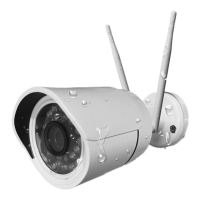
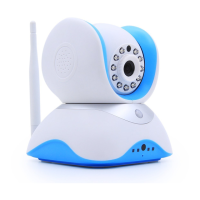
Smart Home Wireless IP-Kamera A7
Manual for initial Launch
11.03.2015
Preparation
Step 1: Please check /consider the following points
- Router supports a 2.4 GHz frequency band.
- Internet accessible via WLAN.
- Smartphone connected to the WLAN you would like to connect the camera with.
- Smartphone, camera and router are within a 3 meter radius during installation (after installing, you can
move the camera to your preferred location).
- You know the WLAN password.
Step 2: Start camera
Please mount the WiFi-antenna (with black mark) and 433-antenna onto the correct connector.
Then connect the camera to a power source. It will start beeping: Di - Di - Di …
If camera is not beeping, try resetting it:
Turn camera on, wait 30 seconds and press “reset” button on the reset-cable of camera for 3 seconds with a tooth pick, until you
hear a „di…cash“ signal. Wait another 30 seconds. Camera is now reset. All configurations (network, password, alarm) are deleted
and reset.
Step 3: HiKam-App
- Search App Store (iPhone) or Google Play (Android) for „HiKam Camera“. Download and install App free
of charge.
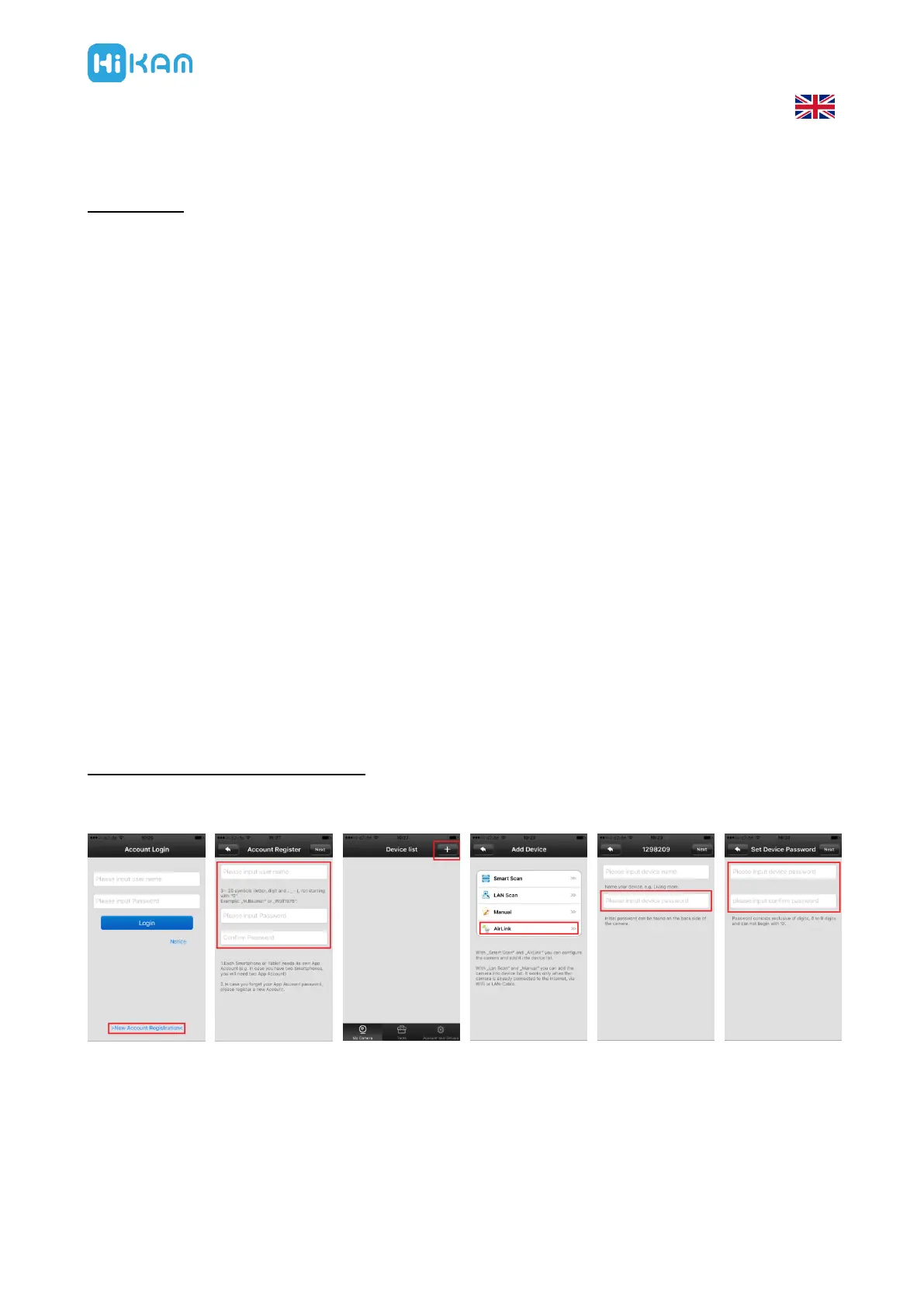
- Register with the app by clicking „New Account Registration“ (see pictures 1 and 2)
Option 1: Launch using „AirLink“
- Configure camera using AirLink. The app will guide you through the configurations step by step. It will
only take 1 minute (see pictures 3 and 4).
- Once the camera receives all configurations from your smartphone, you will hear a sound („Dong…“).
The camera will connect to the router. Once connected, the App shows you “Setup Successful”.
- You are asked to name the camera and to enter the initial camera password which is 123. (see picture 5)
- You will then be asked to enter a new password, consisting of 6-9 digits. Please do NOT start with “0”
(see picture 6)
- You can now follow the live video stream on your smartphone


 To Next Page
 Loading...