Wireless Router • User Manual
3
PPPoE: You can select this mode if your Internet Service Provider (ISP) has provided a
broadband account and password, or if you are going to use a new router to replace the
old one.
Static IP Address: It is not recommended to select this mode, unless your ISP has provided
a static IP address and other information.
Replace the old router with a new one (optional): If you have an old router that can connect
to the network normally, you can migrate data under PPPoE mode by connecting the new
and old routers.
1) Select PPPoE mode.
2) Click Auto-Obtain.
3) Connect the new and old routers to the power cable.
4) Connect the WAN port of the old router to any LAN port of the new router with a
network cable.
5) Click Obtain to get the broadband account and password from the old router.
Click Next to configure Wi-Fi Settings.
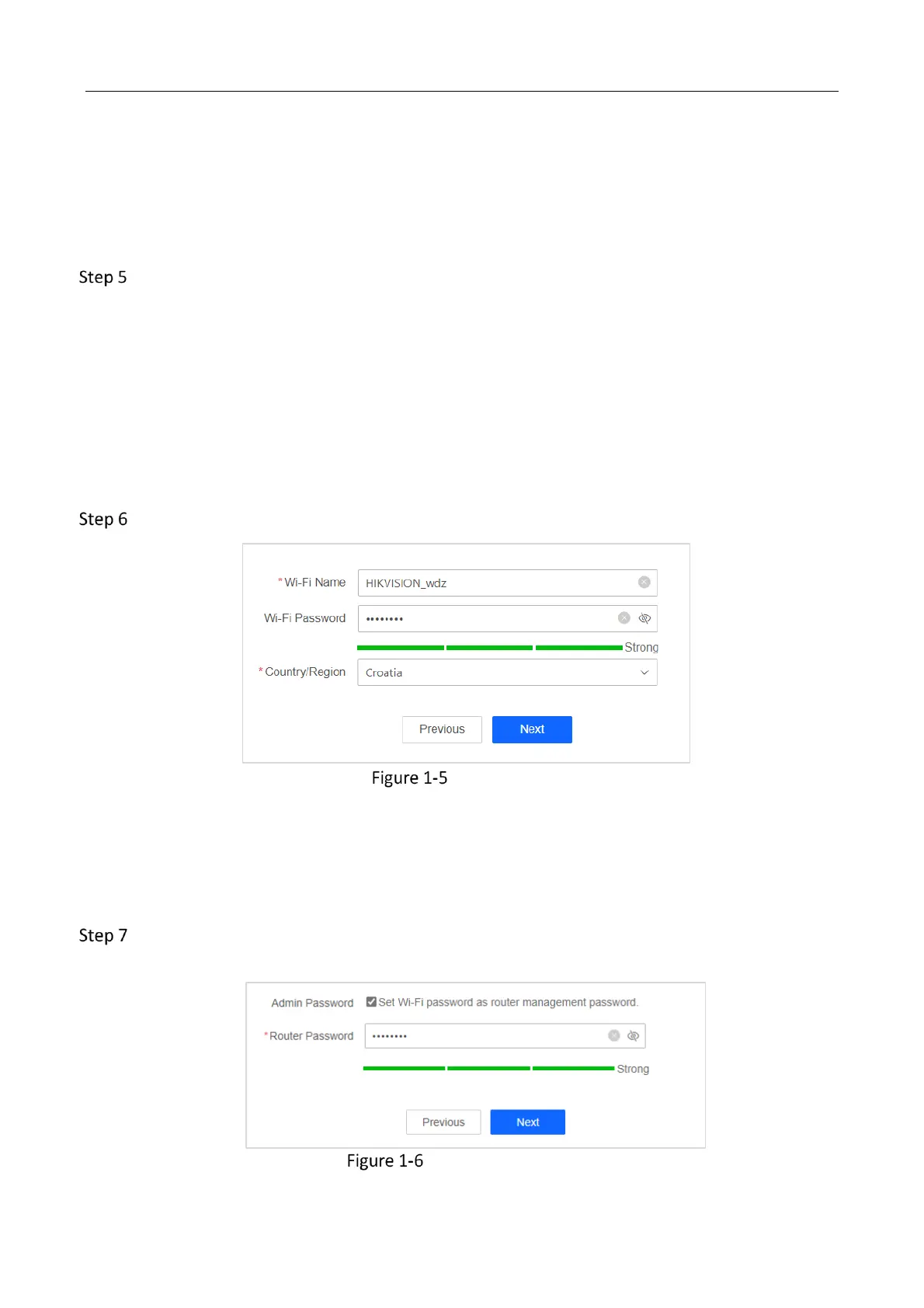
Wi-Fi Settings
Wi-Fi name: The name on the label by default. Editing is supported.
Wi-Fi password: The password to be entered when a terminal device connecting to router
Wi-Fi. Custom 8 to 16 characters is supported.
Country/Region: Select your location.
Set router password. Router password is required to log in to web management, and you can
customize 8 to 16 characters passwords.
Set Router Password



 To Next Page