EasyManua.ls Logo

Hisense E50 Lite - User Manual

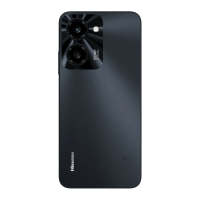
Hisense E50 Lite
41 pages
Print Icon
To Next Page IconTo Next Page
Loading...
Hisense E50 Lite
HLTE232E
User Guide
Before using the device, please read the user guide in
detail.
Notice
This product supports hot plugging. You can insert or
switch SIM cards directly while the phone is working.
Manufactured by Hisense Communications Co., Ltd.

Questions and Answers

  • M
    Mikayla LeeJul 28, 2025
    Why does my Hisense E50 Lite Cell Phone have no network connection?
    • J
      Jake CookJul 29, 2025
      If your Hisense Cell Phone has no network connection or the network drops, try moving toward a window or into an open area. Also, check your network provider coverage map to ensure you are in a covered area. If your SIM card is too old, consider changing it at your network provider’s nearest branch and contact your service provider.
  • C
    Carolyn HillAug 2, 2025
    What to do if my Hisense E50 Lite charge has error?
    • A
      Andrea HopkinsAug 2, 2025
      If your Hisense Cell Phone is not charging, there might be several reasons. First, the outside temperature could be too hot or too cold, so try charging at a normal temperature. Check the charger and its connection to the phone, and try plugging the charger into a different socket. Make sure the charger is not defective; if it is, replace it. Finally, ensure you are using only original accessories.
  • C
    Christy PooleAug 7, 2025
    What to do if calls are not available on Hisense E50 Lite Cell Phone?
    • A
      ashley61Aug 7, 2025
      If calls are not available on your Hisense Cell Phone, first ensure that there is no dialing error and that the new network is authorized. If a new SIM card has been inserted, check for any new restrictions. If your prepaid charge has reached its limit, contact your service provider.
  • W
    williamsloganAug 12, 2025
    How to fix Hisense Cell Phone that cannot be switched on?
    • Y
      ynelsonAug 13, 2025
      If your Hisense Cell Phone cannot be switched on, ensure that you press the Power button for at least two seconds. Also, charge the battery and check the charging indicator on the screen.
  • C
    Christopher WoodAug 17, 2025
    Why app cannot be installed on Hisense Cell Phone?
    • M
      matthew56Aug 18, 2025
      If you are unable to install an app on your Hisense Cell Phone, this may not be supported by your service provider or may require registration. Contact your service provider. Also, your phone might have insufficient storage. Delete some messages from your phone.
  • R
    Ronald LoganAug 22, 2025
    Why Hisense E50 Lite contacts display doubly?
    • J
      Justin MyersAug 22, 2025
      If your Hisense Cell Phone displays contacts doubly, this is because contacts are saved in both the phone and SIM card. Check the contacts saved.

Summary

Safety Precautions and General Information

General Safety Information

Covers warnings and precautions for safe device usage, avoiding damage and injury.

Medical Device Safety

Pacemaker Interference

Guidance on maintaining distance from pacemakers and medical devices.

Road Safety

Driving Precautions

Instructions for safe phone use while driving, including distractions and air bag safety.

Power Supply and Charging

Charging Guidelines

Proper procedures and precautions for charging the phone and battery.

Hearing Protection

Phone Setup and Operation

Battery Charging

Battery Charging Tips

Precautions and tips for safe and effective battery charging.

Screen and Display Overview

Basic Phone Operations

Power Button Usage

How to use the power button for turning on, off, and restarting the device.

Touchscreen Gestures

Notifications and Locking

Calls and Contacts Management

Making Calls

Instructions for dialing numbers directly or from contacts/call logs.

Making Calls from Contacts

How to initiate calls by selecting contacts from the contact list.

Making Calls from Call Logs

Placing calls directly from the recent calls history.

Messages and Contact Creation

Camera and Photos

Taking Photos

Instructions for capturing images, including zoom and flash usage.

Recording Videos

Steps to record videos, start, stop, and save them.

Viewing Photos or Videos

How to access and view captured photos and recorded videos.

Music and FM Radio

Clock and Alarms

Clock Features

Stopwatch and Sound Recorder

Troubleshooting Guide

SIM Card Errors

Solutions for issues related to SIM card recognition and network connection.

Network Connection Issues

Troubleshooting steps for no network connection or dropped signals.

Call Availability Issues

Resolving problems with making or receiving calls.

Phone Power Issues

Troubleshooting steps if the phone cannot be switched on.

Charging Errors

Diagnosing and resolving problems related to phone charging.

FCC Compliance and Interference

FCC Digital Device Limits

Information on compliance with FCC rules for digital devices.

Interference Correction

Measures to correct radio or television interference caused by the device.

RF Exposure and SAR Compliance

Technical Specifications

Device Specifications

Detailed technical specifications including brand, model, CPU, memory, camera, and battery.

Hisense E50 Lite Specifications

General IconGeneral
Display Size6.52 inches
Resolution720 x 1600 pixels
ProcessorUnisoc SC9863A
RAM2 GB
Internal Storage32 GB
Main Camera13 MP + 2 MP
Front Camera8 MP
SIMDual SIM (Nano-SIM, dual stand-by)
Operating SystemAndroid 11 (Go edition)

Videos

How to reboot Hisense E50 Lite?

Related product manuals