6
ENGLISH
2. Plug the connected devices into the main power socket before switching on the Laser Cinema.
•
TIP:
If you prefer to use Audio Return Channel, then see Connecting an audio device to use Audio Return Channel
(ARC) on page 6.
NOTES
• When a digital audio system is connected to the
DIGITAL AUDIO OUT
port, decrease the Laser Cinema and
system volume.
• 5.1 CH (channel) audio is available when the Laser Cinema is connected to an external device that supports a 5.1
channel surround sound
• You can receive 5.1 channel audio in one of two ways. The first way is to connect the
DIGITAL AUDIO OUT
port from your source device directly to your audio device. The second way is to connect the
DIGITAL AUDIO
OUT
port on the back of the Laser Cinema to the Optical port on the audio device.
If you choose the second
connection method, then go into the Audio Settings of the Laser Cinema and select SPDIF for Speakers, then go
into Advanced Audio Settings and select RAW.
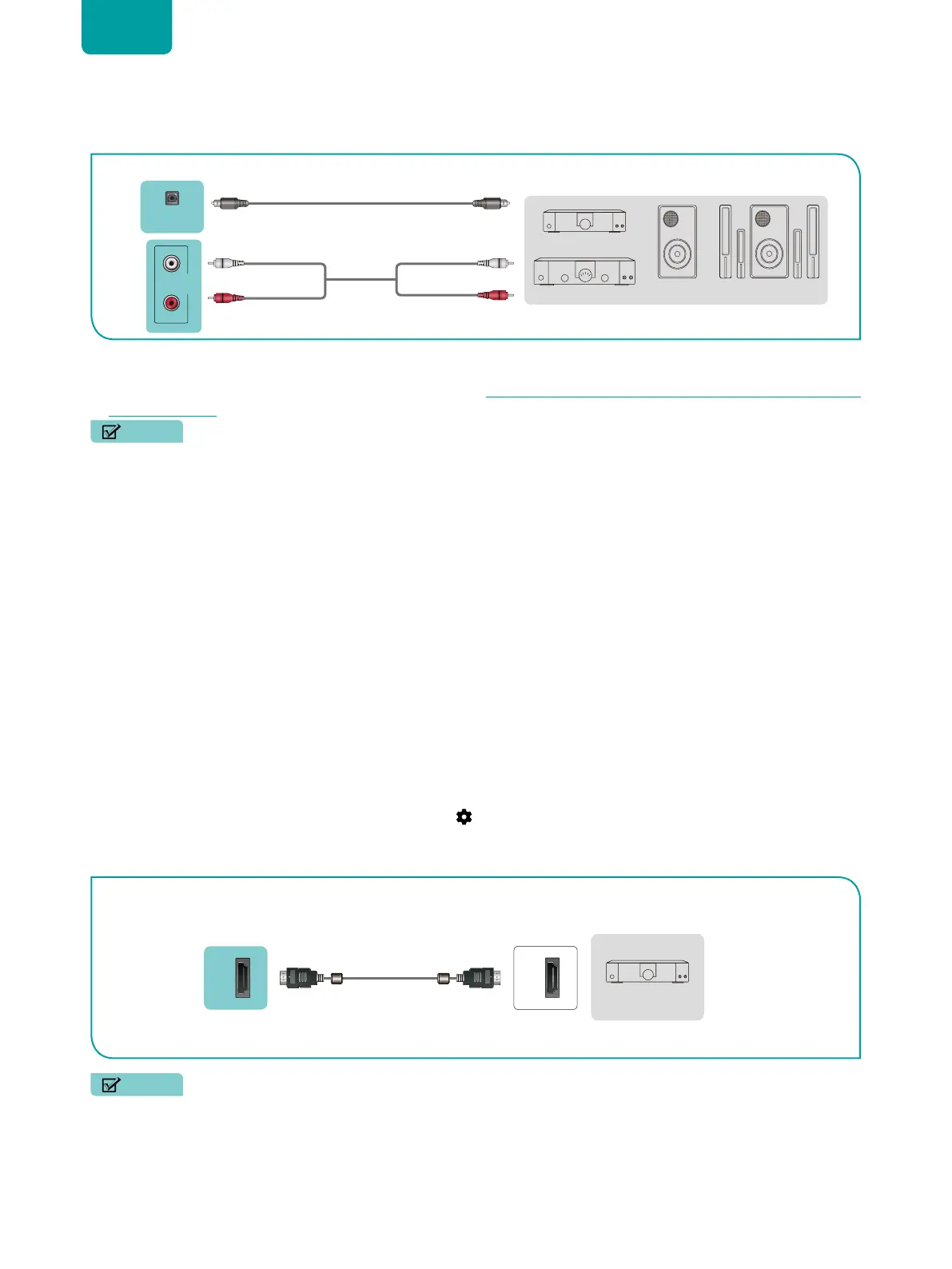
Connecting an audio device to use Audio Return Channel (ARC)
If you’d like to use the Audio Return Channel (ARC) feature to have sound sent from the Laser Cinema back down an
HDMI cable to an audio device, then you will need to connect the cable to the
HDMI / ARC
port. By using this feature,
you will also be able to control the audio device with your Laser Cinema remote instead of having to use multiple
remotes for each device.
To connect an audio device with an HDMI cable (not provided):
1. Connect the audio device to the
HDMI / ARC
port on the Laser Cinema.
2. Make sure your audio device is powered on.
3. Press the
Home
button on your remote and select the
Settings
icon, then go to
Sound
>
Speakers
.
4. Select the
ARC
option.
NOTE
EXTERNAL DEVICES
Powerless
Bass Speaker
Speaker
Digital Sound Bar
Audio Amplifier
DIGITAL
AUDIO OUT
TV PORTS
Audio Cable
White (L)White (L)
Red (R)
Red (R)
Audio Cable
L
R
AUDIO
OUT
HDMI
ARC
HDMI
EXTERNAL DEVICE
TV PORT
HDMI Cable
Audio device


 To Next Page