EasyManua.ls Logo

Hitachi CP-AW250N - User Manual

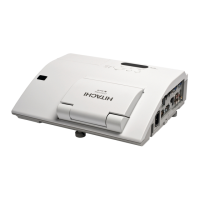
Hitachi CP-AW250N
104 pages
Print Icon
To Next Page IconTo Next Page
Loading...
1
Projector
CP-AW250N
User's Manual (detailed)
Operating Guide
Thank you for purchasing this projector.
►Before using this product, please read all manuals for this
product. Be sure to read “Safety Guide” rst. After reading them, store them in a
safe place for future reference.
WARNING
• The information in this manual is subject to change without notice.
• The manufacturer assumes no responsibility for any errors that may appear in
this manual.
• The reproduction, transfer or copy of all or any part of this document is not
permitted without express written consent.
NOTE
Trademark acknowledgment
Various symbols are used in this manual. The meanings of these symbols are
described below.
About this manual
WARNING
CAUTION
This symbol indicates information that, if ignored, could possibly
result in personal injury or even death due to incorrect handling.
This symbol indicates information that, if ignored, could possibly
result in personal injury or physical damage due to incorrect
handling.
Please refer to the pages written following this symbol.
Mac
®
is a registered trademark of Apple Inc.
Windows
®
, DirectDraw
®
and Direct3D
®
are registered trademarks of Microsoft Corporation
in the U.S. and/or other countries.
VESA and DDC are trademarks of the Video Electronics Standard Association.
HDMI, the HDMI logo, and High-Denition Multimedia Interface are trademarks or registered
trademarks of HDMI Licensing LLC in the United States and other countries.
Trademark PJLink is a trademark applied for trademark rights
in Japan, the United States of America and other countries and
areas.
• Blu-ray Disc
TM
and Blu-ray
TM
are trademarks of Blu-ray Disc Association.
All other trademarks are the properties of their respective owners.
NOTICE This entry notices of fear of causing trouble.
(Type nos. CP-AW250N, CP-AW250NM)

Table of Contents

Other manuals for Hitachi CP-AW250N

Questions and Answers

  • T
    Thomas WatkinsSep 9, 2025
    How to fix abnormal operation occurred on Hitachi CP-AW250N?
    • M
      Monica MyersSep 9, 2025
      If an abnormal operation occurs with your Hitachi Projector, stop using it immediately and disconnect the power plug from the power outlet. After ensuring that any smoke or odor has stopped, contact your dealer or service company.
  • N
    Nathan BullockAug 23, 2025
    What to do if Hitachi Projector internal temperature is rising?
    • R
      reedsierraAug 23, 2025
      If your Hitachi Projector's internal temperature is rising, immediately turn the power off and allow the projector to cool down for at least 20 minutes. Check for any blockage of the air passage aperture, and ensure the air filter is not dirty. Also, verify that the ambient temperature does not exceed 35°C and whether the projector is being used at an altitude of approximately 1600m or higher. If so, set the FAN SPEED of the SERVICE item in the OPTION menu to HIGH.
  • P
    Philip EllisAug 25, 2025
    Why is my Hitachi CP-AW250N Projector showing 'No input signal'?
    • R
      Ronald RiosAug 25, 2025
      If your Hitachi Projector displays a 'No input signal' message, first confirm the signal input connection and then check the status of the signal source.
  • T
    Thomas MercerAug 27, 2025
    What to do if the lamp does not light and the interior portion has become heated in Hitachi Projector?
    • R
      Robert WilsonAug 27, 2025
      If the lamp in your Hitachi Projector does not light and the interior portion has become heated, turn the power off and allow the projector to cool down for at least 20 minutes. After cooling, check for any blockage of the air passage aperture and ensure the air filter is not dirty. Also, verify that the ambient temperature does not exceed 35°C. If needed, change the lamp.
  • O
    omorrowAug 27, 2025
    How to fix Hitachi CP-AW250N Projector when lamp cover has not been properly fixed?
    • K
      Krista WebbAug 27, 2025
      If the lamp cover of your Hitachi Projector has not been properly fixed, turn the power off and allow the projector to cool down for at least 45 minutes. After it has cooled down sufficiently, confirm the attachment state of the lamp cover.
  • C
    campbelltroyAug 29, 2025
    What to do if my Hitachi Projector cooling fan is not operating?
    • B
      Bradley BrownAug 29, 2025
      If the cooling fan in your Hitachi Projector is not operating, turn the power off and allow the projector to cool down for at least 20 minutes. After the projector has cooled down, check that no foreign matter has become caught in the fan.
  • R
    Robert EvansSep 18, 2025
    What to do if my Hitachi CP-AW250N Projector is not responding?
    • W
      Wayne JonesSep 18, 2025
      If the Hitachi Projector isn't responding, the image is frozen, or information isn't correct, the communication between the projector and computer may not be working well, or the NETWORK Functions of the projector may not be working well. Try “RESTART” in SERVICE menu under the NETWORK menu.
  • A
    Alexa HughesSep 22, 2025
    How to display movies correctly on Hitachi Projector?
    • B
      bishopshawnSep 22, 2025
      In some cases, movies played by a media player might not transfer correctly to the Hitachi Projector with the “LiveViewer”, depending on the computer's video card and application software. If your application has a video acceleration level adjustment function, try adjusting it. Refer your application manual in detail.
  • L
    Lorraine KellerSep 7, 2025
    What to do if Hitachi Projector shows improper signal input?
    • L
      Lisa GonzalesSep 8, 2025
      If your Hitachi Projector indicates an improper signal input, confirm the specifications for your projector or the signal source specifications.
  • R
    Robert LinSep 4, 2025
    Why no pictures are displayed on my Hitachi CP-AW250N Projector?
    • S
      Suzanne JacobsSep 4, 2025
      If no pictures are displayed on your Hitachi Projector, the BLANK screen may be active. Press the BLANK button on the remote control.

Summary

Introduction

Projector Features

Details the unique lens, motorized lens door, double layer filter, HDMI port and network support.

Projector Part Identification

Identifies and labels all external parts of the projector unit for user reference.

Setting up

Projector Arrangement and Installation

Guidance on positioning the projector for optimal screen size and projection distance.

Connecting Projector to Devices

Instructions for connecting various external devices like computers, players, and cameras.

Operating

Selecting Video Input Sources

Steps to switch between different input ports like HDMI, USB, VGA, and S-Video.

Navigating Projector Menus

Explains how to access and use the PICTURE, IMAGE, SETUP, and other menus.

Presentation tools

PC-LESS Presentation Setup

Guides on using the projector for presentations directly from USB storage without a PC.

Maintenance

Projector Lamp Replacement

Step-by-step guide for safely replacing the projector lamp unit.

Air Filter Cleaning and Replacement

Instructions for maintaining the projector's air filter to ensure proper ventilation and performance.

Troubleshooting

Interpreting Projector Messages

Explains common on-screen messages and recommended actions.

Troubleshooting Common Issues

Lists common issues and their non-defect causes/solutions.

Specifications

Hitachi CP-AW250N Specifications

General IconGeneral
Matrix size0.59 \
Matrix type3-panel (p-Si TFT active)
Projection distance0.12 - 0.392 m
Projection technologyLCD
Contrast ratio (typical)2000:1
Screen size compatibility11.6 - 70.5 \
Projector native resolutionWXGA (1280x800)
Audio input2
Dimensions (WxDxH)345 x 303 x 85 mm
Connectivity technologyWired
Zoom capabilityYes
Focal length range- mm
Lamp typeUHP
Lamp power210 W
Light source typeLamp
Service life of light source- h
DVI portNo
USB connector typeUSB Type-A, USB Type-B
Serial interface typeRS-232
USB 2.0 ports quantityUSB 2.0 ports have a data transmission speed of 480 Mbps, and are backwards compatible with USB 1.1 ports. You can connect all kinds of peripheral devices to them.
VGA (D-Sub) ports quantity3
Component video (YPbPr/YCbCr) in0
Supported video modes1080i, 1080p, 480i, 480p, 576i, 720p
Analog signal format systemNTSC, NTSC 4.43, PAL, PAL 60, PAL M, PAL N, SECAM
Supported graphics resolutions1024 x 768 (XGA), 1280 x 1024 (SXGA), 1280 x 800 (WXGA), 1440 x 900 (WXGA+), 1600 x 1200 (UXGA), 1680 x 1050 (WSXGA+), 640 x 480 (VGA), 800 x 600 (SVGA)
RMS rated power10 W
PlacementCeiling
Product colorWhite
Cable lock slot typeKensington
AC input voltage100 - 240 V
Power consumption (standby)- W
Optical disc player typeNot included
Noise level- dB
CertificationUL/cUL, FCC Part 15 Class A, AS/NZS CISPR22 Class A, CE, RoHS, GOST-R
Operating temperature (T-T)5 - 35 °C
Cables includedVGA
Weight and Dimensions IconWeight and Dimensions
Depth303 mm
Width345 mm
Height85 mm
Weight3800 g

Related product manuals