EasyManua.ls Logo

Hitachi LE40K507 - User Manual

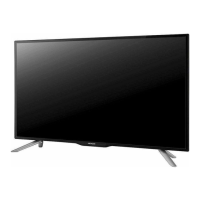
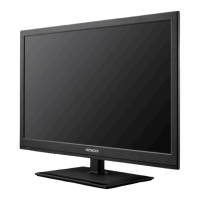
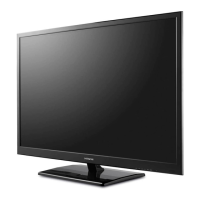
Hitachi LE40K507
44 pages
Print Icon
To Next Page IconTo Next Page
Loading...
LE40K507
40” Class (40.00” Diag.)
Serial No.
Model:
Thank you for purchasing this Hitachi product.
Please read these instructions carefully.
For additional assistance please call Toll Free
800.HITACHI (800.448.2244).
or visit our website at www.hitachi.us/tv.
Keep this owner’s guide for future reference.
Record the model name and serial number of your LCD
Television for future reference.This information is located
on the back of the television.
TABLE OF CONTENTS
2-6 IMPORTANT SAFETY INSTRUCTIONS
7 HOW TO ATTACH / REMOVE THE STAND
8-12 FIRST TIME USE
13-23 TV OPERATION
24-27 CONNECTIONS TO OTHER EQUIPMENT
28 RECEPTION DISTURBANCES
29 TROUBLESHOOTING
30 SPECIFICATIONS
31-33 LIMITED WARRANTY
CONGRATULATIONS
LED LCD HDTV
OWNER’S GUIDE
OG_K507_081213

Other manuals for Hitachi LE40K507

Questions and Answers

  • N
    Nicholas ThomasAug 19, 2025
    What to do if my Hitachi LE40K507 does not turn on?
    • R
      Robert BrownAug 19, 2025
      If your Hitachi LED TV isn't turning on, ensure the power cord is securely plugged into the outlet. If it is, try plugging the TV into another AC outlet to rule out a faulty outlet. Also, check the fuse or circuit breaker. As a last resort, unplug the unit for an hour, then plug it back in.
  • O
    omcmillanAug 21, 2025
    Why does my Hitachi LE40K507 keep shutting off?
    • J
      jimmy84Aug 22, 2025
      If your Hitachi LED TV keeps shutting off, the Sleep Timer may be set; disable it. Also, consider the possibility of a power interruption.
  • J
    Jennifer FrankAug 23, 2025
    How to fix poor sound on Hitachi LED TV?
    • K
      Kara ButlerAug 25, 2025
      If you're experiencing poor or no sound on your Hitachi LED TV, first, if you are watching TV, try tuning to another station to rule out station or cable issues. Then, check your TV's sound adjustments, such as volume and mute settings. Also, check for any nearby sources of possible interference.
  • D
    David MendezAug 26, 2025
    What to do if my Hitachi LE40K507 LED TV has poor picture quality?
    • K
      Karen GriffinAug 26, 2025
      If your Hitachi LED TV has poor or no picture, first tune to another station to rule out station or cable issues. Make sure channels are properly set into memory. Check your antenna or cable TV connections and adjust the antenna. Look for any sources of interference. Finally, check the picture control adjustments.
  • J
    jenniferloveAug 28, 2025
    Why is my Hitachi LED TV getting poor reception on some channels?
    • M
      Melissa RobinsonAug 28, 2025
      If your Hitachi LED TV is getting poor reception on some channels, try tuning to another station to rule out station or cable issues. Make sure channels are set into memory. If a station is weak, adjust the antenna to improve reception. Also, check for sources of possible interference.
  • D
    Dwayne ThorntonAug 30, 2025
    How to fix poor color on Hitachi LED TV?
    • O
      Olivia HuffmanAug 30, 2025
      To fix poor or no color on your Hitachi LED TV, first tune to another station to rule out station or cable problems. Ensure channels are set into memory. Check the picture control adjustments. Also, check the antenna or cable TV connections and adjust the antenna. Finally, check for any sources of possible interference.
  • L
    Laura CastroSep 1, 2025
    How to fix digital broadcasting screen problem on Hitachi LED TV?
    • R
      Robert RichardsonSep 1, 2025
      To fix a digital broadcasting screen problem on your Hitachi LED TV, check the digital signal strength.
  • C
    Cory RichardsonSep 3, 2025
    Why is my Hitachi LED TV remote not working?
    • M
      martinezluisSep 3, 2025
      If your Hitachi LED TV remote isn't working, start by checking the batteries to ensure they are not weak, dead, or inserted incorrectly. Then, make sure you are within 15 feet of the TV and that the remote is aimed at the sensor. Confirm that there are no obstructions between the remote and the TV. Finally, ensure the TV's power cord is plugged in.
  • R
    Robert MartinSep 5, 2025
    How to get CATV reception on Hitachi LE40K507 LED TV?
    • J
      Justin BakerSep 6, 2025
      To get CATV reception on your Hitachi LED TV, check all Cable TV connections. Set the Source menu option to the Cable mode. If problems persist, try tuning to another station to rule out station or cable TV system issues.
  • J
    Jamie BrownSep 7, 2025
    Why does the picture wobble on my Hitachi LED TV?
    • D
      Dr. Christine MckinneySep 8, 2025
      If the picture on your Hitachi LED TV wobbles or drifts, first, tune to another station to rule out station or cable problems. Ensure that channels are set into memory. If you are using cable, it's possible that the Cable TV company is scrambling the signal, in that case adjust the antenna.

Summary

Important Safety Instructions

Condensation

Handling the LCD Panel

Power Source Information

Declaration of Conformity

Child Safety Notice

Tune Into Safety

Safety tips for using the flat panel display and general precautions.

Wall Mounting Guidelines

Essential steps and recommendations for safely mounting the TV to a wall.

Safety Precautions

Wall Mounting Notes

Advice on professional installation and screw specifications for wall mounting.

Securing the TV to a Wall

Instructions for using wire, screws, and clamps to secure the TV.

TV Cabinet Placement Notice

Warning about unstable placement in cabinets and potential damage.

How to Attach the Stand

How to Remove the Stand

Product Features

Picture Performance Features

Details on LED backlight, refresh rate, and screen clarity.

Convenience Features

Highlights PC input, USB input, MHL, and sleep timer functionality.

Audio Performance Features

Information about Dolby Digital/MTS Stereo/SAP support.

Location of Controls

Front Control Locations

Identifies the control keys and remote sensor on the front of the TV.

Rear Connection Ports

Diagram showing rear panel connectors for audio and video inputs/outputs.

Left Side Ports

Details the ports located on the left side of the TV.

Bottom Side Ports

Details the ports located on the bottom side of the TV.

Remote Control Guide

Remote Control Battery Precautions

Important safety guidelines for using and installing batteries in the remote.

How to Install Batteries

Step-by-step instructions for inserting batteries into the remote control.

Antenna Connections

VHF;UHF Antenna Connection

Diagram showing how to connect a VHF/UHF antenna using a 75 ohm cable.

Cable TV Connections

Basic Cable TV Service Setup

Instructions for connecting basic cable TV service without a converter box.

Scrambled Cable TV Service Setup

Guide for connecting cable TV service requiring a converter/descrambler.

Premium Cable TV Service Setup

Connecting basic cable with premium channels using a splitter and A/B switch.

Initial Setup Wizard

TV Operation Basics

Selecting Analog Channels

Instructions for selecting analog channels by number.

Selecting Digital Channels

Instructions for selecting digital channels by number.

Selecting Video Input Source

How to switch between different connected input devices.

Quick Menu Operation Guide

A quick guide to navigating the TV's on-screen menu system.

Convenience Functions

Video Settings

Adjusting picture settings like Brightness, Contrast, Color, and Aspect Ratio.

Audio Settings

Configuring equalizer settings, MTS, audio language, and volume adjustments.

Time Settings

Setting sleep timer, time zone, and time format for the TV.

Setup Menu Options

Includes menu language, OSD timeout, input labels, and PC settings.

Lock Menu Options

Options for parental control and input locking for connected devices.

Channel Menu Options

Access to channel setup, view/skip, and channel labels.

Channels Setup

Air;Cable Source Selection

Selecting between Air (antenna) and Cable TV sources.

Automatic Channel Scan

Procedure for scanning and memorizing available channels.

Channel Manager (View;Skip)

Allows users to skip unwanted channels from the channel list.

Labeling Channels

Creating Channel Labels

Steps to assign custom names (up to 7 characters) to channels.

Setting Parental Controls

Entering Parental Control Password

Instructions on how to enter the password to access parental controls.

Locking Connected Devices

How to block specific input sources using parental control settings.

Setting Parental Control Ratings

Configuring age-based rating limits for TV and movie content.

Canadian Rating Systems

Explanation of Canadian age and genre-based rating systems for content.

Changing the Parental Control Password

Downloading Additional Parental Control Data

Downloading Region 5 Rating System

Instructions for downloading and setting up an alternative parental control system.

Closed Captioning

What is Closed Captioning?

Explanation of closed captioning and its function for viewers.

CC Options and Customization

Customizing Caption Style

Adjusting font, size, color, and opacity for digital captions.

Aspect Ratio Switching

Selecting Picture Size

Changing picture display sizes to Normal, Wide, or Cinema.

JPEG Viewer

Playing Back JPEG Files

Instructions for viewing JPEG photos from a USB storage device.

USB Browser Interface

Overview of the USB browser interface for file selection.

Connecting Other Equipment

Connecting to a VCR

Diagram for connecting a VCR to the TV for playback.

Connecting a DVD Player (Component)

Steps for connecting a DVD player using component video cables.

Connecting Camcorders;Game Consoles

Instructions for connecting camcorders or game consoles to the TV.

Connecting to an Audio System

Connecting AV Amplifier (Digital Surround)

Connecting an AV amplifier with Dolby Digital for surround sound.

Connecting HDMI;DVI Devices

Connecting a PC

Connecting an MHL Device

Connecting MHL-Enabled Devices

Steps to connect and display content from MHL-enabled smartphones or dongles.

Reception Disturbances

Signal Interference Types

Describes ignition noise, ghosts, snow, and radio frequency interference.

Preventing Radio Interference

Steps to prevent the TV from interfering with radio receivers.

Digital Signal Issues

Troubleshooting block noise or freeze due to weak digital signals.

Troubleshooting Common Issues

TV Not Operating

Solutions for when the TV does not turn on or function.

Audio and Picture Problems

Troubleshooting for sound, color, reception, and image quality issues.

Remote and Display Issues

Solutions for remote control, unexpected shutdowns, language, and captioning problems.

Product Specifications

General Specifications

Details on power supply, consumption, weight, and dimensions.

Television Specifications

Panel size, display method, pixels, and broadcasting system.

Tuner Type and Inputs

Information on tuner type, video, audio, component, and HDMI inputs.

Output Specifications

Details on audio outputs and digital audio outputs.

Speaker Specifications

Information on speaker size and power output.

Included Accessories

List of items included with the TV, such as remote and cables.

Service and Support

Hitachi Customer Service

Contact information and procedures for obtaining service assistance and warranty support.

Limited Warranty Information

Limited Warranty Conditions

Terms and conditions for warranty coverage, including defect repair/replacement.

Warranty Coverage for Televisions

Details on parts and labor warranty periods for LED/LCD TVs.

Warranty Limitations

Exclusions from warranty coverage, such as unauthorized modifications or abuse.

Warranty Exclusions and Limitations

Unauthorized Repairs and Adjustments

Exclusions related to unauthorized repairs, setup, or user-operated controls.

Warranty Disclaimer and Limitations

Hitachi's warranty disclaimers and limitations on implied warranties and damages.

Hitachi LE40K507 Specifications

General IconGeneral
Screen Size40 inches
Display TechnologyLED
HDMI Ports3
USB Ports2
Smart TVYes
Built-in Wi-FiYes
Resolution1920 x 1080 pixels

Related product manuals