34
Operation
5.4 Import updates via SD card
For detailed information on firmware updates with reference to using
the SD card in the SD card slot (E), please refer to the user manual.
6 Operation
Once your glass display has been connected successfully, it can be easily
set up via the WebUI user interface or the Homematic IP app.
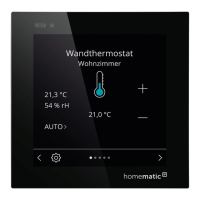
Thanks to the proximity sensor, the display is automatically illuminated as
soon as a person approaches. The display can be operated intuitively by
touch. Six languages (German, English, French, Spanish, Italian or Dutch)
can be selected for operation.
The glass display has three screen pages that you can switch between
using the arrow keys on the right and left sides of the screen.
Each page can be individually divided into one, two or four tiles for oper-
ating the desired functions, enabling a wide range of functions from the
areas of light and shading to be available.
7 Error codes and flashing sequences
Flashing code Meaning Solution
Short orange flashing Data transfer Wait until the transmission is
completed.
1x long green flash Operation
confirmed
You can continue operation.
1x long red flash Operation failed
Please try again.
Short orange flashing
(every 10 seconds)
Pairing mode
active
Please enter the last four
numbers of the device serial
number for confirmation (see
„5.3 Anlernen“ auf Seite 30).
6x long red flashes Device defec-
tive
Please see your app for error
message or contact your
retailer.
1x orange and 1x
green lighting
(after establishing
power supply)
Test display After the test display has
stopped, you can continue.


 To Next Page