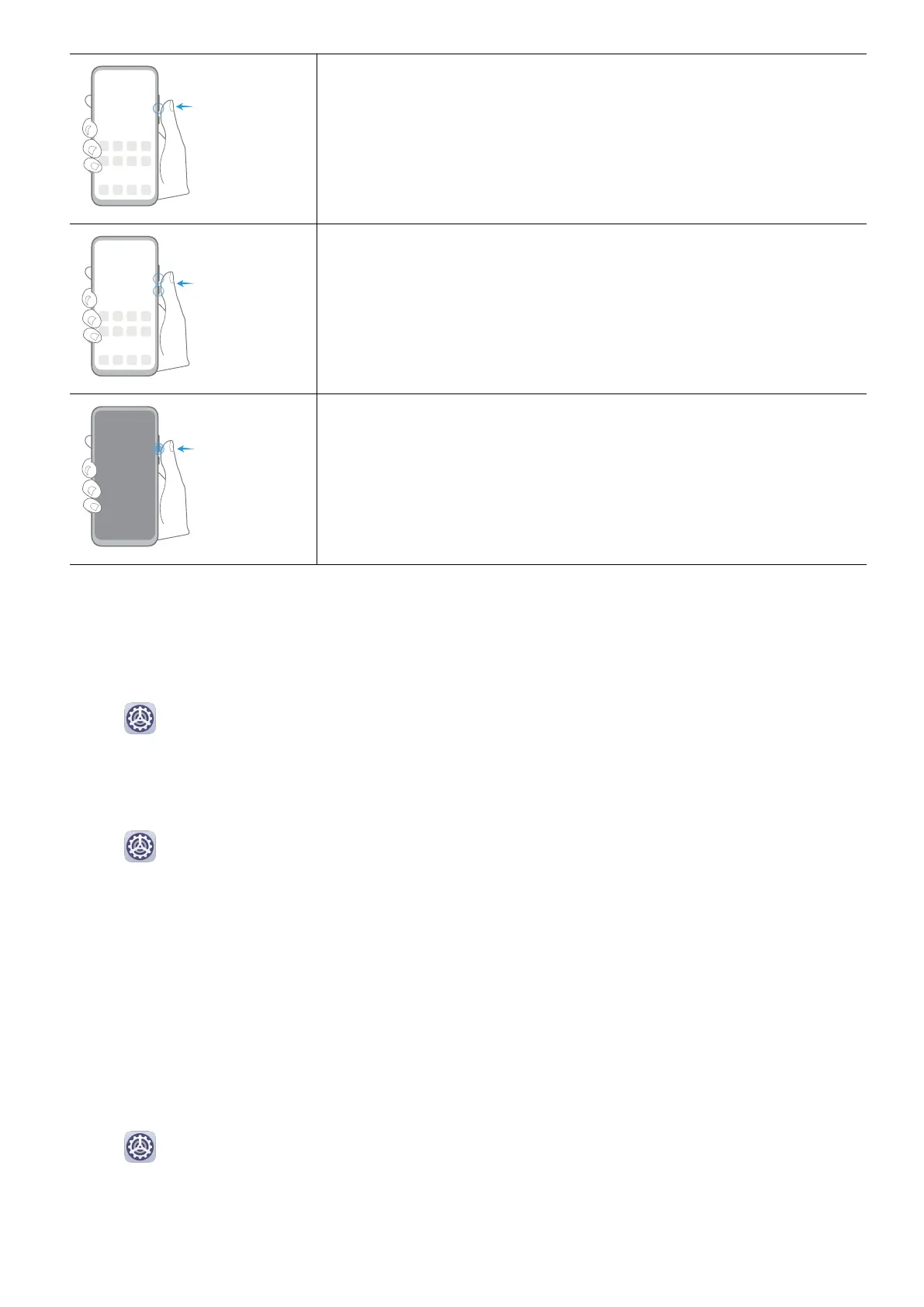
Decrease the volume
Press the Volume down button.
Take a screenshot
Press the Volume down and Power buttons simultaneously.
Ultra snapshot
Double-press the Volume down button when the screen is o
or locked to take a photo.
System Navigation
Change the Navigation Mode
Go to
Settings > System & updates > System navigation to select a navigation mode
according to your preferences.
Navigate with Gestures
Go to
Settings > System & updates > System navigation and enable or disable
Gestures.
After enabling Gestures, you can:
• Go back to the previous screen: Swipe inward from the left or right edge.
• Return to the home screen: Swipe up from the bottom of the screen.
• Access the recent tasks screen: Swipe up from the bottom of the screen and hold.
• Close an app from the recent tasks screen: Swipe up on an app preview.
Three-Key Navigation
Go to
Settings > System & updates > System navigation, and select Three-key
navigation.
Touch Settings to select the navigation key combination you prefer.
The icons on the navigation bar are as follows:
Essentials
3



 To Next Page