Rearrange icons on the home screen
Touch and hold an icon until it enlarges, then drag it to the desired position on the home
screen.
Keep Home Screen Icons Aligned
Pinch two together on the home screen to access Home screen settings mode,
then enable Auto-align. With this feature enabled, empty spaces will automatically be
when apps are removed.
Lock Home Screen Icon Positions
Pinch two together on the home screen to access Home screen settings mode,
then enable Lock layout.
Select the Home Screen Layout Pattern
Pinch two together on the home screen, go to Home screen settings > Layout,
then select a layout pattern you prefer.
Enable Dual-screen Layout
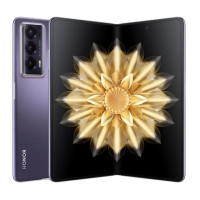
You can unfold your device and have a dual-screen home screen to make full use of the
large screen. It is convenient to quickly browse more apps and cards on the home screen.
Before using this function, unfold your phone.
out the following methods to enable Dual-screen layout:
• Pinch two on the home screen, tap Home screen settings, and toggle on Dual-
screen layout.
• Go to Settings > Home screen & wallpaper > Home screen settingsand turn on Dual-
screen layout.
To have a better display you can select 4×6 for Layout when you toggle on Dual-screen
layout.
In the Dual-screen layout, you can swipe left or right on the app divider at the bottom of
the home screen to increase or decrease the display of recently used apps.
Display and Brightness
Automatically Adjust the Screen Brightness
Your phone will automatically adjust the screen brightness according to the ambient
lighting conditions. You can do this in any of the following ways:
• Go to Settings > Display & brightness, and enable Automatic.
• Swipe down from the top right of the screen to open the Control Center, Keep the in
the screen brightness adjustment area turned on.
Settings
108



 To Next Page