4 Touch to end the recording.
Adjust the Slow-Mo Pa in Slow-Mo Videos
For a slow-mo video, you can change which of it you want to play in slow motion.
feature is only available for slow-mo videos recorded at 4x or 8x. 8x option is not
available on devices.
1 Go to Galle and select a slow-mo video.
2 Touch to display the editing area.
3 Drag the sliders to adjust the you want to be played in slow motion.
Other of the video will be played at a normal speed.
4 Touch to save your edits.
Use Time-Lapse to Create a Sho Video
You can use Time-lapse to capture images slowly over several minutes or even hours, then
condense them into a video. allows you to capture the beauty of change –
blooming drifting clouds, and more.
1
Go to Camera > MORE and select TIME-LAPSE mode.
2
Place your phone in position. To reduce camera shake, use a tripod to steady your
phone .
3 Touch to recording, then touch to end the recording.
recorded video is automatically saved to
Use Pro Mode to Record Videos
1 In the PRO mode, tap
to switch to recording. You can then:
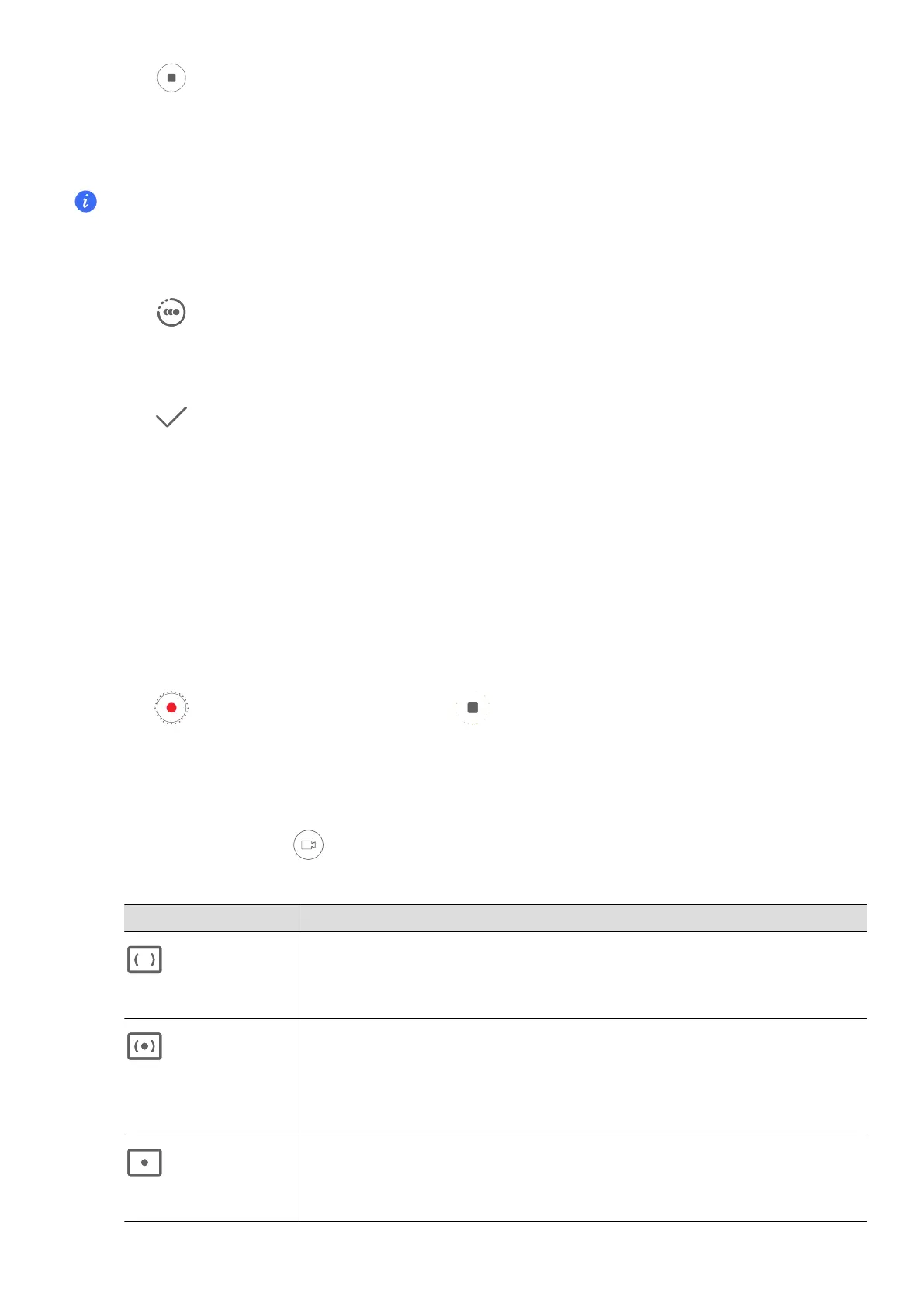
• Adjust the metering mode: Tap M and select a metering mode.
Metering Mode
Applicable Scenarios
Matrix
metering
Metering the entire frame. Applicable when shooting
landscapes.
Center-
weighted
metering
Focus on the center of the frame. Applicable when shooting
Spot
metering
Concentrate on a small area of the frame, such as the eyes
of a person.
• Adjust the ISO sensitivity: Tap ISO and drag the ISO slider.
Video Creation
56















 To Next Page