
 Need help?
Do you have a question about the HORI Ace Combat 7 and is the answer not in the manual?
Explains why the PS button may not turn on the PS4 system.
Advises checking the PS4/PS3 System Toggle Switch for gameplay response.
Discusses user account differences affecting gameplay controls.
States the need to pair the controller first with a DUALSHOCK®4.
Advises users to stop if feeling discomfort or pain from vibration.
Lists precautions against product malfunction, damage, and misuse.
Details safety measures to prevent physical harm and keep away from children.
Details the front and back layout of the joystick controls and ports.
Details the front and back layout of the throttle controls and ports.
Explains the function of the toggle switch for PS4/PS3 compatibility.
Provides step-by-step instructions for connecting the device to a console.
Guides on how to attach the suction cups for secure mounting.
Instructions on attaching the handrest extender for improved ergonomics.
Information about using the expansion port for headset/microphone.
Explains the touch pad functionality and its PS4-only limitation.
Details how to adjust the throttle resistance using an adjustment screw.
Explains how to adjust joystick sensitivity with a toggle switch.
Details the 3 different settings for the throttle and rudder toggle switch.
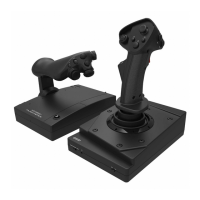
This document describes the HORI Flight Stick for PlayStation®4, a peripheral designed to enhance the gaming experience for flight simulation titles, particularly "ACE COMBAT 7: SKIES UNKNOWN." While primarily for PlayStation®4, it also offers compatibility with PlayStation®3 and PC.
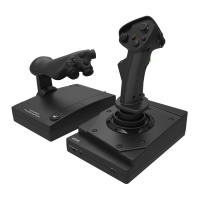
The flight stick is a two-part controller system, consisting of a main joystick unit and a separate throttle unit, connected via a modular cable. This modular design allows for flexible placement and setup, catering to individual user preferences. The joystick unit features a comprehensive array of controls, including a right analog stick, R3 button, four face buttons (triangle, circle, square, cross), a D-Pad, a touch pad, and a left analog stick. Additionally, it incorporates SHARE and OPTIONS buttons, crucial for PlayStation® functionality, as well as L1, R1, L3, and R3 buttons. A System Toggle Switch and a Joystick Sensitivity Toggle Switch are also present on the joystick unit, offering quick adjustments to the controller's behavior. For communication, a Stereo Headset/Microphone Port is integrated, allowing players to connect their audio peripherals directly to the joystick. The unit connects to the console via a USB connector.
The throttle unit provides dedicated controls for managing aircraft speed and other functions. It includes L2 and R2 buttons, a D-Pad, an R3 button, and additional L1, R1, L2, and R2 buttons specifically for rudder and throttle control. A Throttle/Rudder Toggle Switch is available to alter the function of these buttons. The throttle unit connects to the joystick unit via a modular cable and features a screw on its underside for adjusting resistance, allowing users to customize the feel of the throttle movement. Both the joystick and throttle units are designed with holes on their bottom sides for attaching suction cups, ensuring stable placement on smooth, flat surfaces during intense gameplay.
The HORI Flight Stick offers several features to optimize gameplay and user comfort. The Platform Toggle Switch allows seamless switching between PlayStation®4 and PlayStation®3 compatibility. For PC use, the device functions as an Xinput controller and is automatically recognized upon USB connection.
Joystick sensitivity can be adjusted using the Joystick Sensitivity Toggle Switch, offering three modes: Narrow, Normal, and Wide. Narrow mode provides increased sensitivity, Normal mode maintains a standard sensitivity level, and Wide mode offers reduced sensitivity compared to normal. This allows players to fine-tune the joystick's responsiveness to match their playstyle and the demands of different games.
The Throttle/Rudder Toggle Switch on the throttle unit provides three distinct settings to customize the function of the L1, R1, L2, and R2 buttons. In Setting 1, R2 (UP) and L2 (DOWN) control the throttle, while R1 (RIGHT) and L1 (LEFT) control the rudder. Setting 2 assigns R1 (UP) and L1 (DOWN) to throttle control, and R2 (RIGHT) and L2 (LEFT) to rudder control. Setting 3 dedicates the throttle to vertical control of the Right Analog Stick and the rudder to horizontal control of the Right Analog Stick, with the Right Analog Stick itself not functioning in this mode (though the R3 button remains functional). This flexibility allows users to configure the controls in a way that feels most intuitive for them.
For enhanced comfort, especially during long gaming sessions, a Handrest Extender is included. This extender can be affixed to the base of the joystick to provide additional support for the hand, improving ergonomics.
The joystick unit also features an expansion port for connecting a headset and microphone. This allows for in-game communication, though it's important to note that this feature is exclusive to PlayStation®4 and is not compatible with PlayStation®3 or Windows PC. Users are advised to lower the volume before placing a headset on their ears to prevent hearing damage, as prolonged exposure to high volumes or sudden loud noises can be harmful.
The touch pad functionality, located on the joystick unit, replicates the touch pad features of a DUALSHOCK®4 wireless controller. This feature is also exclusive to PlayStation®4 and is not compatible with PlayStation®3 or Windows PC.
To ensure the longevity and proper functioning of the flight stick, several maintenance guidelines are provided. Users are advised to avoid disassembling, repairing, or modifying the product, as this could lead to malfunction. The controller should be kept away from dusty or humid environments and protected from strong impacts or heavy weights. When cleaning, only a soft, dry cloth should be used, and chemical agents like benzine or thinner should be avoided. Care should also be taken not to pull roughly or bend the controller's cables.
When attaching the suction cups, it is recommended to use a sturdy table and avoid fragile furniture, such as glass, to prevent damage. When removing the suction cups, users should be careful not to damage the surface to which the product was attached. Before affixing the Handrest Extender, any dust or dirt should be removed from the armrest area to ensure proper adhesion.
For optimal performance, it is recommended to keep the console's system software updated. The manual suggests PlayStation®4 system software version 4.73 or later, and PlayStation®3 system software version 2.80 or later. Some functions may not work as intended with older software versions.
The manual provides solutions for common issues. If the PS button on the flight stick does not turn on the PlayStation®4 system, users are instructed to use the wireless controller (DUALSHOCK®4) or the console's power button. If the PS button does not respond during gameplay, users should check the PS4/PS3 System Toggle Switch to ensure it is set to the correct console. If controls respond in the home screen but not during gameplay on PlayStation®4, it's crucial to ensure the same user account is logged in as the one used at the start of the game. Finally, if the controller does not respond upon pressing the PS button, it must first be paired with the PlayStation®4 system using a wireless controller (DUALSHOCK®4).
It's important to note that this product does not feature a light bar or motion sensors and may not support all standard PlayStation®4 and PlayStation®3 software. It is not compatible with PlayStation®2, PlayStation®, or PS one® consoles and is not a wireless controller.
 General
| Compatibility | PlayStation 4, PC |
|---|---|
| Type | Flight Stick |
| Connectivity | Wired USB |
| Vibration Feedback | Yes |
| Throttle Control | Yes |
| Rudder Control | Integrated Rudder Control |
| Buttons (Throttle) | Multiple programmable buttons |
| Special Features | Compatible with Ace Combat 7: Skies Unknown |


 To Next Page