4. Desktop Marker
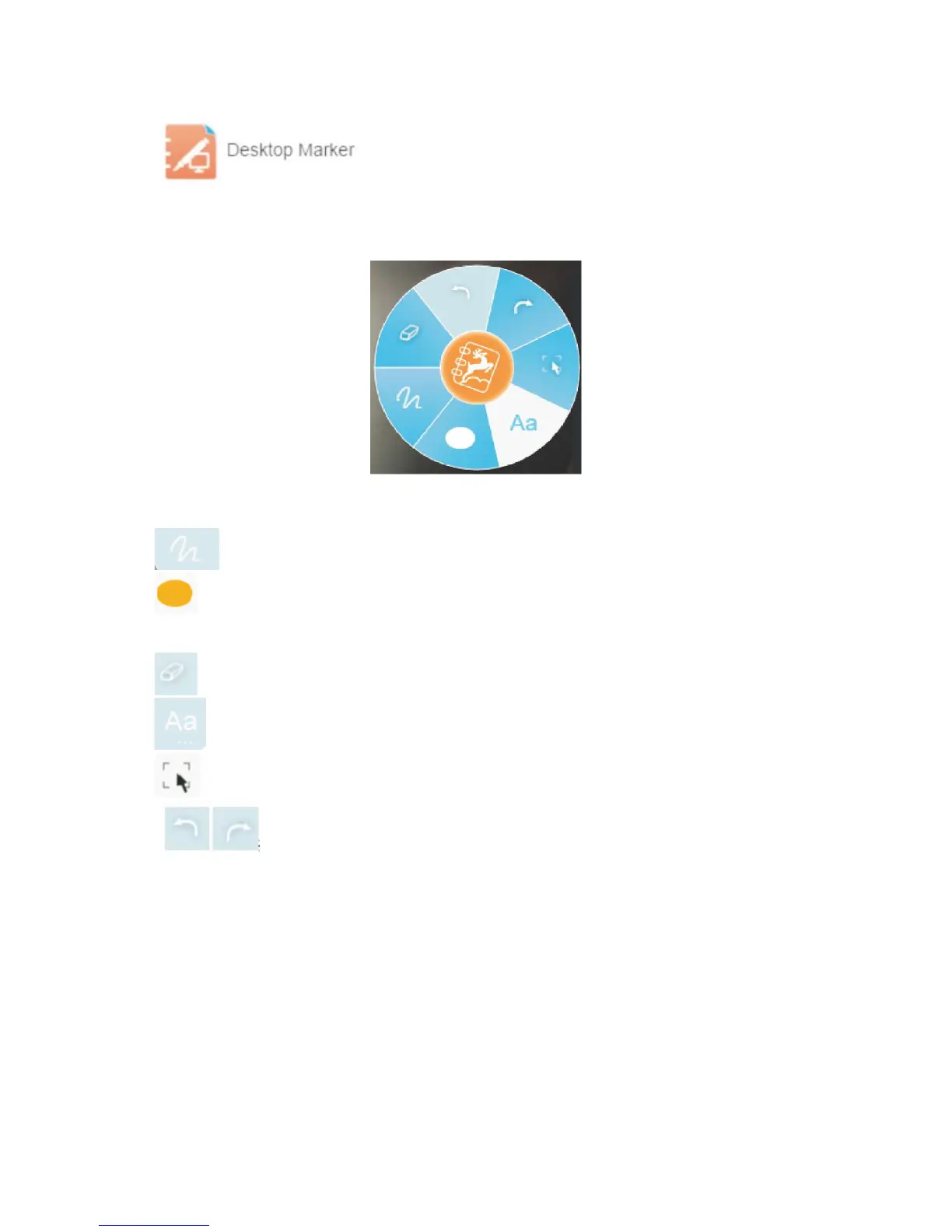
Click in the middle-right part of the recording screen to start the marker
software, as shown in the following figure.
Click a function button to complete setting.
Description of the buttons of the marker toolbar:
1. Line: Use the mouse for marking information with lines in different colors.
2. Graph: Add different graphs or blocks to the current screen for content marking. The extended
functions include selecting frames, segments, and arrows for lines to select the marked content by
different methods.
3. Clear: Clear unnecessary mark traces on the screen.
4. Subtitle: Add subtitles to the recording area.
5. Select: Move existing marks and identifiers.
6. Undo and redo: Eliminate the impact of misoperation.


 To Next Page