Quick start guide
Before Setting Up
1. Make sure the DHCP function of your router is turned on and supports 2.4GHz band for your
clock-cam to connect to. (5GHz is not supported for this device)
2. Make sure your smartphone is connected to the same 2.4GHz network that you're connecting
your clock-cam to.
3. Please make sure Location Services is turned on. For iPhone, go to Settings => Privacy =>
Location Services to enable it.
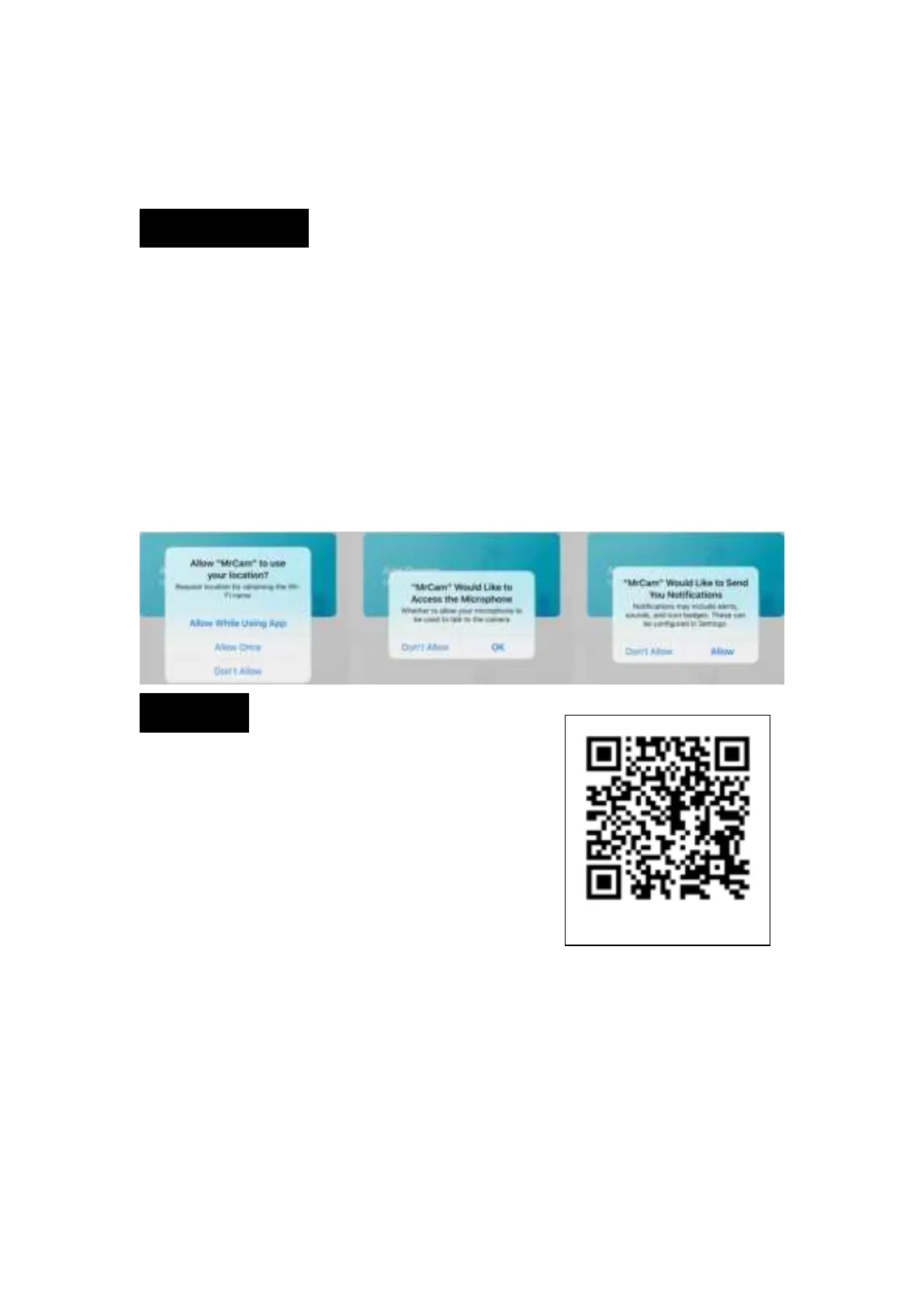
4. MrCam will prompt for permission to use "your location for obtaining the WI-FI name", please
select Allow While Using App.
5.
Please set your phone to ring mode, and allow the app to access your microphone and to send
notifications.
Install APP
1. Scan the QR code below to install the APP.
2. Alternatively, search and download "MrCam"
in Google Play or Apple App Store.
Android/iOS


 To Next Page