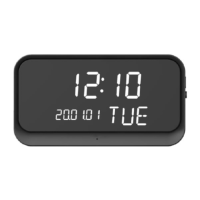
How to Use Method 1:Connect to Your Network
The First Step:Press Power Key and hold for 3 seconds to power on the device. Wait for audio
prompt" Welcome to use", after 8 seconds, another audio prompt" Please connect to network".
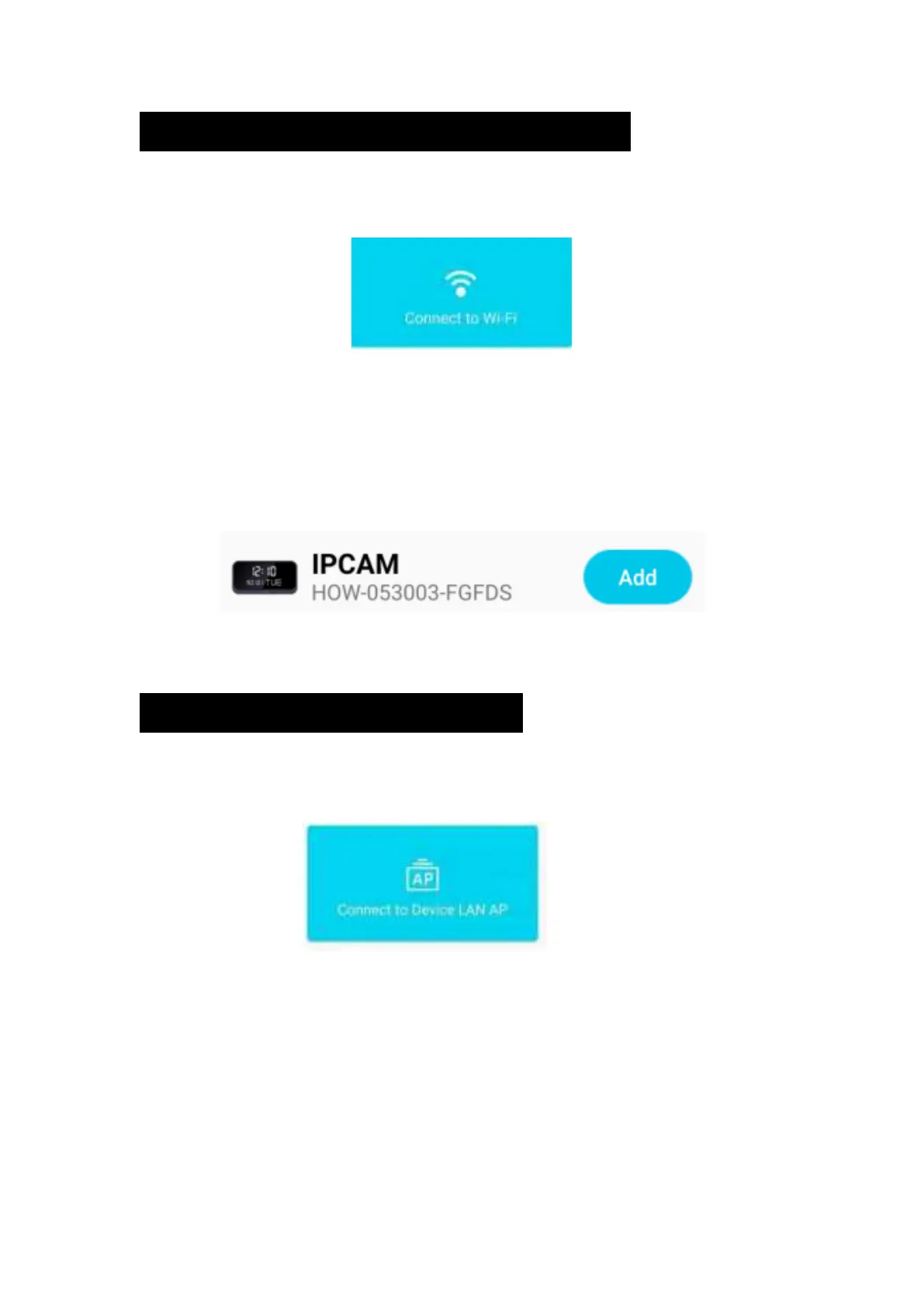
The Second Step:Launch the MrCam app. Select Add Device and then select Connect to Wi-Fi.
The Third Step:Wait for audio prompt, “Please connect the network" and then select NEXT.
The Fourth Step:In the next screen, please enter your Wi-Fi password and select NEXT.(Make
sure your phone is within 10 feet of the clock-cam)
The Fifth Step:Your phone will start sending out a configuration sound wave to the clock-cam.
Wait for a voice prompt from the clock-cam to confirm "connection success.'”
The Sixth Step:Next, select the Add button next to the IPCAM:
The Seventh Step:Congratulations, your clock-cam is now ready for use! For security and privacy,
please change your username and password when prompted.
How to Use Method 2:AP Connection
The First Step:Press Power Key and hold for 3 seconds to power on the device. Wait for audio
prompt" Welcome to use", after 8 seconds, another audio prompt" Please connect to network".
The Second Step:Start APP MrCam,select add device,then select AP connection
The Third Step:Click “NEXT”,will pop out message:the password of hot spot has beed
copied(password is 168168168 in default),then go to WiFi list,select the device with the
beginning of HOW.


 To Next Page
 Loading...