Need help?
Do you have a question about the HP 11-be0 Series and is the answer not in the manual?
This document is a Maintenance and Service Guide for an HP 11-inch tablet PC, model number 11-be0xxx. It provides comprehensive information about the device's functions, technical specifications, usage, and maintenance.
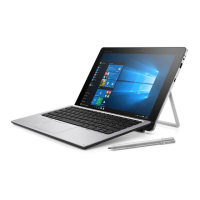
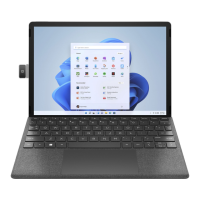
The HP 11-inch tablet PC is a versatile device designed for various computing tasks. It operates on either Windows® 10 Home S 64 or Windows 11 Home S 64, with several language and market-specific editions available. The tablet features a touchscreen display, and can be used with an optional soft keyboard, which connects via pogo connectors. It supports both portrait and landscape modes, and includes a kickstand for flexible positioning. The device is equipped with integrated wireless capabilities, including Wi-Fi 6 AX201-W and Bluetooth® 5, supporting gigabit file transfer speeds. For audio, it has an HP Audio Center and supports three speakers with an amplifier, along with speaker swap functionality. The tablet also includes a camera for video chat, record video, and still images, with the rear camera capable of rotating up to 235 degrees for shared or desktop views. Security features include a Trusted Platform Module (TPM) 2.0 and a fingerprint reader.
Dimensions:
Processor:
Graphics:
Display:
Memory:
Primary Storage:
Audio and Video:
Wireless:
Media Card Reader:
Ports:
Keyboard:
Power Requirements:
Sensors:
Locating Hardware and Software: The guide provides instructions on how to identify the physical components of the tablet (top, bottom, right, left side, display, rear) and how to locate software using the Search icon in the taskbar or the Start button.
Display Features: The display supports low blue light mode, which automatically adjusts blue light emissions for improved eye comfort. It also includes a Wake-on-Touch (WOT) feature, allowing users to tap the screen twice to wake the tablet.
Kickstand: The integrated kickstand allows the tablet to be used in both portrait and landscape modes, with adjustable viewing angles up to approximately 163 degrees.
Keyboard (Soft Cover): The optional soft cover keyboard connects to the tablet via pogo connectors and can be used in portrait or landscape mode. It features a touchpad with left and right buttons, supporting finger gestures for navigation.
Special Keys: The keyboard includes special function keys (F1-F12) that, when pressed in combination with the fn key, execute system-specific functions such as displaying system information, opening the Start menu, and performing action keys.
microSD Card Insertion: The tablet supports microSD cards for expanded storage. The guide details the steps for inserting and removing a microSD card using a paper clip to open the card tray.
BIOS Setup Utility: Users can access the Setup Utility (BIOS) to configure system settings, update the BIOS version, and perform diagnostics. The guide outlines how to start the Setup Utility, determine the BIOS version, and prepare for and download BIOS updates.
Backup, Restoring, and Recovering: The guide provides methods for backing up user information, creating recovery media (USB flash drive), and restoring the system. It covers using Windows tools for backup, the HP Cloud Recovery Download Tool, and HP Sure Recover (for select products only).
HP PC Hardware Diagnostics: The tablet includes HP PC Hardware Diagnostics for Windows and UEFI environments to determine whether the computer hardware is functioning properly. The guide details how to run diagnostics, access failure ID codes, and download diagnostic tools.
Electrostatic Discharge (ESD) Prevention: The guide emphasizes the importance of preventing ESD damage during disassembly and reassembly. It provides detailed precautions, including generating static electricity, preventing electrostatic damage to equipment, personal grounding methods (wrist straps, heel straps/toe straps/boot straps), and grounding the work area.
Cleaning Your Computer: Instructions are provided for cleaning the computer, including enabling HP Easy Clean, removing dirt and debris, and cleaning with a disinfectant. It also covers caring for wood veneer surfaces.
Packaging and Transporting Guidelines: The guide outlines guidelines for packaging and transporting equipment, including using static-safe bags, approved containers, and ESD-sensitive parts in their original containers.
Accessing Support Information: Users can find support information by using the HP Support Assistant, checking event logs, and accessing technical bulletins and repair professional resources on the HP website.
Removal and Replacement Procedures: Detailed, step-by-step instructions are provided for disassembling and reassembling various components of the tablet. These procedures are intended for authorized service providers and include:
Recycling: HP encourages customers to recycle used electronic hardware, original print cartridges, and rechargeable batteries. Information on recycling programs is available on the HP website.
The manual provides numerous tables with component descriptions and their corresponding spare part numbers, facilitating easy identification and ordering of replacement parts. It also includes warnings and important notes throughout to ensure safe and correct handling of the device during maintenance.

 To Next Page
 General