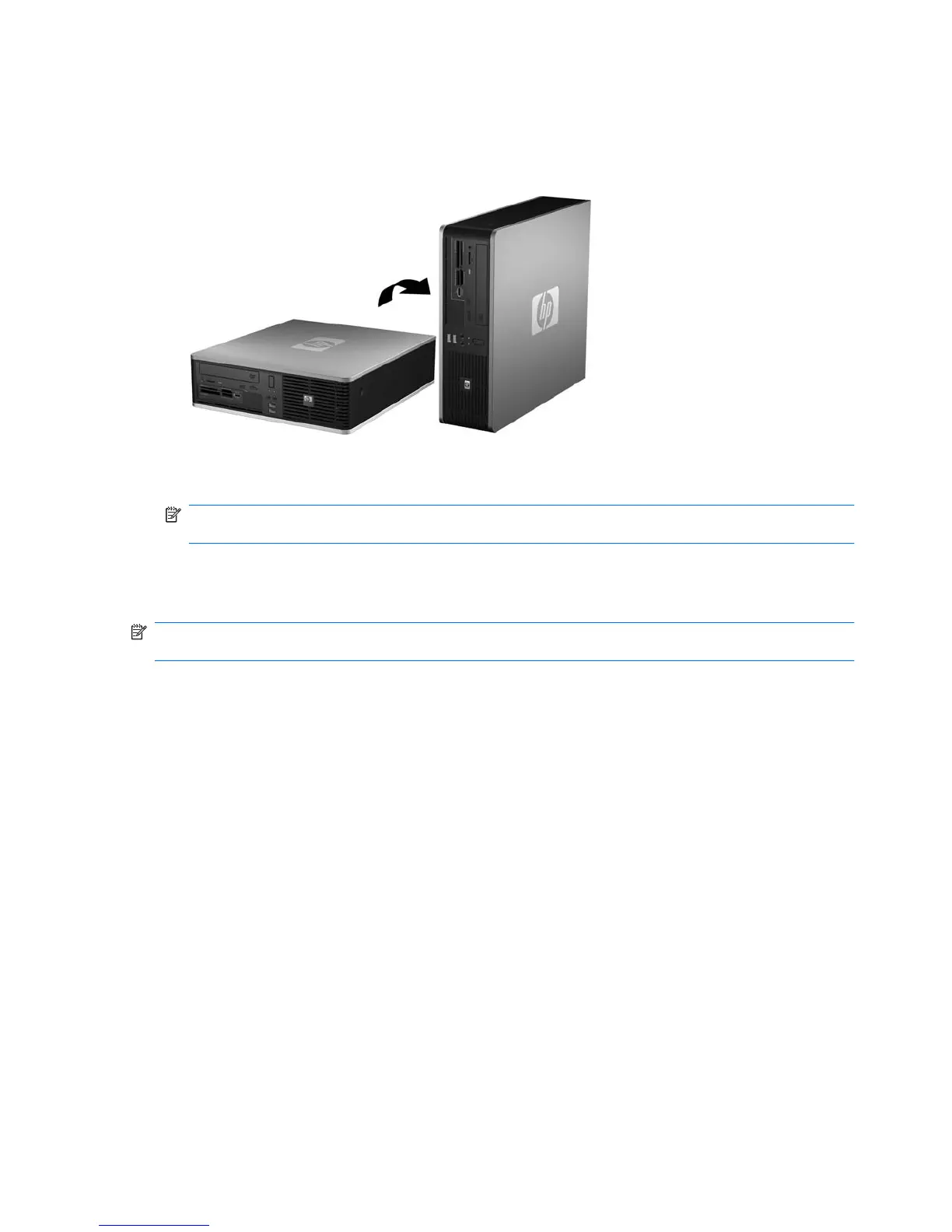
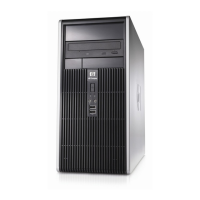
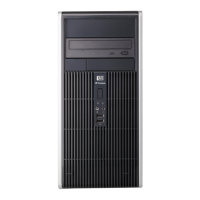
11. Orient the computer so that its right side is facing down.
Figure 2-8 Changing from Desktop to Tower Orientation
NOTE: To stabilize the computer in a tower orientation, HP recommends the use of the optional
tower stand.
12. Reconnect the power cord and any external devices, then turn on the computer.
13. Lock any security devices that were disengaged when the access panel was removed.
NOTE: Ensure at least 10.2 centimeters (4 inches) of space on all sides of the computer remains clear
and free of obstructions.
16 Chapter 2 Hardware Upgrades ENWW



 To Next Page