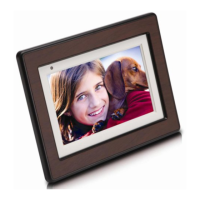
HP Digital Picture Frame
EN‐22
Using CLOCK (EZ Access Button)
Selecting a clock skin
The Picture Frame provides various preloaded clock and calendar skins.
To set a default clock skin to be displayed in Clock view, follow the steps
below.
1. In the main menu, press ◀ or ▶ to select CLOCK, and then press OK.
2. Press ◀ or ▶ to select a desired skin.
3. Press MENU and select Default.
4. Press OK to set the selected clock skins as default. The default clock
ski
n will be displayed when EZ Access Button is presse
d.
Switching between Clock view and Slideshow view
You can press EZ Access Button ( ) to toggle between Clock view
and Slideshow view.
When switching from Clock view to Slideshow view, the Ph
oto
Frame starts the s
lideshow that was running previously
.
If the last slides
how was playing from memory card or USB and
is
no longer availab
le, the Picture Frame will start a slideshow fr
om
the In
ternal Memory
.


 To Next Page