206 Spreadsheet
Formatting options
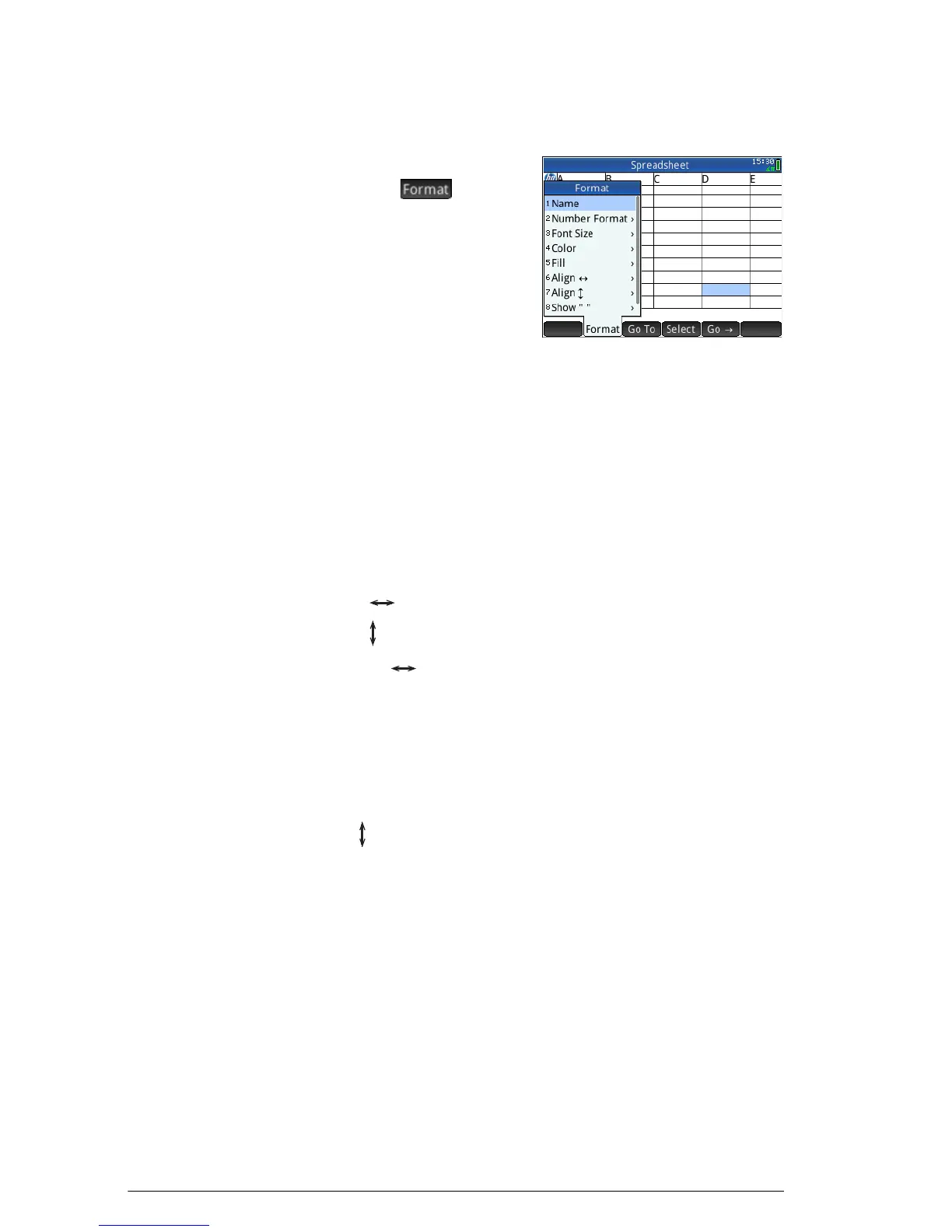
The formatting options appear
when you tap . They
apply to whatever is currently
selected: a cell, block, column,
row, or the entire spreadsheet.
The options are:
•
Name: displays an input
form for you to give a name to whatever is selected
•
Number Format: Auto, Standard, Fixed, Scientific, or
Engineering. See “Home settings” on page 30 for more details.
•
Font Size: Auto or from 10 to 22 point
• Color: color for the content (text, number, etc.) in the
selected cells; the gray-dotted option represents Auto
•
Fill: background color that fills the selected cells; the gray-
dotted option represents Auto
•
Align : horizontal alignment—Auto, Left, Center, Right
•
Align : vertical alignment—Auto, Top, Center, Bottom
• Column : displays an input form for you to specify the
required width of the selected columns; only available if
you have selected the entire spreadsheet or one or more
entire columns.
You can also change the width of a selected column with
an open or closed horizontal pinch gesture.
•
Row : displays an input form for you to specify the required
height of the selected rows; only available if you have selected the
entire spreadsheet or one or more entire rows.
You can also change the height of a selected row with an
open or closed vertical pinch gesture.
•
show “: show quote marks around strings in the body of
the spreadsheet—Auto, Yes, No
•
Textbook: display formulas in textbook format—Auto, Yes, No
•
Caching: turn this option on to speed up calculations in
spreadsheets with many formulas; only available if you
have selected the entire spreadsheet


 To Next Page