42 Getting started
3. Press E
repeatedly. Each time
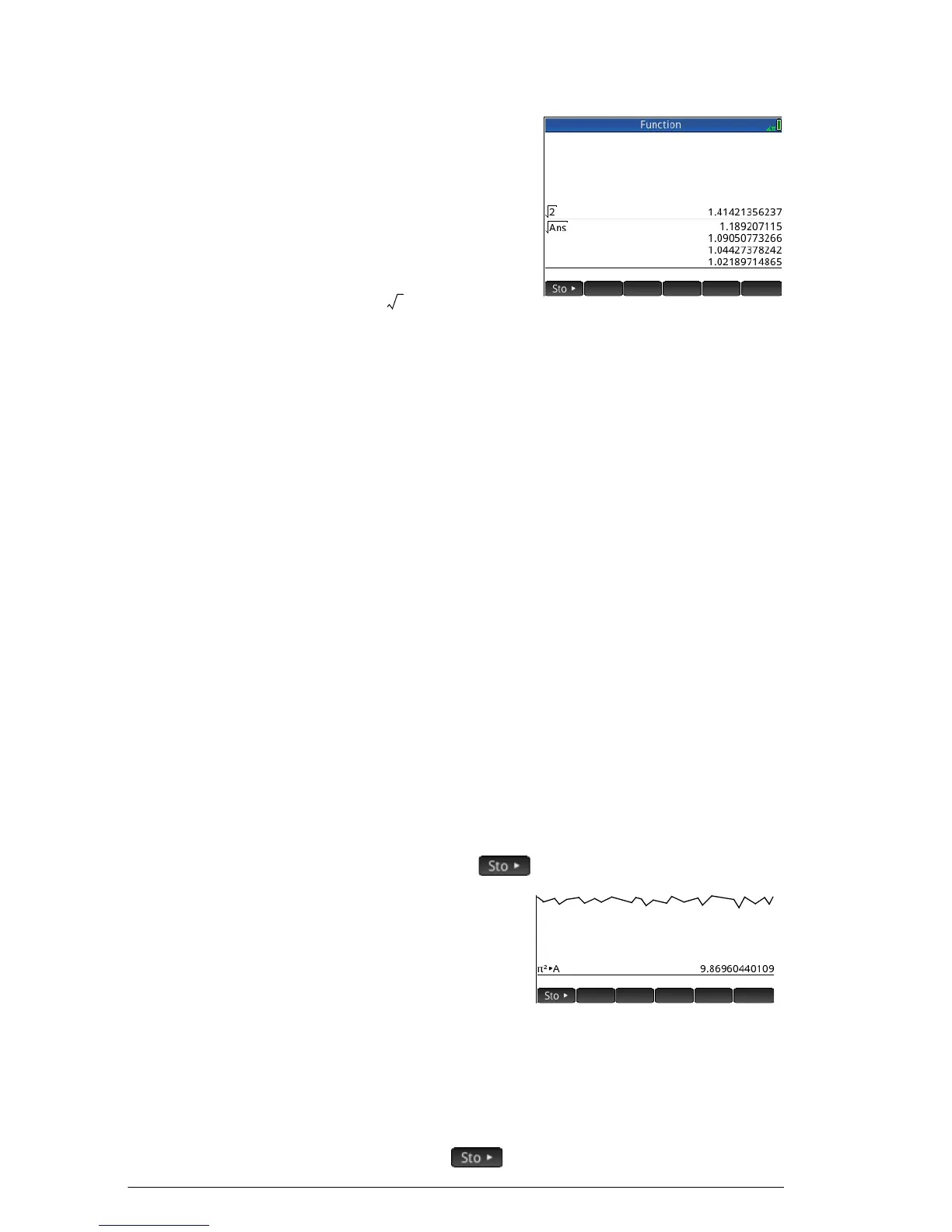
you press, the root is
twice the previous
root. The last answer
shown in the
illustration at the right
is .
To reuse an
expression or result
from the CAS
When your are working in Home view, you can retrieve
an expression or result from the CAS by tapping
Z and
selecting Get from CAS. The CAS opens. Press
=
or
\
until the item you want to retrieve is highlighted and
press E. The highlighted item is copied to the cursor
point in Home view.
Storing a value in a variable
You can store a value in a variable (that is, assign a value
to a variable). Then when you want to use that value in a
calculation, you can refer to it by the variable’s name. You
can create your own variables, or you can take advantage
of the built-in variables in Home view (named A to Z and
) and in the CAS (named a to z, and a few others). CAS
variables can be used in calculations in Home view, and
Home variables can be used in calculations in the CAS.
There are also built-in app variables and geometry
variables. These can also be used in calculations.
Example: To assign
2
to to the variable A:
Szj AaE
Your stored value
appears as shown at the
right. If you then wanted
to multiply your stored
value by 5, you could
enter:
Aas5E.
You can also create your own variables in Home view. For
example, suppose you wanted to create a variable called
ME and assign
2
to it. You would enter:
Szj AQAcE


 To Next Page