EN
Improving print quality 49
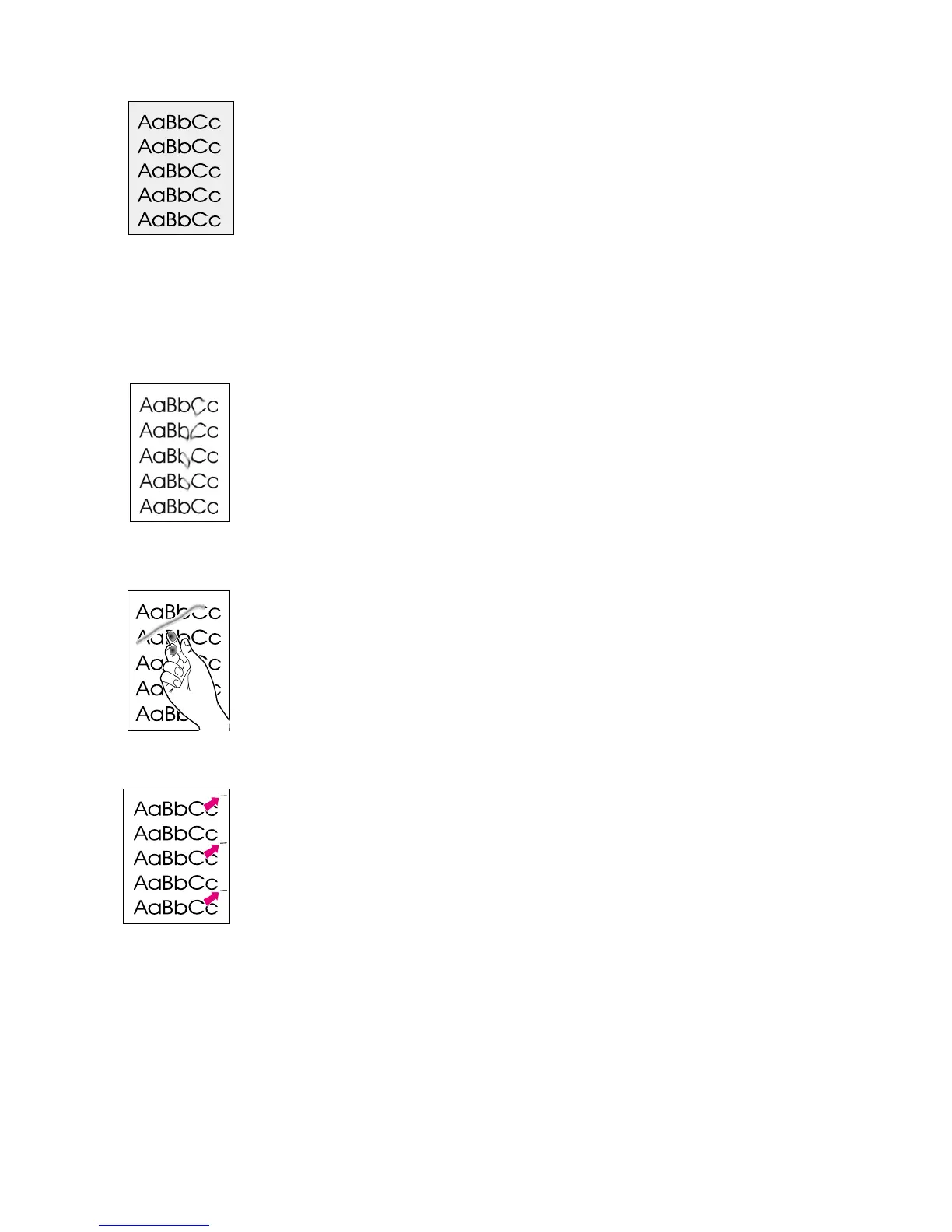
Gray background
●
Decrease the print density setting. This will decrease the amount
of background shading. Access this setting under “Printer
properties (driver).”
●
Change the paper to a lighter basis weight. See “Printer paper
specifications.”
●
Check the printer’s environment; very dry (low humidity)
conditions can increase the amount of background shading.
●
Install a new HP toner cartridge. See “Changing the toner
cartridge.”
Toner smear
●
If toner smears appear on the leading edge of the paper, the
paper guides may be dirty. Wipe the paper guides with a dry, lint-
free cloth. See “Printer components” or “Cleaning the printer.”
●
Check the paper type and quality.
●
Try installing a new HP toner cartridge. See “Changing the toner
cartridge.”
Loose toner
●
Clean the inside of the printer. See “Cleaning the printer.”
●
Check the paper type and quality. See “Printer paper
specifications.”
●
Try installing a new HP toner cartridge. See “Changing the toner
cartridge.”
Vertical repetitive defects
●
The toner cartridge may be damaged. If a repetitive mark occurs
at the same spot on the page, install a new HP toner cartridge.
See “Changing the toner cartridge.”
●
Internal parts may have toner on them. See “Cleaning the
printer.” If the defects occur on the back of the page, the problem
will likely be corrected after a few more printed pages.



 To Next Page