ENGLISH
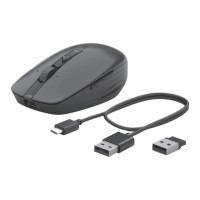
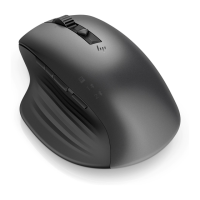
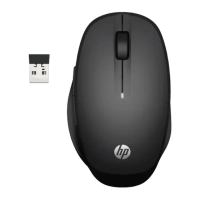
Connect the mouse to one computer using
the HP Unifying Dongle and up to two
computers via Bluetooth®.
Use the HP Accessory Center (HPAC)
software to program the mouse buttons,
change the DPI setting (1200 DPI by
default), and use the dongle with the
mouse’s pairing button. If the software
does not download automatically, on your
computer, open Microsoft Store or App
Store. Search for HP Accessory Center, and
then download the app.
Components description
1
Programmable forward button
By default, press to display the next page
in your application history.
2
Programmable back button
By default, press to display the
previous page in your application
history.
3
Thumb button (programmable by
HPAC)
By default, quick press to display all
virtual desktops in Windows® 10 and
Windows 11 (Task View) or macOS®
(Mission Control). When HPAC is
installed and Gesture function is
enabled, press and hold the thumb
button and move the mouse to use the
default Gesture functions.
Mouse up: Zoom in
Mouse down: Zoom out
Mouse left: Brightness -
Mouse right: Brightness +
Scroll up: Scroll left
Scroll down: Scroll right
4
Programmable right-click button
5
Programmable scroll wheel
Scrolls the screen up or down. Click
to use functions programmed in
the app. By default, click to use
application-specic functions, and
click and hold to scroll when you
move the mouse up or down.
6
Battery light
White (5 s): The mouse is on.
Blinking amber: The mouse needs to
be charged.
Solid amber: The mouse is charging.
Solid white: The mouse is fully
charged and connected to power.
7
HP Unifying Dongle light
Slowly blinking (180 s): The dongle is
in pairing mode.
Solid (5 s): The dongle is connected to
the mouse successfully.
8
Pairing button
Press to switch between channels.
Press and hold for 2 s to enter pairing
mode for the selected channel.
9
Mouse dongle light
Two blinks and a pause (180 s): The
mouse is reconnecting to a previously
paired dongle.
Solid (5 s): The mouse connection or
reconnection was successful.
Slowly blinking (180 s): The dongle
channel is currently selected and the
mouse is in pairing mode.
-
Bluetooth pairing lights
Two blinks and a pause (180 s): The
mouse is reconnecting to a previously
paired device.
Solid (5 s): The mouse connection or
reconnection was successful.
Slowly blinking (180 s): The
Bluetooth channel is currently
selected and the mouse is in pairing
mode.
BAHASA INDONESIA
Sambungkan mouse ke satu komputer
dengan menggunakan HP Unifying Dongle
dan hingga dua komputer melalui Bluetooth.
Gunakan perangkat lunak HP Accessory
Center (HPAC) untuk memprogram tombol
mouse, mengubah pengaturan DPI (1200
DPI secara default), dan gunakan dongle
dengan tombol penyandingan mouse. Jika
perangkat lunak tidak terunduh secara
otomatis, pada komputer Anda, buka
Microsoft Store atau App Store. Cari HP
Accessory Center, lalu unduh aplikasinya.
Keterangan komponen
1
Tombol maju terprogram
Secara default, tekan untuk
menampilkan halaman berikutnya di
riwayat aplikasi Anda.
2
Tombol kembali terprogram
Secara default, tekan untuk
menampilkan halaman sebelumnya di
riwayat aplikasi Anda.
3
Tombol jempol (terprogram oleh
HPAC)
Secara default, tekan cepat untuk
menampilkan semua desktop virtual
di Windows 10 dan Windows 11 (Task
View) atau macOS (Mission Control).
Saat HPAC diinstal dan fungsi Gerakan
diaktifkan, tekan dan tahan tombol
jempol dan gerakkan mouse untuk
menggunakan fungsi Gerakan default.
Mouse ke atas: Perbesar
Mouse ke bawah: Perkecil
Mouse ke kiri: Cerah -
Mouse ke kanan: Cerah +
Gulir ke atas: Gulir ke kiri
Gulir ke bawah: Gulir ke kanan
4
Tombol klik kanan terprogram
5
Roda gulir terprogram
Menggulir layar ke atas atau ke bawah.
Klik untuk menggunakan fungsi yang
terprogram di aplikasi. Secara default,
klik untuk menggunakan fungsi khusus
aplikasi, lalu klik dan tahan untuk
menggulir saat Anda menggerakkan
mouse ke atas atau ke bawah.
6
Lampu baterai
Putih (5 detik): Mouse menyala.
Kuning tua berkedip: Daya mouse
perlu diisi.
Kuning tua tidak berkedip: Daya
mouse sedang diisi.
Putih tidak berkedip: Daya mouse
terisi penuh dan tersambung ke daya.
7
Lampu HP Unifying Dongle
Berkedip lambat (180 detik): Dongle
dalam mode penyandingan.
Tidak berkedip (5 detik): Dongle
berhasil tersambung ke mouse.
8
Tombol penyandingan
Tekan untuk beralih antar saluran.
Tekan dan tahan selama 2 detik untuk
masuk ke mode penyandingan pada
saluran yang dipilih.
9
Lampu dongle mouse
Berkedip dua kali dan jeda sekali
(180 detik): Mouse menyambung
kembali ke dongle yang disandingkan
sebelumnya.
Tidak berkedip (5 detik):
Penyambungan atau penyambungan
kembali mouse berhasil.
Berkedip lambat (180 detik): Saluran
dongle saat ini dipilih, dan mouse
dalam mode penyandingan.
-
Lampu penyandingan Bluetooth
Berkedip dua kali dan jeda sekali
(180 detik): Mouse menyambung
kembali ke perangkat yang
disandingkan sebelumnya.
Tidak berkedip (5 detik):
Penyambungan atau penyambungan
kembali mouse berhasil.
Berkedip lambat (180 detik): Saluran
Bluetooth saat ini dipilih dan mouse
dalam mode penyandingan.
1
2
3
8
-
9
2
3
1
7
5
6
4
ไทย
เช
ื
่
อมต
่
อเมาส
์
ก
ั
บคอมพ
ิ
วเตอร
์
หน
ึ
่
งเคร
ื
่
อง โดยใช
้
ดองเก
ิ
ล HP Unifying และเช
ื
่
อมต
่
อก
ั
บคอมพ
ิ
วเตอร
์
ได
้
ส
ู
งส
ุ
ดสองเคร
ื
่
องผ
่
าน Bluetooth
ใช
้
ซอฟต
์
แวร
์
HP Accessory Center (HPAC)
เพ
ื
่
อต
ั
้
งโปรแกรมป
ุ
่
มเมาส
์
เปล
ี
่
ยนแปลงการต
ั
้
งค
่
า DPI
(ค
่
าเร
ิ
่
มต
้
น 1200 DPI) และใช
้
ดองเก
ิ
ลร
่
วมก
ั
บป
ุ
่
ม
ท
�
าการจ
ั
บค
ู
่
ของเมาส
์
หากซอฟต
์
แวร
์
ไม
่
เร
ิ
่
มดาวน
์
โหลด
โดยอ
ั
ตโนม
ั
ต
ิ
ให
้
เป
ิ
ด Microsoft Store หร
ื
อ
App Store จากบนคอมพ
ิ
วเตอร
์
ของค
ุ
ณ ค
้
นหา
HP Accessory Center แล
้
วท
�
าการดาวน
์
โหลดแอป
ค
�
ำอธ
ิ
บำยส
่
วนประกอบต
่
ำงๆ
1
ป
ุ
่
มไปข
้
ำงหน
้
ำแบบต
ั
้
งโปรแกรมได
้
ตามค
่
าเร
ิ
่
มต
้
น กดเพ
ื
่
อแสดงหน
้
าถ
ั
ดไป ในประว
ั
ต
ิ
แอปพล
ิ
เคช
ั
นของค
ุ
ณ
2
ป
ุ
่
มย
้
อนกล
ั
บแบบต
ั
้
งโปรแกรมได
้
ตามค
่
าเร
ิ
่
มต
้
น กดเพ
ื
่
อแสดงหน
้
าก
่
อนหน
้
าน
ี
้
ใน
ประว
ั
ต
ิ
แอปพล
ิ
เคช
ั
นของค
ุ
ณ
3
ป
ุ
่
มกดน
ิ
้
วโป
้
ง ( ใช
้
HPAC ต
ั
้
งโปรแกรมได
้
)
ตามค
่
าเร
ิ
่
มต
้
น เม
ื
่
อกดและปล
่
อยอย
่
างรวดเร
็
ว
จะแสดงเวอร
์
ชวลเดสก
์
ท
็
อปท
ั
้
งหมดใน
Windows 10 และ Windows 11 (ม
ุ
มมอง
งาน) หร
ื
อ macOS (Mission Control) หล
ั
ง
จากต
ิ
ดต
ั
้
ง HPAC และเป
ิ
ดใช
้
งานงก
์
ช
ั
นร
ู
ปแบบ
การขย
ั
บ ให
้
กดป
ุ
่
มกดน
ิ
้
วโป
้
งค
้
างไว
้
แล
้
วขย
ั
บเมาส
์
เพ
ื
่
อใช
้
งานค
่
าเร
ิ
่
มต
้
นของงก
์
ช
ั
นร
ู
ปแบบการขย
ั
บ
ขย
ั
บเมำส
์
ข
ึ
้
น: ซ
ู
มเข
้
า
ขย
ั
บเมำส
์
ลง: ซ
ู
มออก
ขย
ั
บเมำส
์
ไปทำงซ
้
ำย: - ความสว
่
าง
ขย
ั
บเมำส
์
ไปทำงขวำ: + ความสว
่
าง
หม
ุ
นล
้
อเล
ื
่
อนข
ึ
้
น: เล
ื
่
อนไปทางซ
้
าย
หม
ุ
นล
้
อเล
ื
่
อนลง: เล
ื
่
อนไปทางขวา
4
ป
ุ
่
มคล
ิ
กขวำแบบต
ั
้
งโปรแกรมได
้
5
ล
้
อเล
ื
่
อนแบบต
ั
้
งโปรแกรมได
้
เล
ื
่
อนหน
้
าจอข
ึ
้
นบนหร
ื
อลงล
่
าง คล
ิ
กเพ
ื
่
อใช
้
งก
์
ช
ั
นท
ี
่
ต
ั
้
งโปรแกรมไว
้
ภายในแอป ตามค
่
าเร
ิ
่
มต
้
น
คล
ิ
กเพ
ื
่
อใช
้
งก
์
ช
ั
นเฉพาะแอปพล
ิ
เคช
ั
น แล
้
ว
คล
ิ
กค
้
างไว
้
เพ
ื
่
อเล
ื
่
อนเม
ื
่
อค
ุ
ณขย
ั
บเมาส
์
ข
ึ
้
นหร
ื
อลง
6
ไฟแสดงสถำนะแบตเตอร
ี
่
ส
ี
ขำว (5 ว
ิ
นำท
ี
): เมาส
์
ท
�
างานตามปกต
ิ
กะพร
ิ
บเป
็
นส
ี
เหล
ื
อง: ต
้
องชาร
์
จเมาส
์
สว
่
ำงเป
็
นส
ี
เหล
ื
อง: ก
�
าล
ั
งชาร
์
จไฟเมาส
์
อย
ู
่
สว
่
ำงคงท
ี
่
เป
็
นส
ี
ขำว: เมาส
์
ชาร
์
จเต
็
มแล
้
วและ
เช
ื
่
อมต
่
อก
ั
บแหล
่
งจ
่
ายไฟ
7
ไฟแสดงสถำนะดองเก
ิ
ล HP Unifying
กะพร
ิ
บช
้
ำๆ (180 ว
ิ
นำท
ี
): ดองเก
ิ
ลอย
ู
่
ใน
โหมดจ
ั
บค
ู
่
สว
่
ำงคงท
ี
่
(5 ว
ิ
นำท
ี
): ดองเก
ิ
ลเช
ื
่
อมต
่
อก
ั
บเมาส
์
เร
ี
ยบร
้
อยแล
้
ว
8
ป
ุ
่
มท
�
ำกำรจ
ั
บค
ู
่
กดเพ
ื
่
อสล
ั
บระหว
่
างช
่
องส
ั
ญญาณ กดค
้
างไว
้
2 ว
ิ
นาท
ี
เพ
ื
่
อเข
้
าส
ู
่
โหมดการจ
ั
บค
ู
่
ส
�
าหร
ั
บช
่
อง
ส
ั
ญญาณท
ี
่
เล
ื
อก
9
ไฟแสดงสถำนะดองเก
ิ
ลเมำส
์
กะพร
ิ
บสองคร
ั
้
งและหย
ุ
ดพ
ั
ก (180 ว
ิ
นำท
ี
):
เมาส
์
ก
�
าล
ั
งเช
ื
่
อมต
่
อใหม
่
ก
ั
บดองเก
ิ
ลท
ี
่
จ
ั
บค
ู
่
ไว
้
ก
่
อนหน
้
าน
ี
้
สว
่
ำงคงท
ี
่
(5 ว
ิ
นำท
ี
): การเช
ื
่
อมต
่
อหร
ื
อ
การเช
ื
่
อมต
่
อใหม
่
ก
ั
บเมาส
์
เสร
็
จสมบ
ู
รณ
์
แล
้
ว
กะพร
ิ
บช
้
ำๆ (180 ว
ิ
นำท
ี
): ขณะน
ี
้
ม
ี
การเล
ื
อก
ใช
้
งานช
่
องส
ั
ญญาณดองเก
ิ
ลไว
้
และเมาส
์
ก
�
าล
ั
ง
อย
ู
่
ในโหมดจ
ั
บค
ู
่
-
ไฟแสดงสถำนะกำรจ
ั
บค
ู
่
Bluetooth
กะพร
ิ
บสองคร
ั
้
งและหย
ุ
ดพ
ั
ก (180 ว
ิ
นำท
ี
):
เมาส
์
ก
�
าล
ั
งเช
ื
่
อมต
่
อใหม
่
ก
ั
บอ
ุ
ปกรณ
์
ท
ี
่
จ
ั
บค
ู
่
ไว
้
ก
่
อนหน
้
าน
ี
้
สว
่
ำงคงท
ี
่
(5 ว
ิ
นำท
ี
): การเช
ื
่
อมต
่
อหร
ื
อ
การเช
ื
่
อมต
่
อใหม
่
ก
ั
บเมาส
์
เสร
็
จสมบ
ู
รณ
์
แล
้
ว
กะพร
ิ
บช
้
ำๆ (180 ว
ิ
นำท
ี
): ขณะน
ี
้
ม
ี
การเล
ื
อก
ใช
้
งานช
่
องส
ั
ญญาณ Bluetooth ไว
้
และเมาส
์
ก
�
าล
ั
งอย
ู
่
ในโหมดจ
ั
บค
ู
่
-
5s
3
4
OR
A
B
C
1
2
*N20990-371*
N20990-371
PRINTER: Replace this box with Printed- In (PI)
Statement(s) as per spec.
NOTE: This box is simply a placeholder. PI Statement(s)
do not have to t inside the box but should be placed
in this area.
© Copyright 2023 HP Development Company, L.P.
Apple and macOS are trademarks of Apple Inc., registered in the
U.S. and other countries and regions. The Bluetooth trademarks
are owned by their proprietor and used by HP Inc. under license.
Windows is either a registered trademark or trademark of
Microsoft Corporation in the United States and/or other countries.
The information contained herein is subject to change without
notice. The only warranties for HP products and services are set
forth in the express warranty statements accompanying such
products and services. Nothing herein should be construed as
constituting an additional warranty. HP shall not be liable for
technical or editorial errors or omissions contained herein.
First Edition: February 2023
RMN/型號/型号: TPA-D003M + TPA-D003D
5s
1s
On
On

 Need help?

 To Next Page
 General