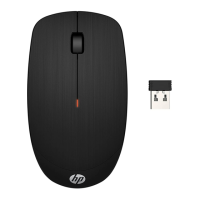
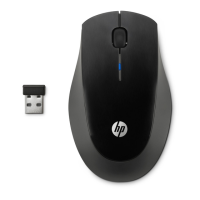
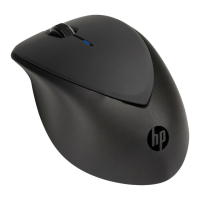
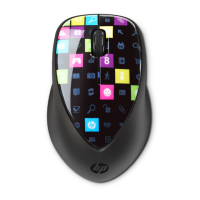
x4000b Bluetooth Mouse
Quick Setup
©Copyright 2012 Hewlett-Packard Development Company, L.P.
Printed in China
Version 1.0
696986-001
B
A
1
2
To use your Bluetooth mouse, you must rst pair it with your
computer.
1) Turn on the computer and Bluetooth mouse.
2) Ensure that your computer has Bluetooth turned on.
3) Start the Bluetooth pairing wizard on your computer.
For more information, please follow the instructions in the Bluetooth
Pairing User Guide available at http://www.hp.com/support
To use your Bluetooth mouse, you must rst pair it with your com-
puter.
1) Turn on the computer and Bluetooth mouse.
2) Ensure that your computer has Bluetooth turned on.
3) Start the Bluetooth pairing wizard on your computer.
For more information, please follow the instructions in the Bluetooth
Pairing User Guide available at http://www.hp.com/support
To use your Bluetooth mouse, you must rst pair it with your
computer.
1) Turn on the computer and Bluetooth mouse.
2) Ensure that your computer has Bluetooth turned on.
3) Start the Bluetooth pairing wizard on your computer.
For more information, please follow the instructions in the Blue-
tooth Pairing User Guide available at http://www.hp.com/support
To use your Bluetooth mouse, you must rst pair it with your
computer.
1) Turn on the computer and Bluetooth mouse.
2) Ensure that your computer has Bluetooth turned on.
3) Start the Bluetooth pairing wizard on your computer.
For more information, please follow the instructions in the Blue-
tooth Pairing User Guide available at http://www.hp.com/support
To use your Bluetooth mouse, you must rst pair it with your
computer.
1) Turn on the computer and Bluetooth mouse.
2) Ensure that your computer has Bluetooth turned on.
3) Start the Bluetooth pairing wizard on your computer.
For more information, please follow the instructions in the Bluetooth
Pairing User Guide available at http://www.hp.com/support
To use your Bluetooth mouse, you must rst pair it with your computer.
1) Turn on the computer and Bluetooth mouse.
2) Ensure that your computer has Bluetooth turned on.
3) Start the Bluetooth pairing wizard on your computer.
For more information, please follow the instructions in the Bluetooth
Pairing User Guide available at http://www.hp.com/support
To use your Bluetooth mouse, you must rst pair it with your computer.
1) Turn on the computer and Bluetooth mouse.
2) Ensure that your computer has Bluetooth turned on.
3) Start the Bluetooth pairing wizard on your computer.
For more information, please follow the instructions in the Bluetooth
Pairing User Guide available at http://www.hp.com/support
To use your Bluetooth mouse, you must rst pair it with your computer.
1) Turn on the computer and Bluetooth mouse.
2) Ensure that your computer has Bluetooth turned on.
3) Start the Bluetooth pairing wizard on your computer.
For more information, please follow the instructions in the Bluetooth
Pairing User Guide available at http://www.hp.com/support
To use your Bluetooth mouse, you must rst pair it with your computer.
1) Turn on the computer and Bluetooth mouse.
2) Ensure that your computer has Bluetooth turned on.
3) Start the Bluetooth pairing wizard on your computer.
For more information, please follow the instructions in the Bluetooth
Pairing User Guide available at http://www.hp.com/support
To use your Bluetooth mouse, you must rst pair it with your computer.
1) Turn on the computer and Bluetooth mouse.
2) Ensure that your computer has Bluetooth turned on.
3) Start the Bluetooth pairing wizard on your computer.
For more information, please follow the instructions in the Bluetooth
Pairing User Guide available at http://www.hp.com/support
To use your Bluetooth mouse, you must rst pair it with your computer.
1) Turn on the computer and Bluetooth mouse.
2) Ensure that your computer has Bluetooth turned on.
3) Start the Bluetooth pairing wizard on your computer.
For more information, please follow the instructions in the Bluetooth
Pairing User Guide available at http://www.hp.com/support
ES
FR
BR
DE
IT
NL
KO
JA
CN
TW

 Need help?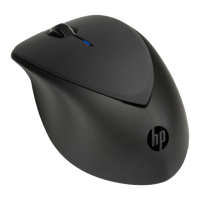

 To Next Page
 General