Chapter 8 : Contacts, Calendar, and other personal information 115
• In a linked contact, to add or change the photo of another account:
Tap the account button in the upper-right corner and tap the other
account (see Linked contacts).
2 Do one of the following:
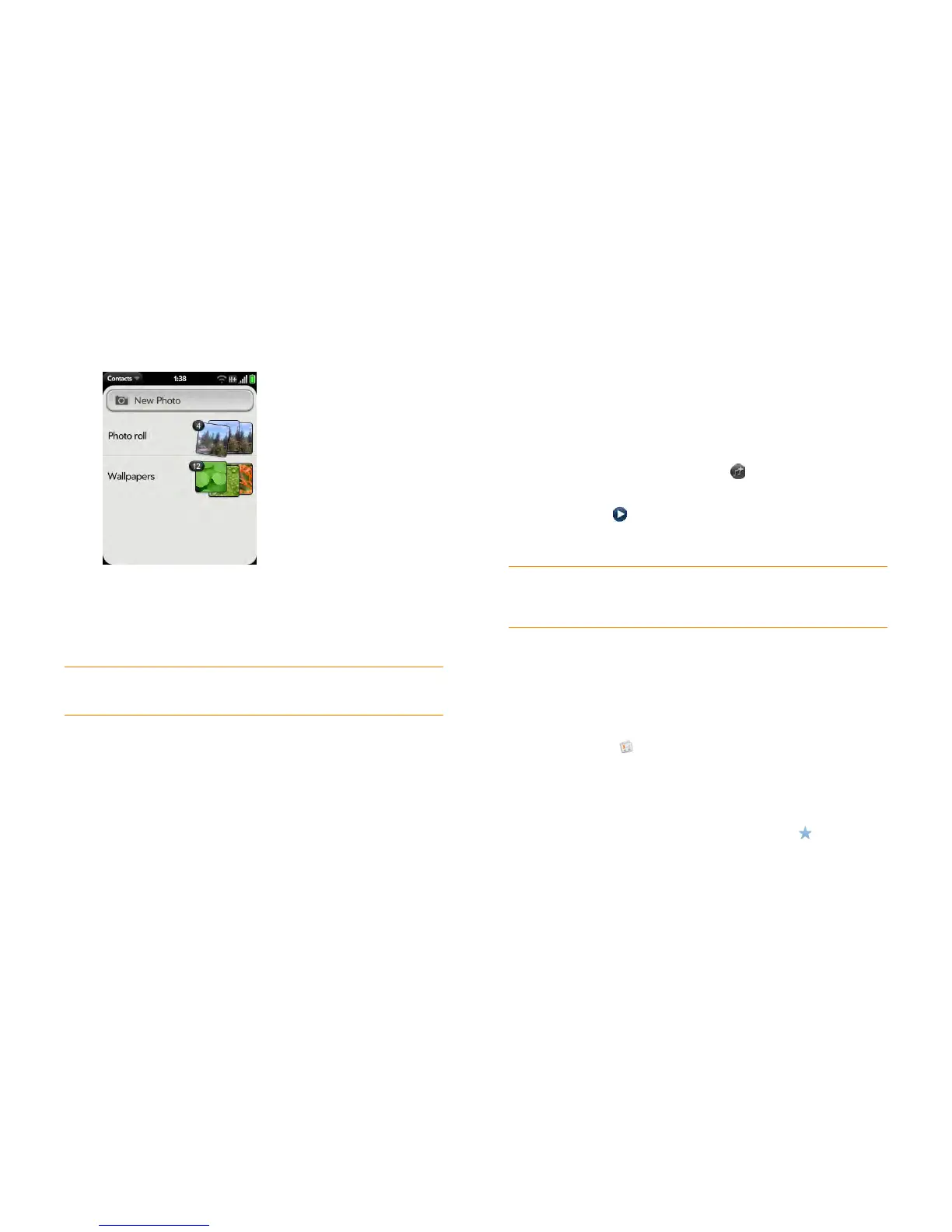
• To take a new photo: Tap New Photo, and take the picture.
• To use an existing photo: Tap the album containing the picture and
tap the picture.
3 (Optional) Do either or both of the following:
• To zoom out or in on a part of the picture: Pinch in or out on the
picture.
• To capture the portion of the picture you want: Tap and hold the
picture, and then drag the portion you want to the center of the
onscreen box. This portion becomes the contact photo.
4 Ta p Assign To Contact.
Add a ringtone to a contact
Select the ringtone you want to hear when this contact calls you.
1 While creating (see Create a contact) or editing (see View, edit, or
delete contact information) a contact, tap Set a ringtone.
2 Do one of the following:
• Tap the ringtone name.
• To use a music file as a ringtone: Tap and tap the file name. Then
tap the file name in the list of ringtones.
3 (Optional) Tap to preview the ringtone.
4 Ta p Done.
Create a favorite
You can make a contact a favorite, so that it appears at the top of the search
results list when you search using Just Type.
1 Open Contacts .
2 Ta p Favorites.
3 Ta p Add Favorite, and tap a contact.
In the All contacts list, favorites are identified with a .
DID YOU KNOW? If you see a number attached to a contact’s photo, that's
because it's a linked contact (see Linked contacts).
TIP To change the ringtone for a contact, tap the ringtone and tap Change
Ringtone. Delete Ringtone deletes the ringtone from the contact, not from the list
of available ringtones.


 To Next Page