EasyManua.ls Logo

HPRT MT53 - User Manual

HPRT MT53
2 pages
Print Icon
To Next Page IconTo Next Page
Loading...
Steps & Notes
Take out one packet of photo paper (including 5pcs or
10pcs of photo paper and 1pc of blue card), and place
them into the printer as shown on Figure 2. The photo
paper should be placed aer the blue card and its tet
side should face down.
Please note that never place more than 10pcs of photo
paper, and use the photo paper specially for the printer,
use other brands of that may aect the print uality.
Blue Card
1. If Bluetooth has been unconnected for 5 seconds, the printer will enter sleeping mode,
press the power buon to awaken it.
2. In sleeping mode, if not awaken the printer within 5 minutes, it will be o automacally.
3. When using it at the second me, ust click the print icon that the printer will be connected
automacally and send data to print.
. Do not touch the photo paper during prinng, or else it may appear stripes.
6
Hold down the power buon for 3 seconds,
the printer will be turned on.
Open the photo
printer APP.
Select the printer and then click it to pair automacally.
Return to “Print Preview” aer connecon is successful.
Click the print icon and enter “Searching
printer”, allow to turn on the Bluetooth.
Start Your Photo Printer
Packing List
Note: The packing items are actually dependent on the order.
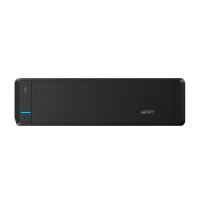
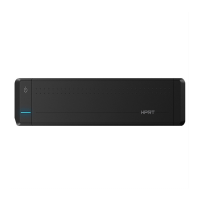
USB Interface Poer Buon
LED Indicator Status
Red LED Error Status
OFF: Power o
ON: Standby
Slow Flash: Charging
ON: Error (Paper Jam/Out of Paper
/Cover Opened)
Slow Flash: Low power
Blue LED Basic Status
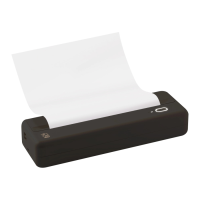
LED IndicatorPaper Outlet
Paper Loading
Place your hands on both sides of the top cover,
push it towards the direcon as shown on Figure 1.
Assemble the top cover.
Precauons or Photo Paper
The photo paper is easy to get damp, please use it as soon
as possible aer opening.
Avoid ecessive direct sunlight and over low temperature.
Avoid device damage caused by using non-special paper.
Do not fold or damage the paper.
How to Print
Steps & Notes
Choose “MT53”, select the photos
and enter “Print Preview.
Click the print icon again and
the printer will start prinng.
1. When red LED stays on, you can check the detailed error condion on APP aer connecng it to the printer.
2. When updang the printer rmware, the blue LED will ash uickly.
The blue card is used for color correcon and TPH cleaning. When prinng aer loading 1 packet of
paper at rst me, the blue card will be automacally out rstly, and then the photo will be printed out.
Type-C Cable
Photo Paper (5pcs)
Quick Start Guide
The tet side of all the photo
paper should face down.

Question and Answer IconNeed help?

Do you have a question about the HPRT MT53 and is the answer not in the manual?

Overview

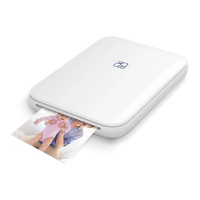
This document describes a compact photo printer, model MT53, designed for personal use. It outlines the setup, paper loading, printing process, and important precautions for optimal performance.

Function Description

The MT53 is a portable photo printer that allows users to print photos directly from their mobile devices. It connects wirelessly via Bluetooth to a dedicated photo printer app, enabling users to select and preview images before printing. The device is designed for ease of use, with a simple interface and clear instructions for operation.

Important Technical Specifications

  • Connectivity: USB Interface (for charging/data transfer), Bluetooth (for wireless printing).
  • Power: Powered via a Type-C cable.
  • Indicator Lights:
    • Red LED (Error Status):
      • Solid ON: Indicates an error such as paper jam, out of paper, or cover opened. Detailed error conditions can be checked via the app.
      • Slow Flash: Indicates low power.
    • Blue LED (Basic Status):
      • Solid ON: Indicates standby mode.
      • Slow Flash: Indicates charging.
      • Quick Flash: Indicates firmware update in progress.
  • Paper Type: Uses specific photo paper packets (5pcs or 10pcs of photo paper + 1pc blue card).
  • Blue Card Function: The blue card is essential for color correction and TPH (Thermal Print Head) cleaning. It is automatically ejected first when a new packet of paper is loaded.

Usage Features

  • Getting Started:
    1. Unpacking: The package includes the printer, Type-C cable, 5pcs photo paper, and a Quick Start Guide.
    2. Power On: Hold the power button for 3 seconds to turn on the printer.
  • Paper Loading:
    1. Open Cover: Place hands on both sides of the top cover and push it in the direction shown in Figure 1 of the manual.
    2. Insert Paper: Take out one packet of photo paper (including the blue card). Place the blue card first, followed by the photo paper, with the text side of all paper facing down, into the printer as shown in Figure 2.
    3. Close Cover: Assemble the top cover back onto the printer.
    • Important Note: Do not place more than 10pcs of photo paper at a time. Only use photo paper specifically designed for this printer; other brands may affect print quality.
  • Printing Process:
    1. App Connection: Open the photo printer app on your mobile device.
    2. Select Printer: Choose "MT53" from the app.
    3. Select Photos: Select desired photos and enter "Print Preview."
    4. Initiate Search: Click the print icon, which will initiate "Searching printer" and prompt to turn on Bluetooth.
    5. Pairing: Select the printer from the list and click to pair automatically.
    6. Confirm Connection: Return to "Print Preview" once the connection is successful.
    7. Print: Click the print icon again to start printing.
  • Bluetooth Management:
    • If Bluetooth remains unconnected for 5 seconds, the printer will enter sleeping mode. Press the power button to awaken it.
    • If not awakened within 5 minutes in sleeping mode, the printer will automatically turn off.
    • For subsequent prints, simply click the print icon in the app, and the printer will automatically connect and send data.
  • FCC Compliance: The device complies with Part 15 of the FCC Rules, ensuring it does not cause harmful interference and accepts any interference received. Users are advised against unauthorized modifications to the equipment.

Maintenance Features

  • Photo Paper Precautions:
    1. Moisture Sensitivity: Photo paper is susceptible to dampness; use it as soon as possible after opening the packet.
    2. Storage: Avoid excessive direct sunlight and very low temperatures.
    3. Paper Compatibility: Avoid using non-special paper, as it can damage the device.
    4. Handling: Do not fold or damage the paper.
  • Printing Precautions:
    • Do not touch the photo paper during printing, as this may result in stripes on the print.
  • Troubleshooting (Red LED): If the red LED stays on, connect the printer to the app to check detailed error conditions (e.g., paper jam, out of paper, cover opened).
  • Firmware Updates: During firmware updates, the blue LED will flash quickly.

HPRT MT53 Specifications

General IconGeneral
BrandHPRT
ModelMT53
CategoryPrinter
LanguageEnglish

Related product manuals