Need help?
Do you have a question about the HPRT polono MT800 and is the answer not in the manual?
Instructions for safe printer operation, covering liquid avoidance, cover handling, environmental conditions, paper quality, and printhead safety.
Guidelines for storing the printer and thermal paper, focusing on temperature, humidity, and avoiding direct sunlight.
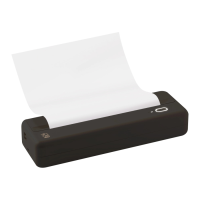
General introduction to the MT800 mobile printer and its capabilities.
Lists the main features of the MT800 printer, including portability, battery, design, and interfaces.
Details the accessories included with the printer and provides instructions for missing items.
Details printer specs like method, speed, width, density, protocol, paper, and ribbon.
Step-by-step instructions on how to open the printer's top cover.
Detailed instructions for correctly installing the ribbon module into the printer.
Instructions on how to load paper into the MT800 printer and confirm successful loading.
Provides instructions on how to safely remove paper from the printer.
Guide for printing from a mobile phone using the H-Print APP, including setup.
Instructions for printing from a computer via Bluetooth or USB, including driver setup.
Explains the printer's automatic sleep and wake-up features for power efficiency.
Describes the functions of the printer's power, cover open, and reset buttons.
Details the front strip LED's behavior indications, charging, abnormal, and printing statuses.
Explains the side pinhole lamp's blue LED indication for connection status.
Offers solutions for issues where the printer is not working, including power and consumable problems.
Addresses common printing issues like paper jams, ribbon problems, and print quality errors.
Detailed steps for cleaning the printer's print head, including important safety precautions.
Guidance on cleaning the printer's sensors, platen, and paper path to maintain performance.
Lists the operating systems that are compatible with the MT800 Windows driver.
Provides the download URL and installation file name for the Windows driver.
Step-by-step guide for installing the MT800 printer driver on Windows systems.
Details how to set printing preferences like paper name, offset, rotation, and copies.
Describes how to access and configure printer properties, including ports and advanced options.
Guide for installing the MT800 printer driver on macOS systems.
Steps to print from a Mac computer after driver installation, including adding the printer.
Lists the operating systems that are compatible with the Mobile Utility Tool.
Details the installation file name and preparation steps for the Mobile Utility Tool.
Provides instructions on how to use the Mobile Utility Tool for various printer operations.
Steps for adding a new printer to the Mobile Utility Tool.
Instructions on how to modify the settings of an added printer in the utility tool.
Guide on how to remove a printer from the Mobile Utility Tool.
How to conduct a connection test to ensure proper communication with the printer.
Overview of the available functions in the Mobile Utility Tool, such as self-information printing.
 General
| Print Technology | Thermal |
|---|---|
| Print Resolution | 300 dpi |
| Print Speed | 15 mm/s |
| Paper Size | A4 |
| Connectivity | Bluetooth, USB |
| Battery | Rechargeable lithium battery |

 To Next Page