EasyManua.ls Logo

HPRT TP805 - User Manual

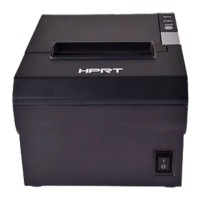
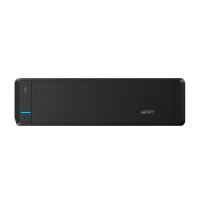
HPRT TP805
46 pages
Print Icon
To Next Page IconTo Next Page
Loading...
TP801/TP805/TP806 User Manual
www.hprt.com 1
Desktop POS Printer
TP801/TP805/TP806
User Manual
Xiamen Hanin Electronic Technology Co.,Ltd.
ADD: Room 305A,Angye Building, Pioneering Park,
Torch High-tech Zone, Xiamen, China 361009
Tel.+86-(0)592-5885993
Fax: +86-(0)592-5885992
Web: www.hprt.com
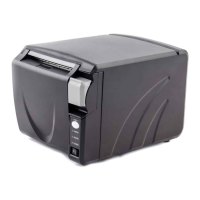
TP805
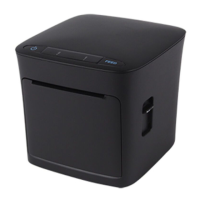
TP801
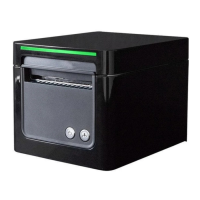
TP806

Table of Contents

Questions and Answers

  • P
    Pamela MarshallAug 15, 2025
    Why is my HPRT TP805 printing blurred or spotty?
    • D
      David LunaAug 15, 2025
      If your HPRT Printer is producing blurred prints or spots, consider the following: * Check if the roll paper is installed correctly. * Use recommended thermal roll paper. * Clean the thermal head or print roller. * Increase the print density level.
  • J
    julieadamsAug 18, 2025
    What to do if my HPRT TP805 has a paper jam?
    • M
      Melissa StephensAug 18, 2025
      If your HPRT Printer has a paper jam, open the printer cover and carefully check the paper path. Remove any jammed paper that you find.
  • B
    Brian ChristensenAug 21, 2025
    How to fix HPRT TP805 when the LED indicator is not lit and it's not working?
    • D
      dixonstevenAug 21, 2025
      If the LED indicator is not lighting and the HPRT Printer isn't working, there could be several reasons. First, ensure the printer has power by connecting the power supply. Second, verify that the printer is turned on. If neither of these solutions work, the circuit board might be broken, and you should contact the dealer.
  • J
    Jason SchaeferAug 26, 2025
    Why is the Error LED always on with beeping on my HPRT Printer?
    • S
      Steven NguyenAug 26, 2025
      If the Error LED is always on and the beeper is alarming on your HPRT Printer, it's likely that the printer cover is open. Close the printer cover to resolve this issue.
  • J
    James JamesAug 28, 2025
    What to do if the Paper Error LED is on and the beeper alarms on my HPRT TP805 Printer?
    • J
      James SellersAug 28, 2025
      If your HPRT Printer's paper error LED is always on and the beeper is alarming, it indicates that the paper has run out. Reload the roll paper to continue printing.
  • S
    steven02Aug 31, 2025
    Why does the Error LED blink and the beeper alarm on my HPRT Printer?
    • I
      ifisherAug 31, 2025
      If the Error LED on your HPRT Printer blinks and the beeper alarms, it could be due to a thermal print head that has overheated. Turn the printer off and allow it to cool down before resuming. Also, ensure you are printing with the specified voltage, as overvoltage or low-voltage can cause this issue.
  • B
    Breanna SantanaSep 4, 2025
    How to resolve a cutter jam on my HPRT TP805 Printer?
    • C
      Cynthia GuerreroSep 4, 2025
      If your HPRT Printer is experiencing a cutter jam where the movable cutter cannot return, several issues may be the cause. Clean any paper scraps from the transmission system. If the problem persists, the cutter may be abraded and need replacement, or the worm gear and worm wheel may be abraded and require replacement. In some cases, the motor may be burnt out, necessitating motor replacement.
  • A
    Andrea CookSep 7, 2025
    Why are vertical print words missing on my HPRT Printer?
    • R
      rebecca85Sep 7, 2025
      If your HPRT Printer is producing vertical print words that are missing, the thermal head or print roller may be dirty. Clean the thermal head or print roller to resolve this issue. If cleaning doesn't help, the thermal head may be damaged, and you should contact your dealer for assistance.
  • T
    Tyler BrownSep 12, 2025
    Why is the Paper LED always on on my HPRT Printer?
    • J
      jonathannicholsonSep 12, 2025
      If the Paper LED is always on for your HPRT Printer, it means the roll paper is near its end. The printer will continue to work normally.

Summary

Revision Records

Statement

Important Safety Instructions

Safety Warning

Crucial safety warnings regarding printer operation and handling.

Instructions

Guidelines for proper printer setup, operation, and maintenance.

POS Printer Packing-Case

Overview

Introductions

General introduction to the TP801/TP805/TP806 thermal receipt printer.

Main Features

Highlights the key functionalities and advantages of the printers.

Specification

Printer Specification

Details the technical specifications for the TP801, TP805, and TP806 printers.

Printing Media Specification

Provides guidelines for thermal paper, black mark paper, and their usage.

Printing and Cutting Position

Defines the printing area and cutting alignment for the printers.

Printer Components

TP801 Printer Appearance and Components

Details the physical components and layout of the TP801 printer model.

TP805 Printer Appearance and Components

Details the physical components and layout of the TP805 printer model.

TP806 Printer Appearance and Components

Details the physical components and layout of the TP806 printer model.

Specification of Indicated Light and Beeper

Describes the function of indicator lights and beeper signals.

Printer Packing

Open Packing

Instructions for checking the contents of the printer package.

Printer Installation Site and Direction

Recommendations for choosing a suitable location and orientation for the printer.

Connecting the Printer Power Adapter

Step-by-step guide on how to connect the power adapter to the printer.

Printer Setup and Configuration

Connecting the Interface Cable

How to connect various interface cables (USB, Serial, Parallel).

Connecting the Cash Drawer

Instructions for connecting the cash drawer interface.

Paper Roll Installation

Guides on loading and changing the paper roll.

Setting DIP Switch

Configuration of DIP switches for various printer settings.

Print Self-Testing

How to perform a self-test to check printer functionality.

Windows Driver Installation

Procedures for installing the printer driver on Windows systems.

Network Configuration

Ethernet and Wi-Fi Driver Installation

Steps to install drivers for Ethernet and Wi-Fi connectivity.

Ethernet Parameter Checking and Resetting

How to check and reset Ethernet card parameters.

Setting Ethernet IP

Step-by-step guide to configure the printer's Ethernet IP address.

Wi-Fi Settings

Instructions for configuring Wi-Fi connectivity in AP and STA modes.

Interface Signal Definitions

Parallel Interface

Details the pinout and signal definitions for the parallel interface.

Serial Interface

Defines the pinout and signal names for the serial interface.

Power Supply Interface Definition

Specifies the pin definition and interface type for power supply.

Cash Drawer Interface Signal

Explains the electrical characteristics and pinout for the cash drawer interface.

Serial and Ethernet Interface

Compatibility notes for serial and Ethernet interfaces.

Troubleshooting

Printer Not Working

Diagnoses and resolves issues when the printer is not working.

LED Indicator and Beeper Alarms

Interprets LED indicators and beeper alarms for printer status.

Troubles During Printing

Addresses common printing issues like stripes, blur, or paper jams.

Paper Cutting Process Problems

Solutions for issues related to the automatic paper cutter.

Removing Jammed Paper

Step-by-step guide on how to safely remove jammed paper.

HPRT TP805 Specifications

General IconGeneral
Print TechnologyThermal
Max Print Resolution203 dpi
Print MethodDirect Thermal
Print Width72 mm
Paper Width80 mm
ConnectivityUSB, Bluetooth
Media Width80 mm

Related product manuals