T-Mobile G1 User Guide R1.0 72 September 8, 2008
Find your location
1 Make sure you have enabled a “location source” in global Settings by doing the following:
•Press
HOME, then press MENU and select Settings.
• Select
Security & location.
• Select either
Wireless networks or GPS satellites, or both.
2 From the main Map screen, press
MENU and select My Location.
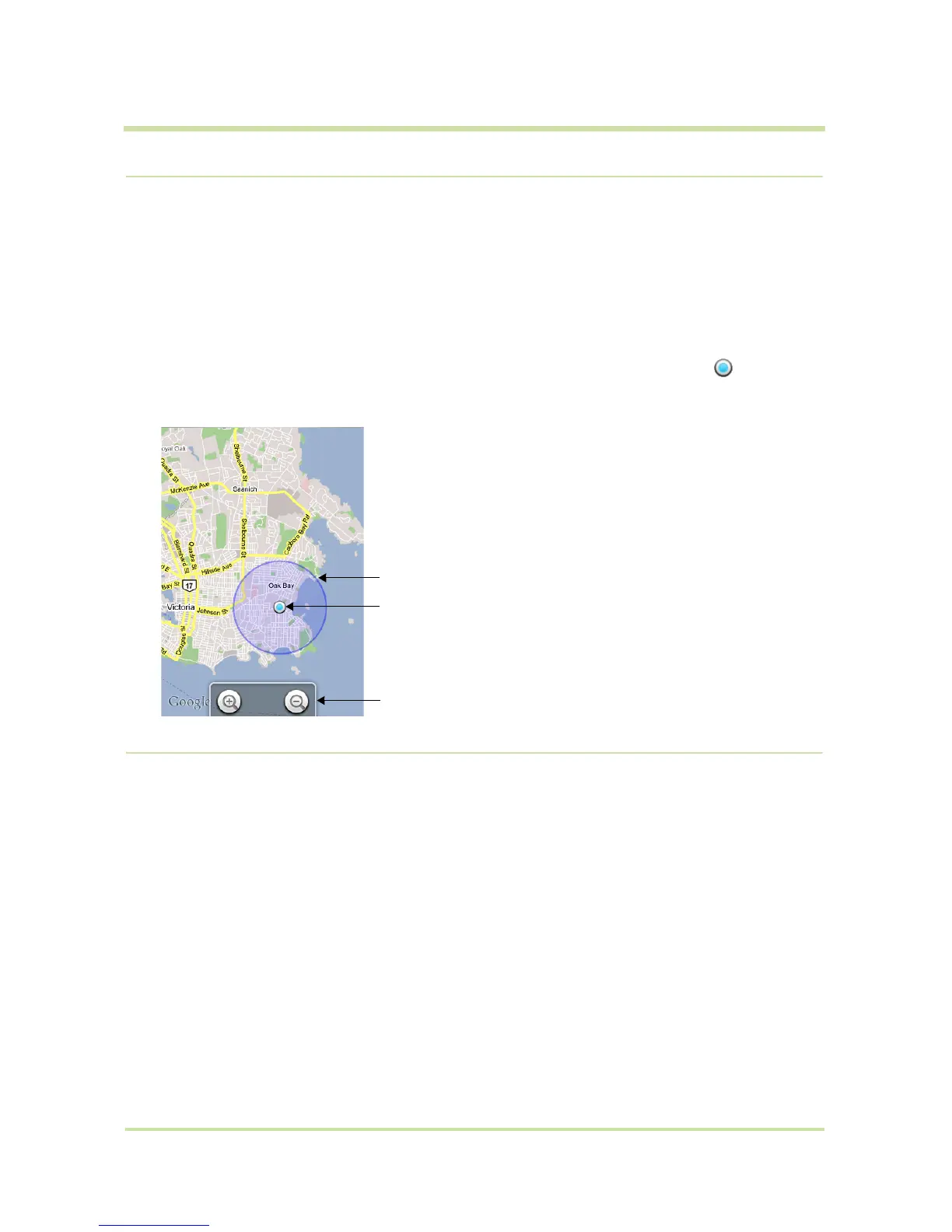
3 Your location is shown on the map as a blue blinking dot surrounded by a circle . The
“accuracy circle” will typically have a larger radius when using wireless networks rather than
GPS to determine your location. (Read more in “My Location” on page 29.)
Find any location
1 From the main Map screen, press MENU and select Search.
2 You can use a variety of search criteria in the search box:
• Type an address.
• Type a type of business and city (e.g., sushi seattle).
• Select an address you’ve visited before in Maps from the drop-down menu (stored in
History).
You are here.
Touch the screen to open zoom controls.
Accuracy circle. (Your actual location is somewhere in this circle.)



 To Next Page