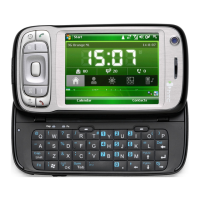
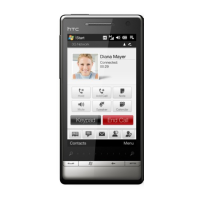
This document is a Quick Start Guide for an HTC Touch2 phone, model number PB74100. It provides essential information for setting up and using the device, along with safety precautions and troubleshooting tips.
Function Description
The HTC Touch2 is a mobile phone designed for communication, internet browsing, and various applications. It supports calls, text messages (SMS), multimedia messages (MMS), email, and internet access via data connection (3G/GPRS/EDGE) or Wi-Fi. The phone features a touch screen for interaction and an onscreen keyboard for text and number input. It also includes functions like a digital clock, weather display, and calendar. The device can synchronize contacts, calendar appointments, photos, and other information with a computer or Microsoft My Phone service.
Important Technical Specifications
- Model Number: PB74100
- Battery Pack Model: TOPA160 (Li-ion battery)
- Power Source: Certified Class 2 Limited Power Source, rated 5 Volts DC, maximum 1 Amp power supply unit.
- Connectivity: USB sync cable, 3.5 mm stereo headset jack, Wi-Fi, 3G/GPRS/EDGE.
- Antenna: Internal antenna.
- Sound Pressure Level (France): Complies with NF EN 50332-1:2000 and/or NF EN 50332-2:2003 standards.
- Earphone Model (France): HTC HS G235.
Usage Features
- Controls:
- Front Panel: Notification LED, Earpiece, Touch Screen, TALK/SEND button, HOME button, START button, BACK button, END/POWER button, Zoom Bar.
- Left Panel: VOLUME UP and DOWN buttons.
- Top Panel: Audio jack (3.5mm).
- Bottom Panel: Sync connector (for charging and computer connection).
- Initial Setup:
- Battery: The battery is not fully charged out of the box. It should be charged before first use.
- SIM Card: Insert the SIM card with gold contacts facing down and the cut-off corner facing out.
- microSD Card: Insert the microSD card with gold contacts facing down until it clicks into place.
- First Turn On: Press the END/POWER button. A tutorial for the onscreen keyboard will be presented. Users will be guided to connect to a Wi-Fi network and set up email accounts. Google's location service can be enabled for applications like Weather.
- Home Screen: Provides finger-touch access to contacts, text messages, email, Internet, and more. Displays a digital clock, current weather, and upcoming appointments. Tabs on the Home screen can be navigated by sliding a finger or tapping. The HOME button returns to the Home tab from any other screen.
- Lock Screen: Prevents accidental button or touch screen presses. Appears when the phone is locked (display off or END/POWER button pressed). Slide the Lock button left or right to unlock.
- Contacts:
- Creating New Contacts: Slide to the People tab, tap All People, then New, select Outlook Contact, and enter information. Photos and ringtones can be assigned.
- Synchronizing Outlook Contacts: Sync with Outlook contacts on a computer or Exchange Server using ActiveSync or Windows Mobile Device Center.
- Microsoft® My Phone: Syncs information with a password-protected website for backup and restoration of contacts, calendar, photos, etc.
- Calls: Press the TALK/SEND button to open the dialer. Smart Dial allows quick calls by entering numbers or contact names. Calls can also be made directly from received text or email messages.
- Onscreen Keyboard: Appears when text or numbers need to be entered. Three layouts are available: Full QWERTY, Compact QWERTY, and Phone Keypad. Features word prediction and auto-correction.
- Internet Access:
- Data Connection: Automatically connects using 3G/GPRS/EDGE for internet-accessing functions. Can be switched ON/OFF via Settings > Communications > Data Connection slider to save battery.
- Wi-Fi: Connect via Settings > Communications > Wi-Fi. Tap the desired network, enter security key if secured.
- Browsing: Uses Opera Mobile™. Displays in full-screen or normal viewing modes. The Zoom bar allows zooming in/out by sliding a finger across it.
- Messaging:
- Text Messages (SMS): Send via Messages tab. Supports up to 160 characters per message (billed as one).
- Multimedia Messages (MMS): Send photos, videos, or audio clips via Messages tab > All Messages > Menu > New > MMS > Custom.
- Email:
- Setup: Slide to Mail tab, tap New Account (or Menu > New Account), select provider (or Other), enter email/password, name, and account display name. Configure send/receive frequency.
- Send: Slide to Mail tab, tap an email account, tap the new email icon, select recipient, enter subject/message, and tap Send.
- Sync With Computer:
- ActiveSync (Windows XP): Connect phone, Synchronization Setup Wizard starts. Clear "Synchronize directly with a server running Microsoft Exchange" checkbox. Select data types to sync. Allow/disallow wireless data connections.
- Windows Mobile Device Center (Windows Vista): Connect phone, WMDC configures itself. Accept license agreement. Click "Set up your device." Select items to sync. Enter phone name.
Maintenance Features
- Resetting the Phone:
- Soft Reset: Clears active program memory and shuts down programs. Useful for slow performance or misbehaving programs. Lift back cover, remove stylus, use stylus tip to press RESET button (located at bottom of stylus compartment). Phone restarts to Home screen.
- Clear Storage/Hard Reset: Deletes all data and resets to factory defaults. Requires backing up data first. Instructions are in the User Manual PDF.
- Troubleshooting Tips:
- Phone hangs/slow: Restart phone, free up memory, uninstall plug-ins. Perform Clear Storage (after backup) or Hard Reset.
- Decreasing standby time: Varies with usage. Wireless functions (Bluetooth, Wi-Fi), long calls, camera use, and internet connection consume battery faster.
- Battery replacement: Batteries are consumable; replace every 8-12 months.
- Phone heats up: Normal during charging or prolonged use (long calls, video recording).
- Cleaning: Unplug from outlet. Do not use liquid or aerosol cleaners. Use a damp cloth for cleaning, but NEVER use water on the LCD screen.
Safety and Other Notices
- Please Read Before Proceeding: Battery is not fully charged. Do not remove battery while charging. Warranty is invalidated if the device is disassembled.
- Privacy Restrictions: Be aware of local laws regarding recording telephone conversations.
- Limitation of Damages: HTC and its providers are not liable for indirect, special, consequential, incidental, or punitive damages.
- Important Reminder: Some applications require constant internet connection. A flat-rate data plan is strongly recommended to avoid significant data charges.
- Electrical Safety: Use only designated battery or power supply unit. Improper grounding can cause electric shock. Ensure computer is properly grounded when connecting via USB.
- Power Supply Unit: Operate only from the indicated power source.
- Battery Packs: Contains Li-ion battery. Risk of fire/burns if handled improperly. Do not disassemble, crush, puncture, short external contacts, dispose in fire/water, or expose to temperatures >60°C (140°F). Replace only with specified batteries. Recycle used batteries.
- Take Extra Precautions: Keep battery/device dry, away from metal objects. Connect only to USB-IF compliant products. Do not use damaged/deformed/discolored/rusted/overheated/foul-smelling batteries. Keep batteries out of reach of children. If battery leaks, avoid contact with skin/clothing/eyes; seek medical advice. Keep leaking battery away from fire.
- Direct Sunlight: Avoid excessive moisture and extreme temperatures. Do not leave in vehicles or places >60°C (140°F).
- Prevention of Hearing Loss: Permanent hearing loss can occur if earphones/headphones are used at high volume for prolonged periods.
- Safety in Aircraft: Turn off phone function (switch to Airplane Mode) on board aircraft due to interference with navigation/communication systems.
- Environment Restrictions: Do not use in gas stations, fuel depots, chemical plants, blasting operations, or potentially explosive atmospheres. Sparks can cause explosion/fire.
- Explosive Atmospheres: Turn off device and obey signs/instructions in areas with potentially explosive atmospheres or flammable materials.
- Road Safety: Vehicle drivers in motion should not use handheld telephony devices, except for emergencies. Hands-free devices are allowed in some countries.
- RF Exposure: Avoid using near metal structures or strong electromagnetic sources (microwave ovens, speakers, TV, radio). Use only original manufacturer-approved accessories. Non-original accessories may violate RF exposure guidelines.
- Medical Equipment: May cause medical equipment to malfunction. Forbidden in most hospitals/clinics. Consult medical device manufacturer if using other personal medical devices. Turn off phone in healthcare facilities.
- Hearing Aids: Digital wireless phones may interfere with some hearing aids. Consult service provider if interference occurs.
- Nonionizing Radiation: Internal antenna. Operate in normal-use position. Keep human body away from antenna during operation. Use only supplied integral antenna.
- General Precautions: Avoid excessive pressure on screen. Device may warm up during prolonged use. Heed service markings; do not service yourself. Unplug and refer to authorized technician if liquid spilled, object fallen, exposed to rain/water, or dropped/damaged. Avoid hot/wet areas. Allow device to acclimate after dramatic temperature changes. Never push objects into cabinet slots/openings. Use only approved mounting accessories and equipment. Adjust volume before using headphones.
- WEEE Notice: Product must not be disposed of with household waste. Relocate to specified collection points for recycling.
- RoHS Compliance: Complies with Directive 2002/95/EC on restriction of hazardous substances.

 Need help?
 General

 To Next Page