Tweeting on the go using Peep
Peep is a Twitter client that lets you enjoy “tweeting” on HTC Wildfire S. You can post
and read tweets, send and receive direct messages, and search for new Twitter users
to follow using Peep.
If you haven't signed in to Twitter for HTC Sense, you'll be asked to do so when you
open Peep.
From the Home screen, tap > Peep.
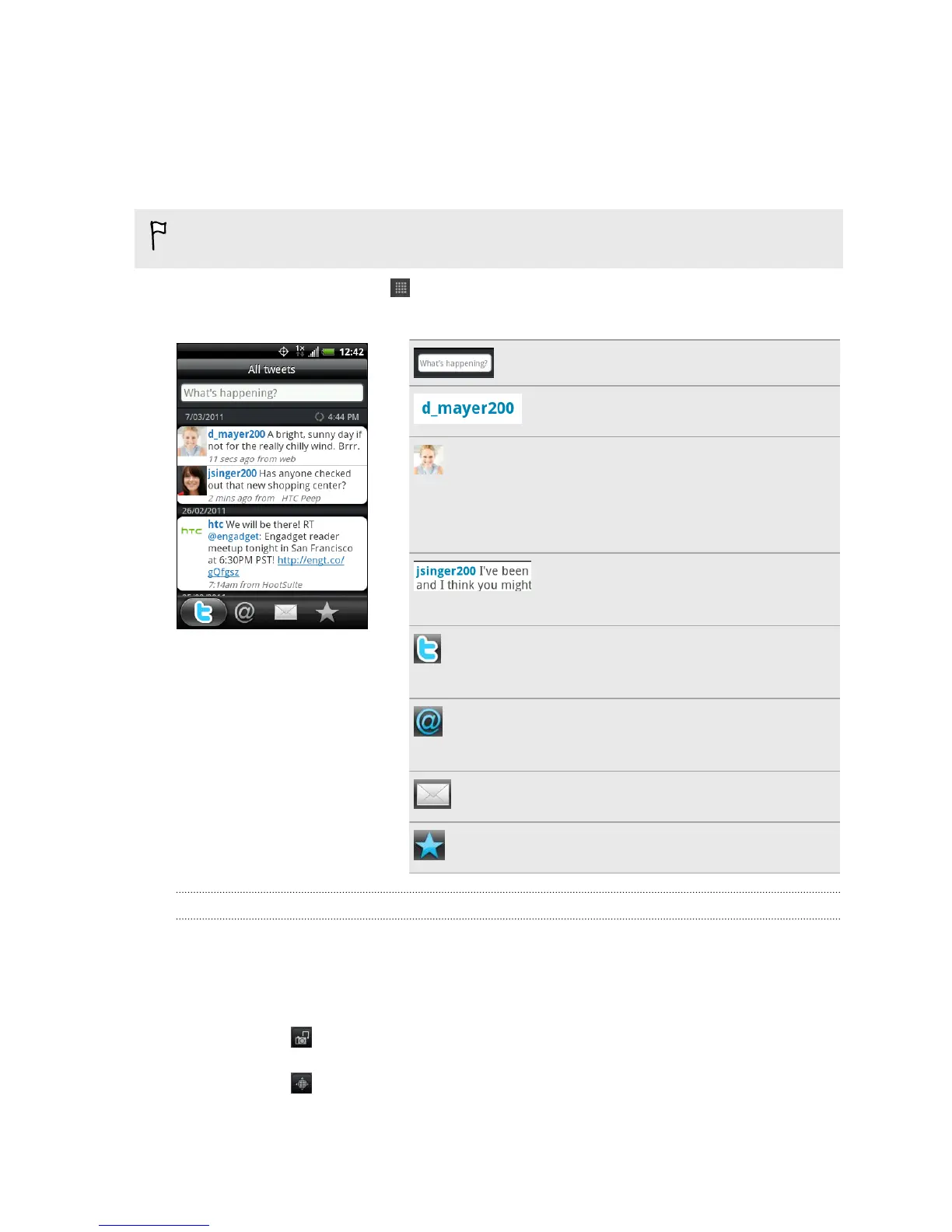
Peep opens in the All tweets tab.
Tap to compose and send a tweet.
Tap a person’s name to check profile
details and all of his or her tweets.
If you have linked the contact in
People, tap the photo or icon to open
a menu where you can quickly choose
how to communicate with the
contact.
Press and hold a tweet to open an
options menu to reply, send a direct
message, retweet, and more.
View all the tweets from people you
follow and tweets that you have
posted.
View all tweets that mention your
username using the “@[your
username]” convention.
View all private/direct messages that
you have received or sent.
View tweets that you have marked as
favorites.
Sending a tweet
1. On the All tweets tab, tap the text box that says What's happening.
2. Type your tweet.
3. Add a picture or location to your tweet.
§ Tap to post a picture from Gallery or Camera to your default photo
hosting site and add the link to the picture in your tweet.
§ Tap to include your current location info in your tweet.
4. Tap Post.
67 Social



 To Next Page