Commenting on photos in your social networks
Add comments to your uploaded photos as well as your friends’ photos.
1. Do one of the following:
§ While browsing online albums, press and hold a photo and then tap Add
comment.
§ While viewing a photo in full screen, tap anywhere on the screen, and then
tap .
2. Tap the box that says “Write a comment.”
3. Enter your text, and then tap Comment.
Music
Listening to music
Enjoy listening to songs and music on HTC Wildfire S using the Music app.
You need to copy music files to your storage card first to use the Music app to play
music.
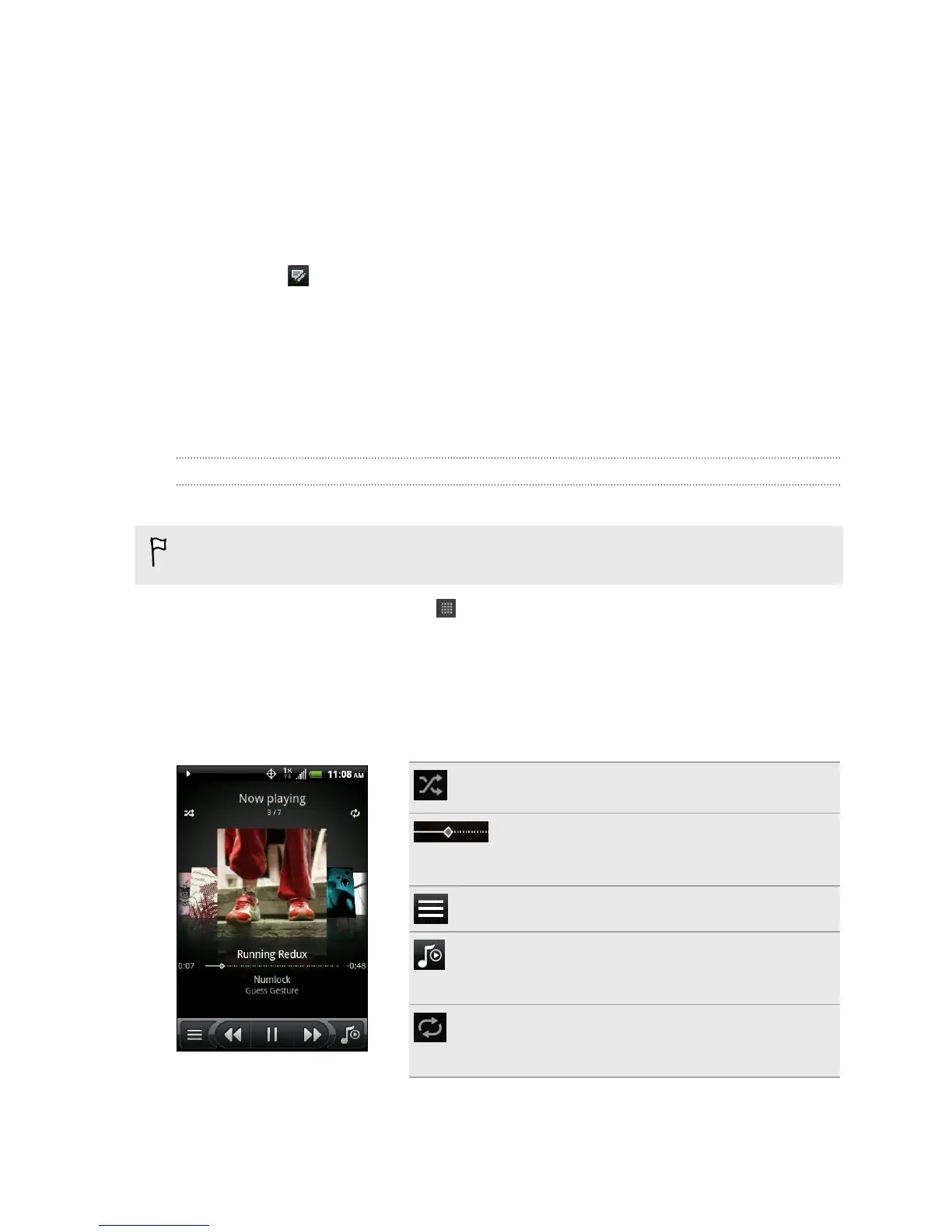
1. From the Home screen, tap > Music. The Music app opens in the Now playing
screen.
2. Swipe your finger left or right across the screen to go to the next or previous
music album.
3. Tap the onscreen icons to control music playback, select a song to play, repeat
songs, and more.
Turn shuffle on or off. (Shuffle is off when
button is gray.)
Press and drag your finger across the
progress bar to jump to any part of the
song.
Go to the library.
Switch between showing the Now playing
list and Now playing screen. You can
rearrange songs in the Now playing list.
Cycle through the repeat modes: repeat all
songs, repeat current song, and don’t
repeat.
87 Photos, videos, and music



 To Next Page