This document is a user guide for a Huawei computer, providing detailed information on its features, usage, maintenance, and safety.
Function Description
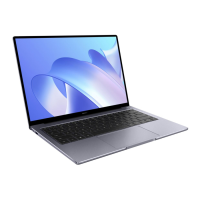
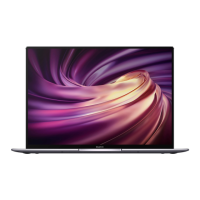
The Huawei computer is a versatile device designed for various tasks, from basic computing to more demanding applications. It features a built-in camera for photos and video chats, with a camera indicator that lights up white when active. The display serves as the primary interface for the computer desktop. A fingerprint power button allows for secure power-on and unlocking using an enrolled fingerprint. The device includes speakers for audio output and a microphone for video meetings, voice calls, and audio recordings.
The computer is equipped with multiple ports for connectivity and expansion. It has a USB-C (USB 3.2 Gen 1) port for charging, connecting external displays via a docking station, and transferring data to mobile phones, USB drives, and other external devices. A Thunderbolt™ 4 port offers faster data transfers to Thunderbolt external storage devices, also supporting charging and external displays via a docking station. An HDMI port provides high-definition multimedia connectivity to external displays. A headset jack is available for connecting a headset. Additionally, a USB-A (USB 3.2 Gen 1) port allows connection to mobile phones, USB drives, and other external devices for data transfer.
The keyboard features shortcut keys (hotkeys) for common actions such as adjusting screen brightness, controlling keyboard backlight (if available), muting/unmuting audio, adjusting volume, enabling/disabling the microphone, switching projection modes, and enabling/disabling Wi-Fi. It also has a dedicated key to open HUAWEI PC Manager. The F keys can be switched between shortcut and function key modes, with the Fn key and an indicator light to show the current mode.
The touchpad offers mouse-like functionality with various gestures:
- Tap with one finger: Left-click.
- Tap twice with one finger: Double-click.
- Slide with one finger: Move the cursor.
- Press the left touchpad button: Left-click.
- Press the right touchpad button: Right-click.
- Tap with two fingers: Right-click.
- Slide up or down with two fingers: Scroll up or down.
- Pinch in or stretch out with two fingers: Zoom in or out.
- Tap with three fingers: Open search.
- Slide up with three fingers: See all open windows.
- Slide down with three fingers: Show the desktop.
- Slide left or right with three fingers: Switch between open windows.
- Tap with four fingers: Open notification center and calendar.
The computer supports an F10 factory reset feature (availability may vary by region) to restore the device to its initial state. It also includes an Eye Comfort mode, which can be enabled to reduce eye strain during prolonged use by giving the screen a slightly yellow hue.
Important Technical Specifications
- Battery: Non-removable rechargeable battery.
- Operating Temperatures: Ideal operating temperatures are 0 °C to 35 °C.
- Storage Temperatures: Ideal storage temperatures are -10 °C to +45 °C.
- USB-C Port: USB 3.2 Gen 1.
- Thunderbolt™ Port: Thunderbolt™ 4.
- USB-A Port: USB 3.2 Gen 1.
- MateDock 3 microSD slot: Supports 4K data transfers to Class 10 microSD cards.
- Charger: Must meet Annex Q of IEC/EN 62368-1 and be tested/approved to national/local standards.
- Bluetooth Mouse Battery: Requires one AA battery.
Usage Features
Powering On and Off:
- First-time power-on: Connect the power adapter; the computer will power on automatically.
- Subsequent power-on/wake: Press the Power button until the screen or keyboard lights up.
- Sleep, shut down, restart: Click the Windows icon > Power icon to select the desired action.
- Force shutdown: Press and hold the power button for approximately 10 seconds (use with caution as unsaved data may be lost).
Charging:
- The computer displays a low battery prompt.
- Connect the power adapter and charging cable.
- Charging is faster when the computer is powered off or in Sleep mode.
- The charging indicator blinks white when charging and stays steady white when fully charged.
- The battery icon in the taskbar indicates charging status and estimated time/percentage.
- For low power consumption mode, charge the computer when the battery level falls below 90%. After full charge, power off and charge for one more hour without unplugging.
Touchpad Settings:
- Modify touchpad settings by going to Settings > Bluetooth & devices > Touchpad.
- Options include enabling/disabling the touchpad, automatically enabling/disabling when a mouse is connected, changing scroll direction, and configuring gestures.
F10 Factory Reset:
- Connect the computer to the power adapter.
- Press the Power button, then repeatedly press F10 or hold F10 to access the restore screen.
- Follow on-screen instructions. (Note: All data on the C drive will be deleted; back up data first).
Eye Comfort Mode:
- Right-click an empty space on the desktop, then click the Eye Comfort icon and enable it.
- The screen will display a slightly yellow hue.
Accessories and Extensions (MateDock - optional):
- MateDock 2: Connects to the computer's USB-C port. Provides USB-A, HDMI, VGA, and USB-C ports for connecting external devices like projectors, TVs, USB drives, and network adapters.
- MateDock 3: Connects to the computer's USB-C port. Provides microSD, USB-A (x2), USB-C charging, VGA, HDMI, and Ethernet ports. The USB-C charging port does not support data transfer.
Connecting to External Displays (TV, Monitor, Projector):
- Use a docking station (MateDock 2 or 3) and an HDMI or VGA cable.
- Connect the computer to the docking station, then the docking station to the display.
- Press F8 or Windows key + P to open the projection screen and select a projection mode:
- Duplicate: Both screens display the desktop.
- Extend: Desktop is extended across screens, allowing item movement.
- Second screen only: External display shows desktop, computer screen is blank.
Connecting to USB Devices (Mouse, Printer, etc.):
- Connect the USB cable to a USB-A port on the docking station.
- Connect the external device to a power supply (if needed) and power it on.
- The computer will automatically install necessary software for first-time connections.
- View installed USB devices by clicking the File Explorer icon on the taskbar.
Bluetooth Mouse (optional):
- Battery Installation: Remove the battery cover, insert one AA battery matching polarity, and close the cover.
- Pairing:
- Toggle the Bluetooth pairing switch at the bottom of the mouse for ~3 seconds until the indicator blinks.
- On the computer, go to Settings > Bluetooth & other devices.
- Click "Add Bluetooth or other device" and select "Bluetooth".
- Select "Huawei Mouse" from the detected devices.
- LED Indicator: Blinks red when the battery is low and needs replacement.
Highlighted Features:
- Access additional features like Huawei Share by opening HUAWEI PC Manager and clicking "Tips".
Maintenance Features
General Maintenance:
- Keep the device and accessories dry. Do not use external heat sources to dry them.
- Avoid extreme heat or cold, which can cause malfunctions, fire, or explosion.
- Prevent collisions to avoid malfunctions, overheating, fire, or explosion.
- Before cleaning, stop using the device, close applications, and disconnect all cables.
- Use a clean, soft, and dry cloth for cleaning. Avoid chemical detergents, powders, or other chemical agents (alcohol, benzene).
- Do not place magnetic stripe cards near the device for prolonged periods to prevent damage.
- Do not dismantle or remanufacture the device or accessories, as this voids the warranty and releases the manufacturer from liability. Contact an authorized service center for damage or repair.
- If the screen is broken, stop using the device immediately, do not touch broken parts, and contact an authorized service center.
Battery Maintenance:
- Do not connect battery poles with conductors (keys, jewelry, etc.) to prevent short-circuits, injuries, or burns.
- Keep the battery away from excessive heat and direct sunlight. Avoid placing it on or in heating devices (microwave ovens, stoves, radiators), as batteries may explode if overheated.
- Do not modify, remanufacture, insert foreign objects, or immerse the battery in liquids, as this may lead to fire, explosion, or other hazards.
- If the battery leaks, avoid direct contact with skin or eyes. Flush with water and consult a doctor if contact occurs.
- If the battery deforms, changes color, or overheats during charging or storage, stop using the device and remove the battery immediately to prevent leakage, fire, or explosion.
- Do not dispose of batteries in fire.
- Dispose of used batteries according to local regulations.
- Do not allow children or pets to bite or suck the battery to prevent damage or explosion.
- Do not smash, pierce, or expose the battery to high external pressure to prevent short circuits or overheating.
- Do not drop the device or battery, especially on hard surfaces, as it may be damaged.
- If standby time shortens significantly, replace the battery.
- The device contains a built-in battery; do not attempt to replace it yourself. Contact an authorized service center for replacement.
Charger Safety:
- Socket-outlets for pluggable devices should be easily accessible.
- Unplug the charger from electrical outlets and the device when not in use.
- Do not drop or impact the charger.
- Stop using the charger immediately if the power cable is damaged (exposed or broken) or the plug loosens, to prevent electric shocks, short circuits, or fire.
- Do not touch the power cord or charger with wet hands to prevent short circuits, malfunctions, or electric shocks.
- Ensure the power adapter meets safety requirements (Annex Q of IEC/EN 62368-1) and is approved to national/local standards.
- The device's rated input current matches the maximum output current of the adapter.
- Connect the device only to products with the USB-IF logo or USB-IF compliance program completion.
Child Safety:
- Comply with all child safety precautions.
- Detachable parts may present a choking hazard; keep away from children.
- The device and accessories are not intended for use by children and should only be used with adult supervision.
Accessories:
- Use only approved or compatible power adapters, chargers, or batteries to prevent fire, explosion, or other hazards.
- Choose only accessories approved by the device manufacturer for this model. Using unapproved accessories may void the warranty, violate local regulations, and be dangerous. Contact your retailer for information on approved accessories.
Disposal and Recycling:
- Products and batteries should be taken to separate waste collection points at the end of their lifespan, as designated by local authorities. This ensures proper recycling and treatment, conserving materials and protecting human health and the environment.
- For more information, contact local authorities, retailers, or household waste disposal services, or visit https://consumer.huawei.com/en/.

 Need help?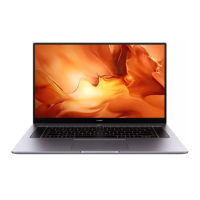


 To Next Page
 General