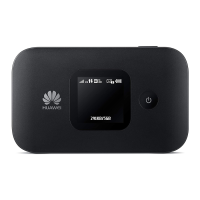
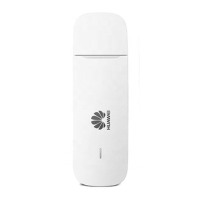
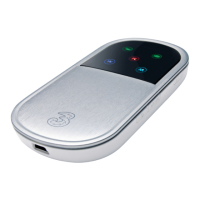
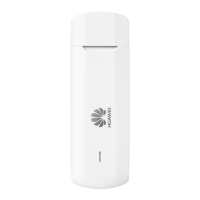
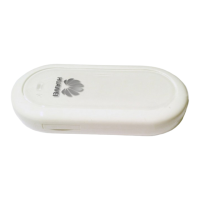
3’s Mobile Broadband USB modem gives you true wireless broadband on the go.
Surf the web, download les, manage your email and more — you’ll be amazed.
3’s USB modem supports HSDPA, meaning you will get faster data speeds on 3’s
HSDPA upgraded network. And because it also operates on GPRS networks, you
can use your USB modem overseas.
Welcome to the
3 Mobile Broadband
USB modem.
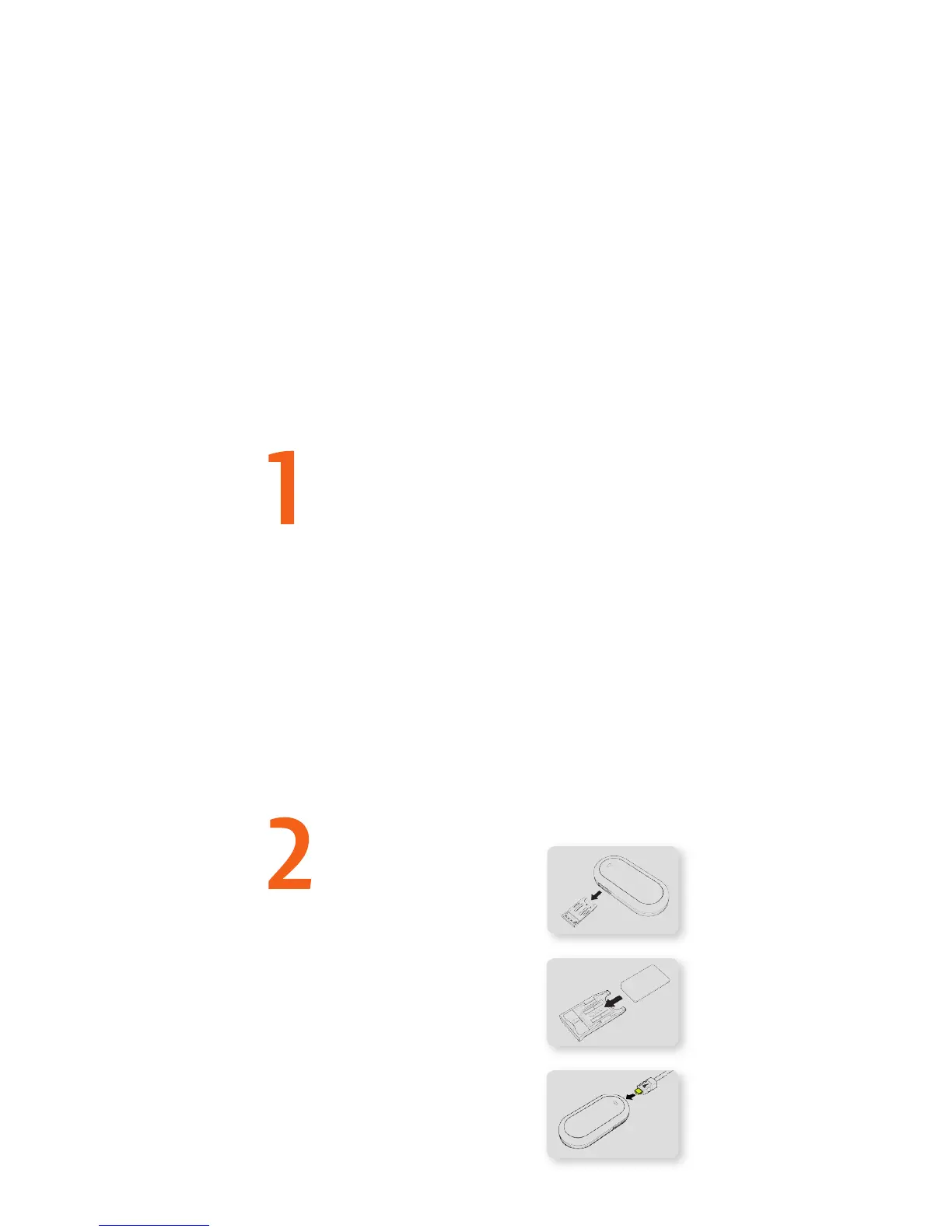
> Take out the USIM card holder from
the USB modem. The holder is
located on the side of the modem
as shown.
Prepare the USB modem for use.
> Insert the USIM fully into the holder
then place the holder back into the
USB modem.
> Insert the small plug end of the data
cable into the USB modem.
3 easy steps.
Installation.
IMPORTANT: THE USB MODEM MUST NOT BE CONNECTED TO YOUR
MAC WHILE INSTALLING THE DRIVERS.
Install the USB modem software.
The Mac drivers are on the CD supplied with your USB modem. There
are two versions of the driver. You should use the correct driver for
your Mac’s processor.
> For Mac users with a Power PC processor please use
Mobile _ Connect _ Drv _ App _ power.pkg
For Mac users with an Intel processor please use
Mobile _ Connect _ Drv _ App _ Intel.pkg
> Double click the desired le.
> Installation wizard will pop up and guide you through the rest of
the installation process.
> Once the installation is complete, use the supplied USB cable to
connect the USB modem to your Mac.




 To Next Page